


List-view Colors for SuiteCRM is designed to add color to the rows and text on a list for each row. The highlighting is done based on conditions/filters that you define. Great for identifying records that require attention based on specific conditions.
User Guide SuiteCRM 8.x
Steps For Using Listview Color Features:
Step 1:
To open the Administration Page,Click on Admin tab, as shown in the below screenshot.
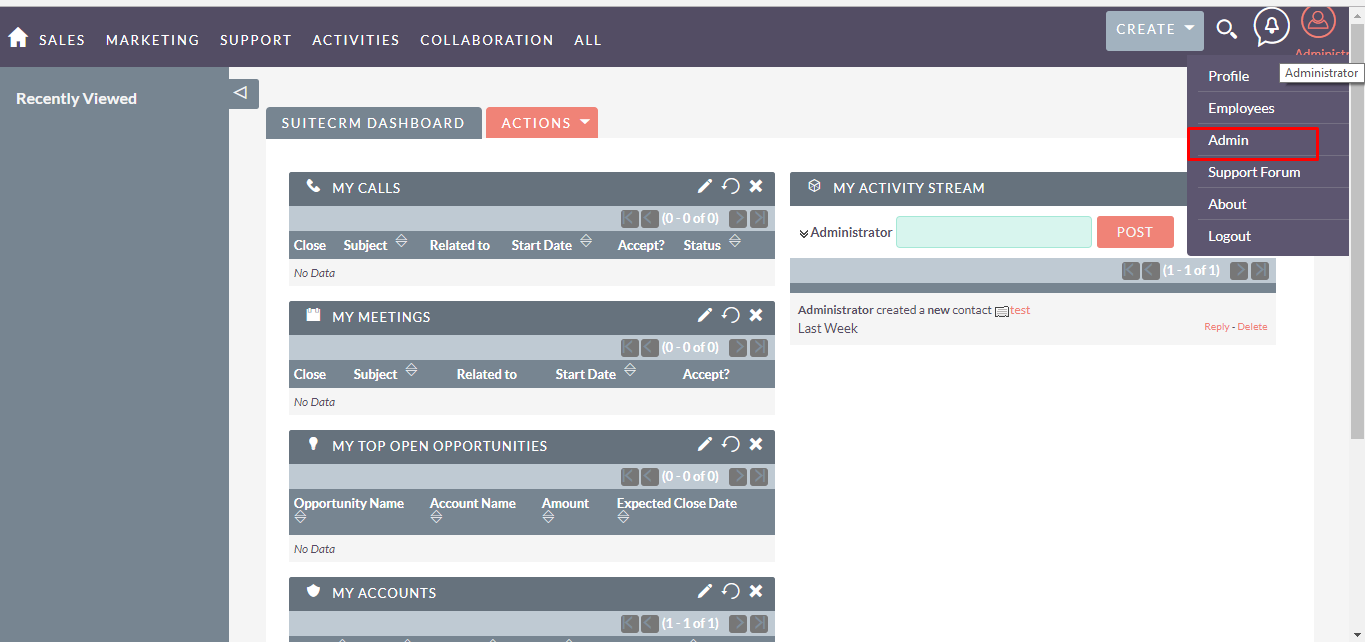
Step 2:
Open Administration page, Click on Listview Color from the Other section.
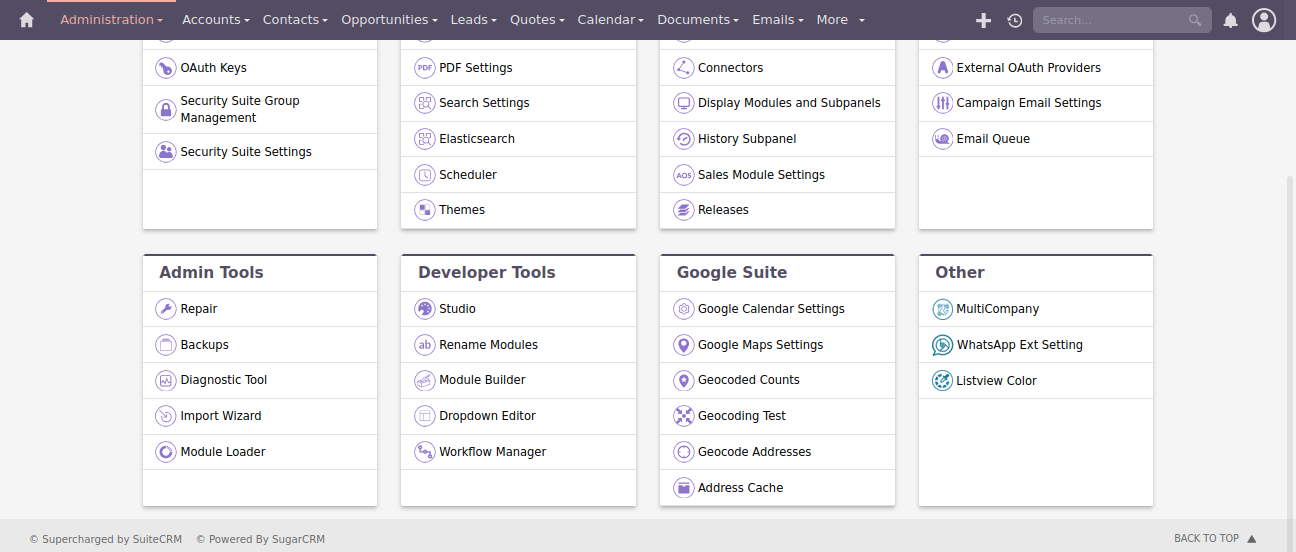
Step 3:
In Listview Color page, Click on CREATE link.(Note: If there is no record, than it will show link “You currently have no records saved. Create one now.” as shown in the below screenshot.)
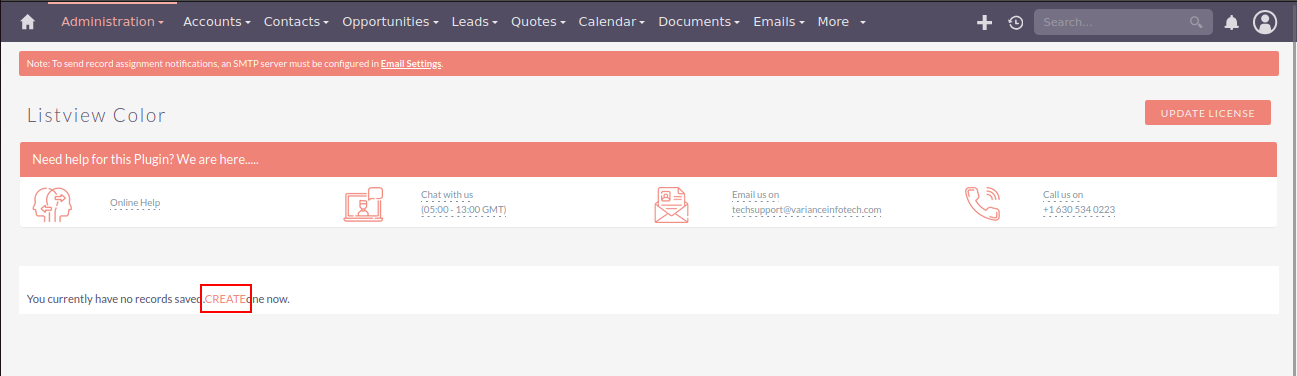
Color Details(Enter all the values and click on NEXT button to go next step)

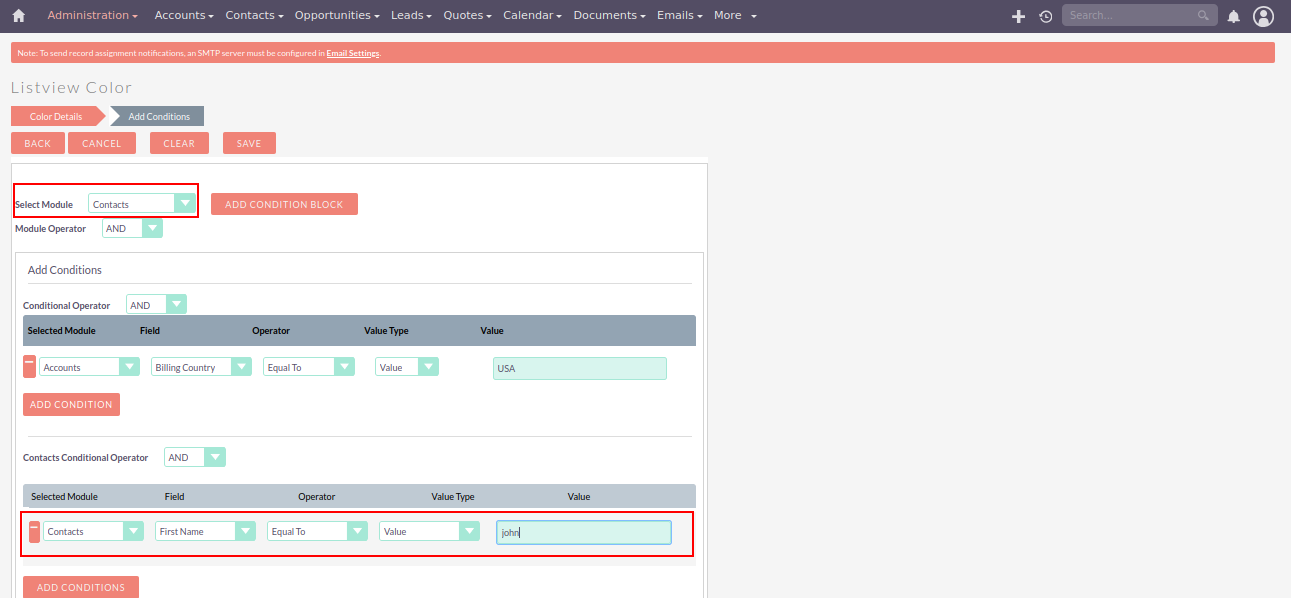
Add Conditions(Click on SAVE button to save the records and Click on BACK button to go previous step) To add condition click on ADD CONDITION button.
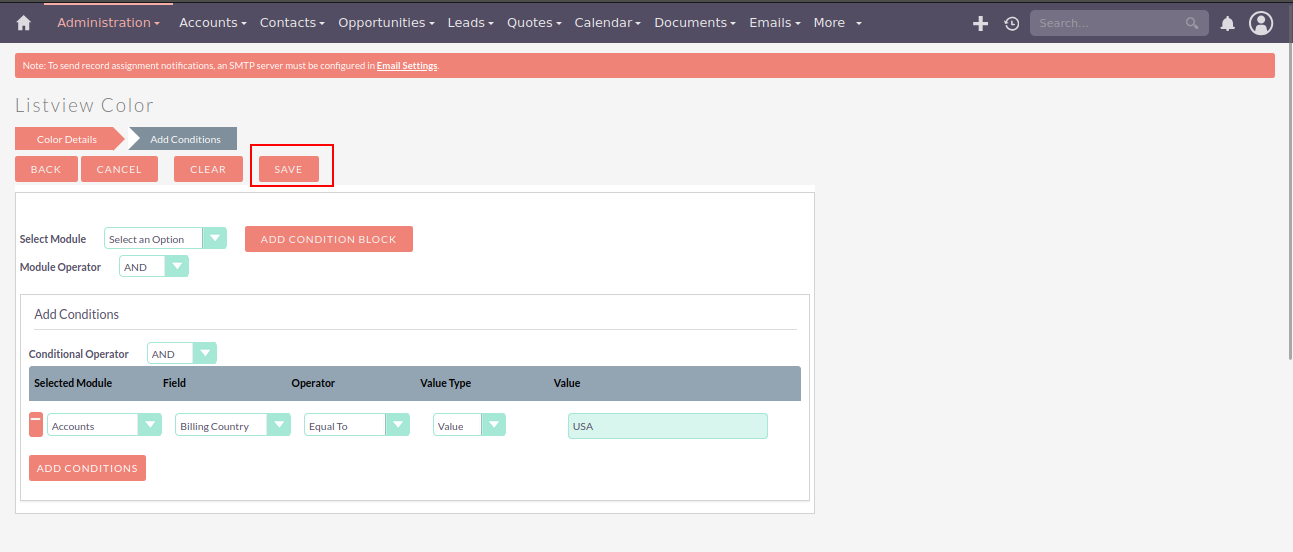
Step 4:
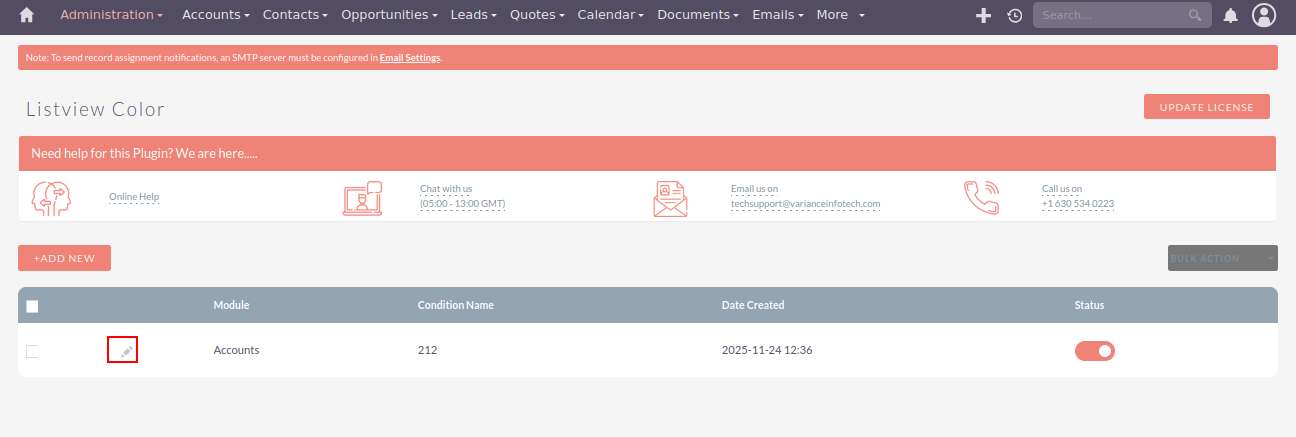
To Update record, click on pencil icon as shown in the below screenshot.
Step 5:
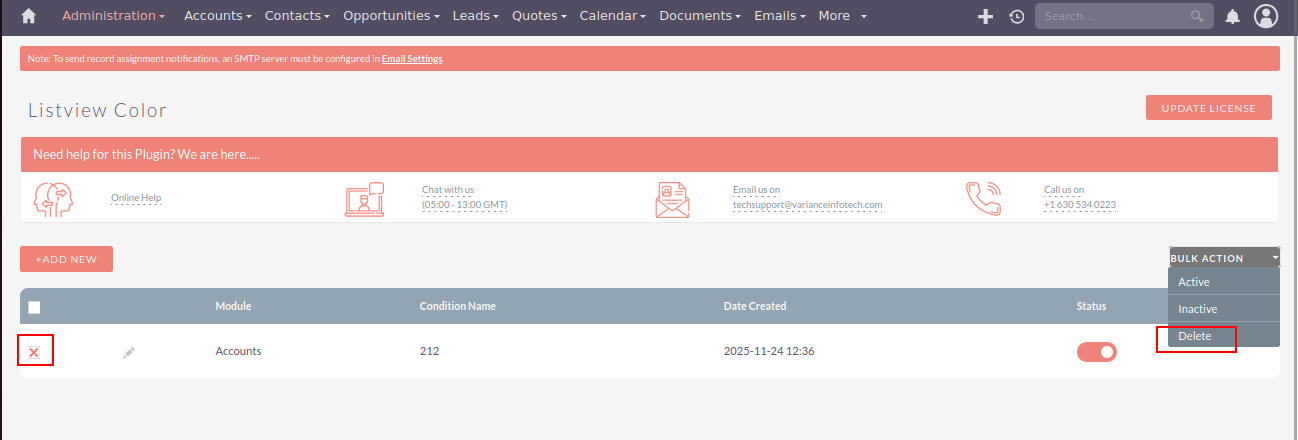
To delete one or multiple Listview Color records, you can select records using the checkbox option on the left hand side of the view. Click on DELETE from BULK ACTION to delete record(s).

Step 6:
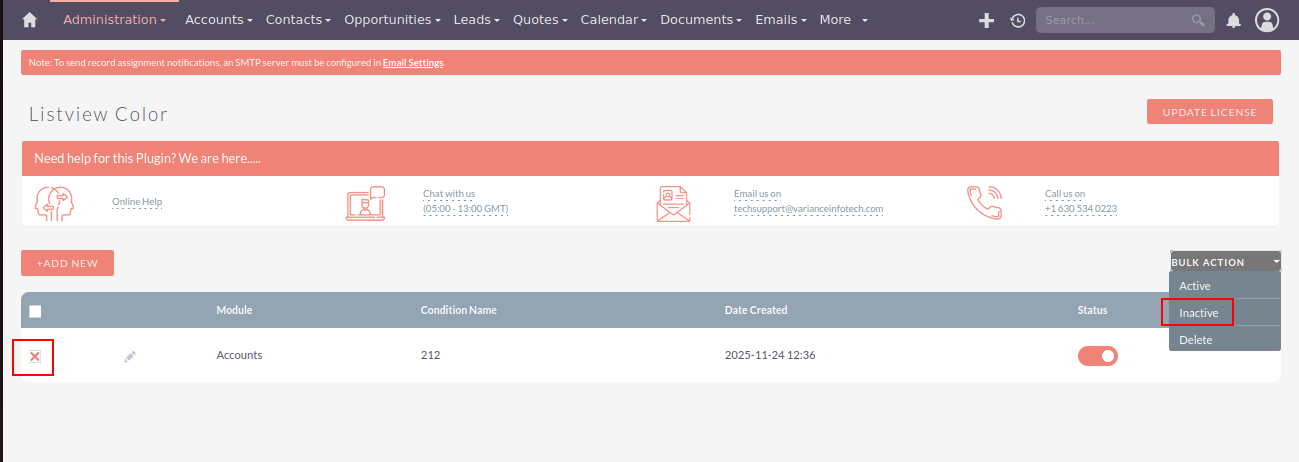
To inactive one or multiple Listview Color records, you can select records using the checkbox option on the left hand side of the view. Click on Inactive from BULK ACTION to deactivate record(s).
Step 7:
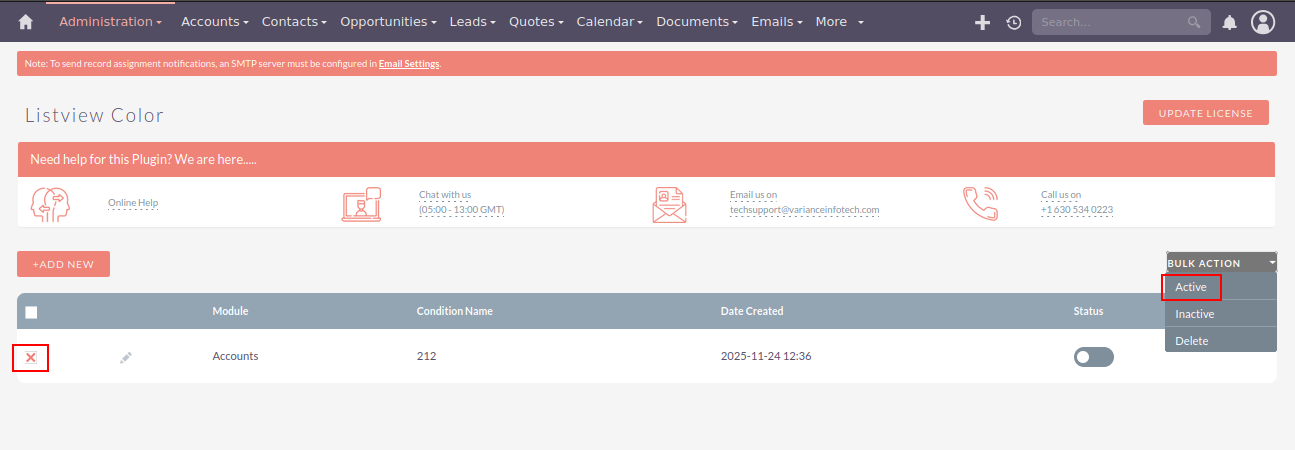
To active one or multiple Listview Color records, you can select records using the checkbox option on the left hand side of the view. Click on active from BULK ACTION to activate record(s).
Step 8:
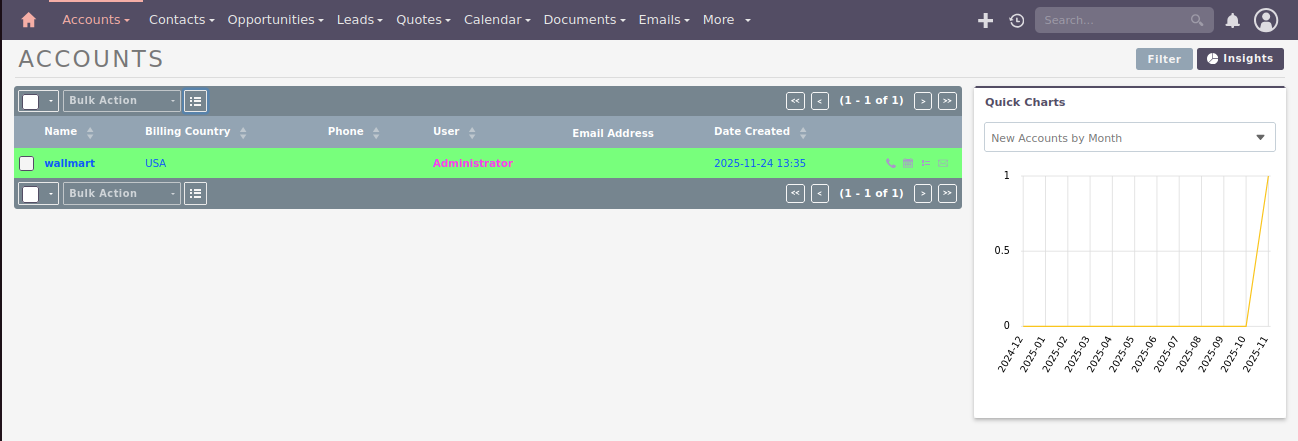
As per the mentioned conditions in the configuration, when Billing Country is USA then Background color, text color and also relate field text color has changed in the list view of the selected module and selected color in the configuration.
Step 9:
In the Add Conditions section, you can also select a subpanel module. When conditions are defined for that subpanel, the system will apply the corresponding List View Color settings to the records displayed in the subpanel list view.

 Saving Comment...
 direccion