
Timer Tracker helps users manage time spent on each activity within SuiteCRM. It integrates seamlessly with Billing (both Invoice & Quotes) to make generating billing based on hours accrued for customers a breeze.
Installation Guide SuiteCRM 8.x
Steps For Installing Timekeeping Plugin
Notes: Before installing Timekeeping Plugin, please take your SuiteCRM and Database backup first.
Step 1
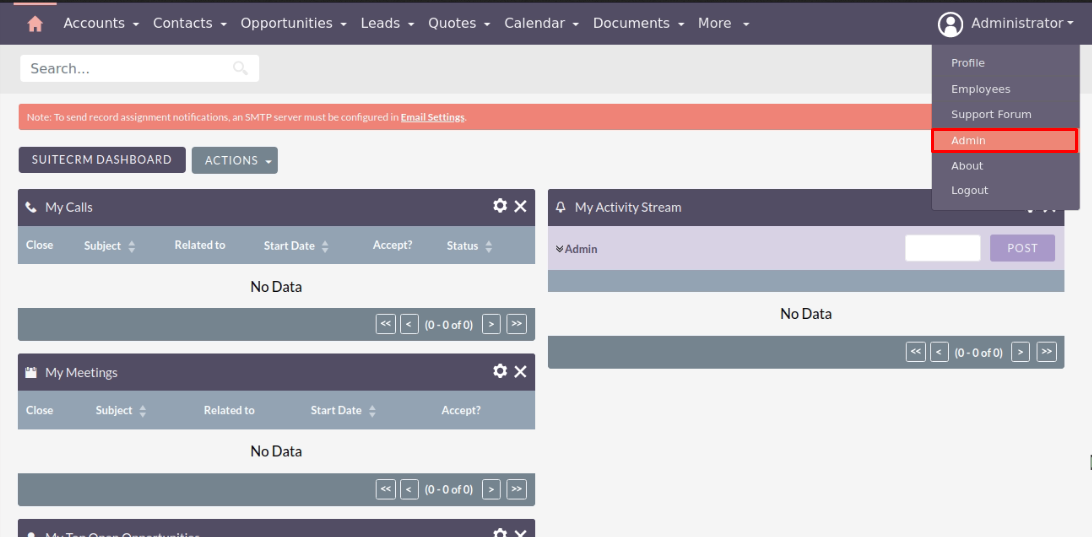
To open the Administration Page, Click on the Admin tab, as shown in below screenshot.
Step 2
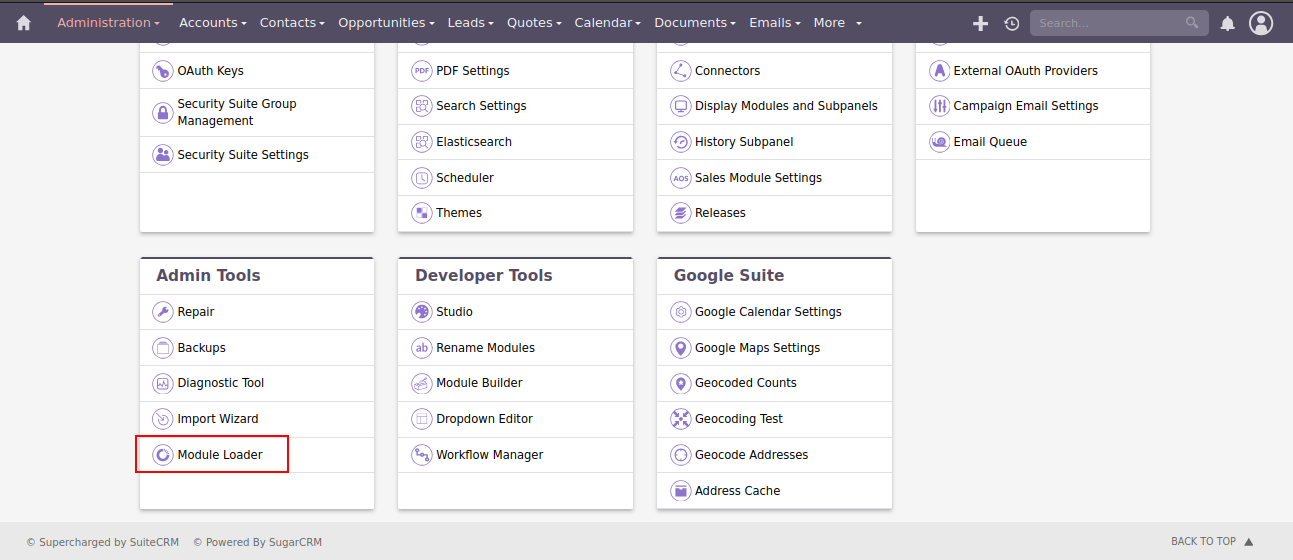
To install Timekeeping plugin, Click on Module Loader from the Developer Tools section.
Step 3
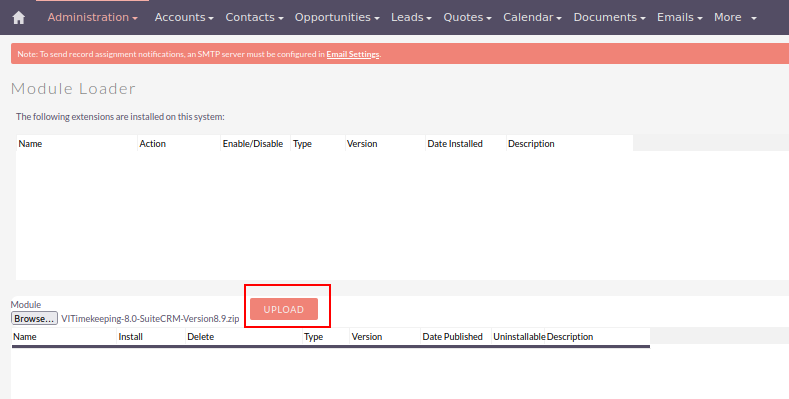
In Module Loader Page → Click on the Browse button to select zip file → Click on UPLOAD button to upload the Timekeeping plugin(zip file).
Step 4
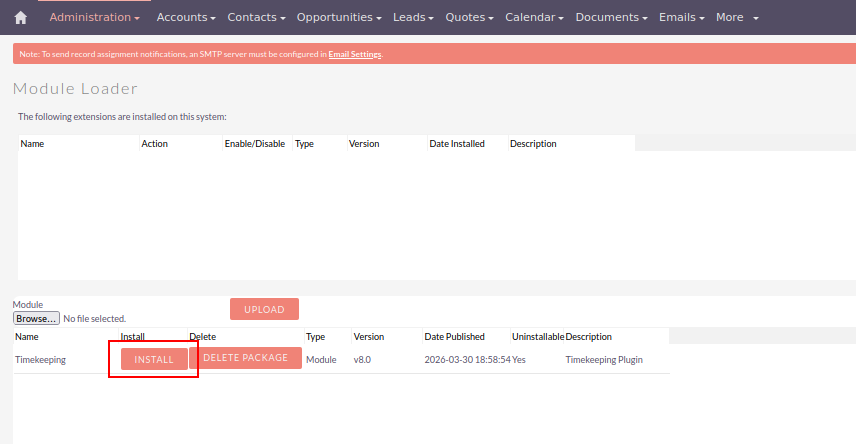
In Module Loader page → Click on INSTALL button to install Timekeeping plugin.
Step 5
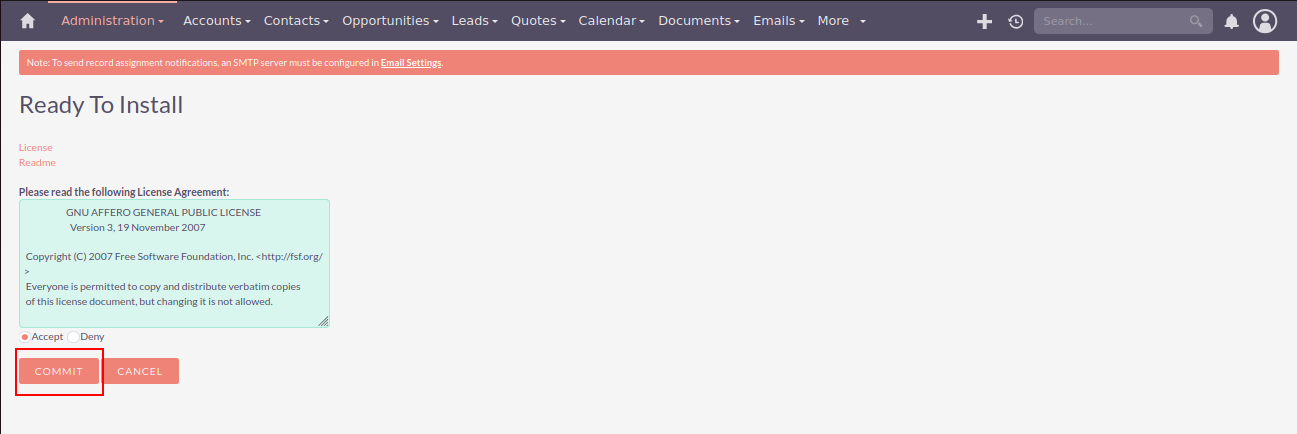
To accept the Terms and Conditions, click on Accept radio button → Click on COMMIT button.
Step 6
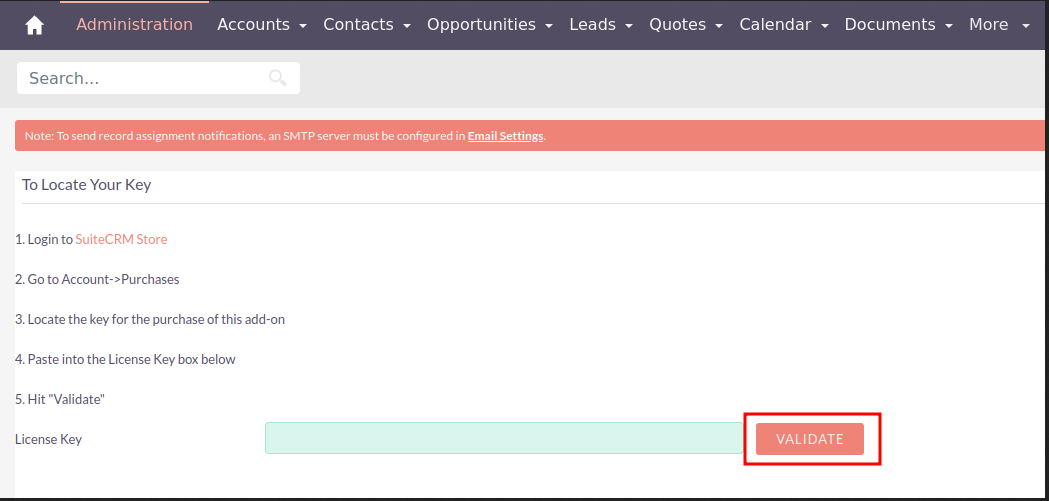
After successful installation → it redirects you to validate License Key → enter valid License Key and click on VALIDATE button → if key is valid then it will show CONTINUE button → click on the CONTINUE button.
Step 7
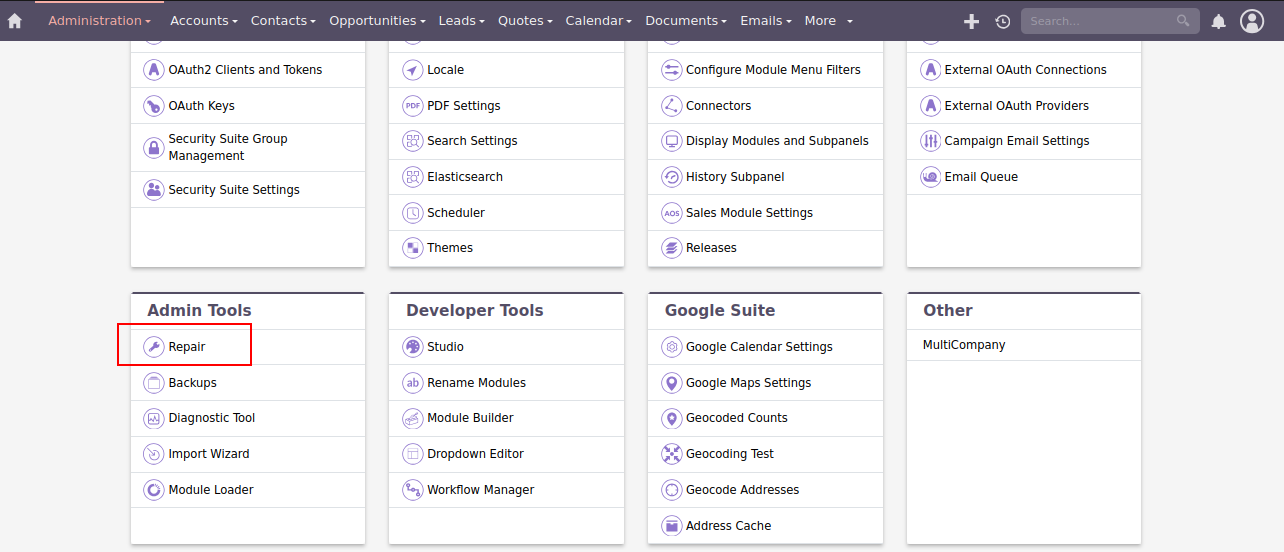
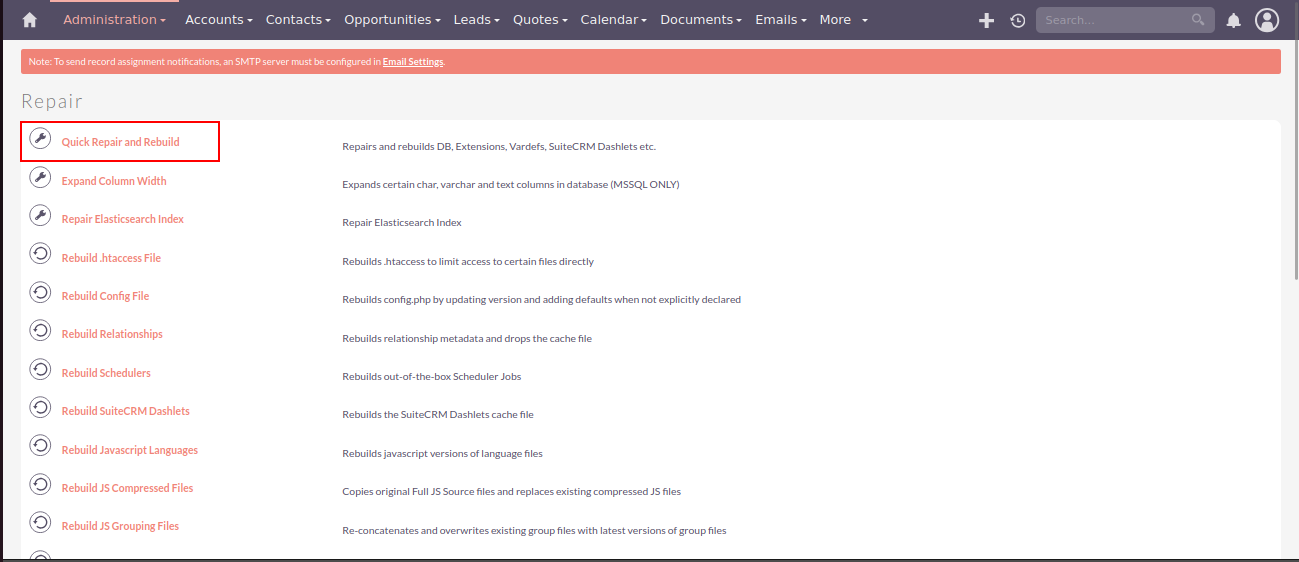
Open Administration page, Click on Repair from the System section → Click on Quick Repair and Rebuild.
Step 8
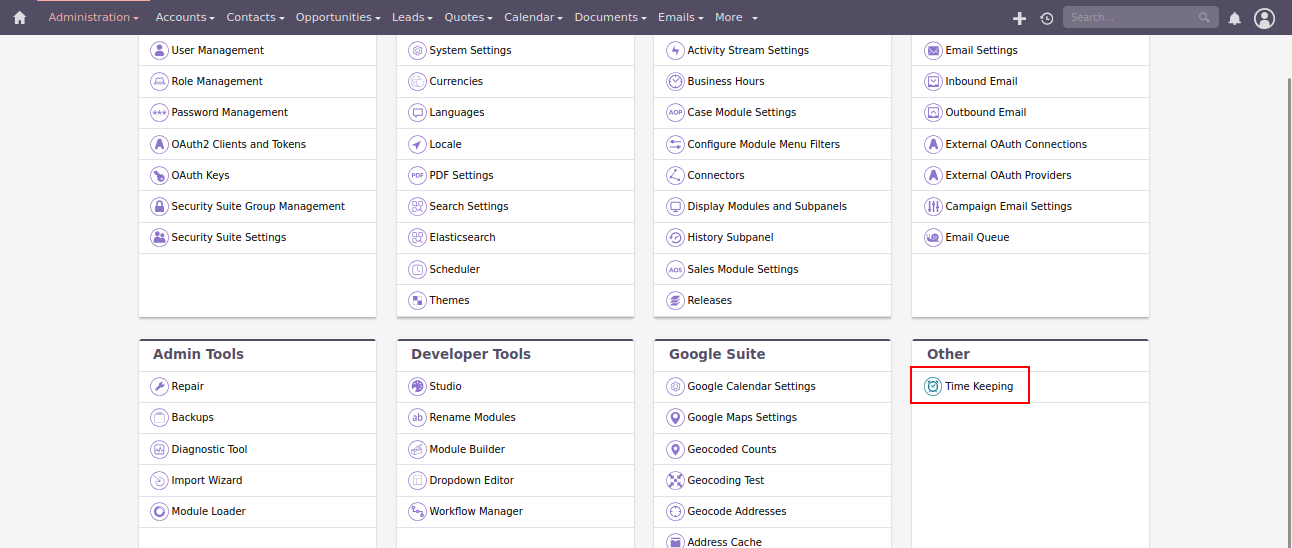
After Installation you can see link “Timekeeping” on Administration page, as shown in the below screenshot.
Download Core file Changes for Timer Tracker (SuiteCRM-8.0 To 8.2)
Download Core file Changes for Timer Tracker (SuiteCRM-8.3)
Download Core file Changes for Timer Tracker (SuiteCRM-8.4)
Download Core file Changes for Timer Tracker (SuiteCRM-8.5)
Download Core file Changes for Timer Tracker (SuiteCRM-8.6)
Download Core file Changes for Timer Tracker (SuiteCRM-8.7)
Download Core file Changes for Timer Tracker (SuiteCRM-8.8)
Download Core file Changes for Timer Tracker (SuiteCRM-8.9)
Note :
Before modifying any core files, ensure that you create a complete backup of the original files. This helps prevent data loss or system issues in case something goes wrong.
When uninstalling the Timer Tracker plugin, ensure that all modifications made to the core files during the installation or configuration process are reverted to their original state.
 Saving Comment...