


Every day, businesses lose leads, miss customer requests, and waste hours sorting through overflowing inboxes.
By the time someone identifies what’s sales and what’s support, it’s already too late — SLAs are breached, follow-ups are forgotten, and opportunities are lost.
Don't Worry! FynTriaging helps to avoid manual repetitive work of sorting and assigning emails to dedicated departments & teams and automates the process in seamless manner with the help of GenAI, so your team can focus on real work i.e., problem solving and lead engagement.
Installation Guide
Installing the Add-on
FynTriaging Email Sense Step-by-Step Installation Guide
Once the package is downloaded, follow the steps as mentioned below.
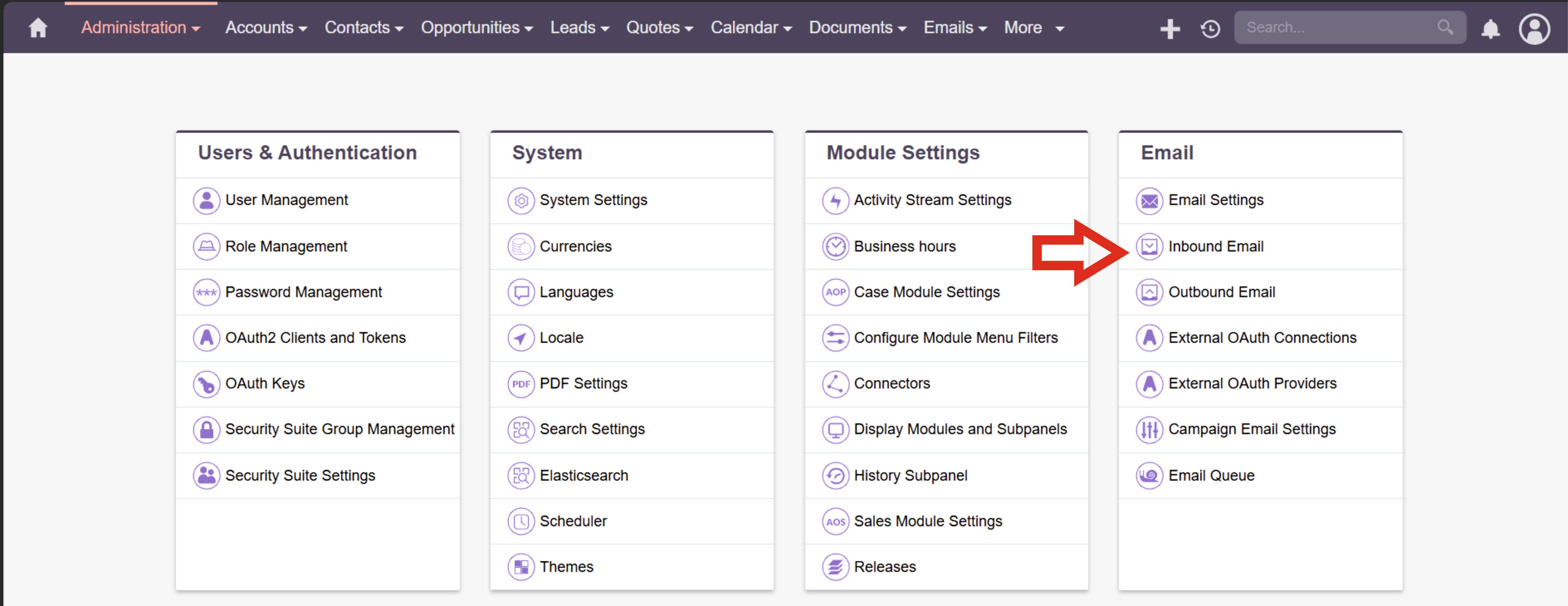
Step 1 : Email Inbound Setup - Open SuiteCRM Admin panel and select Inbound email
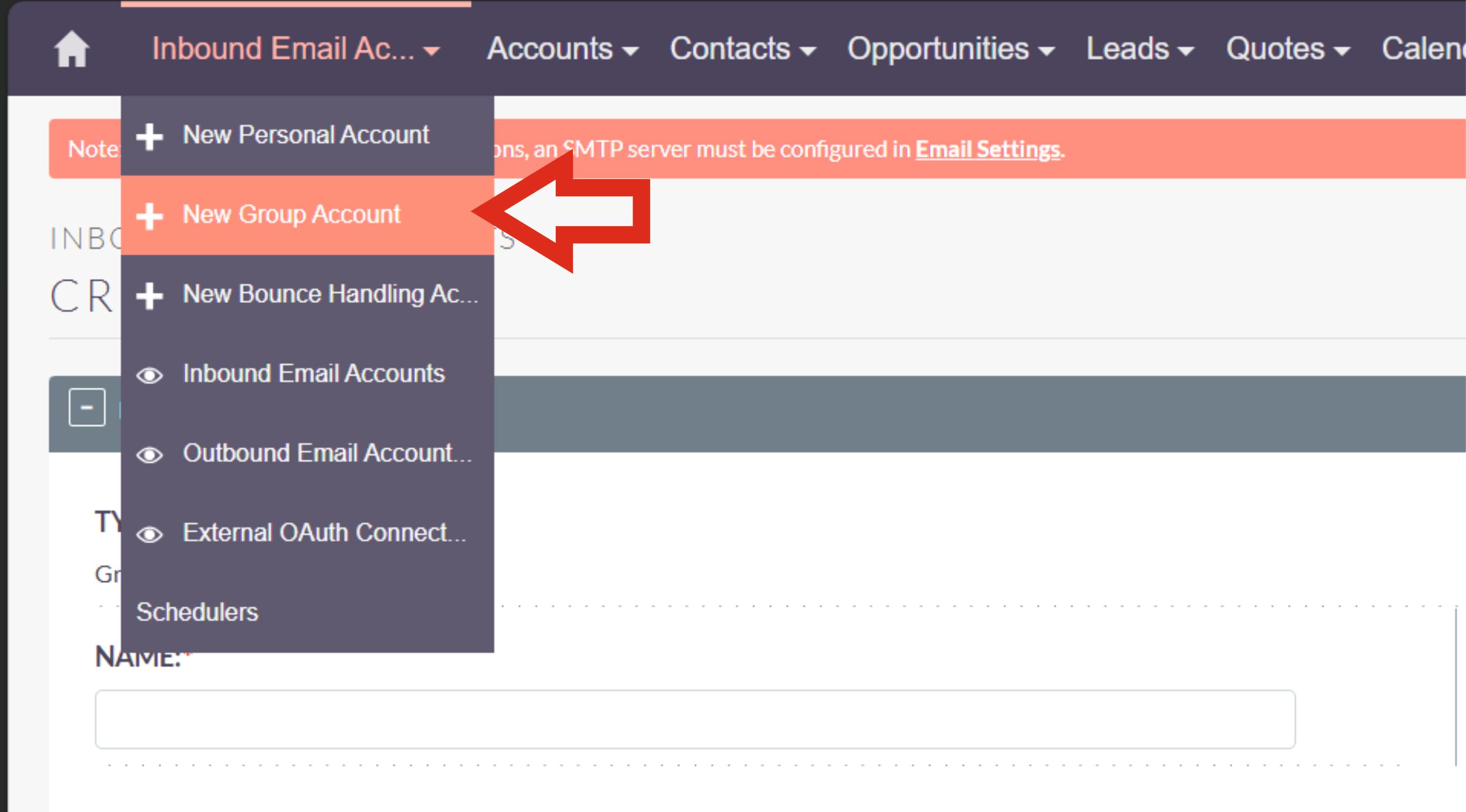
From the top dropdown select New Group Email and configure it with your company details
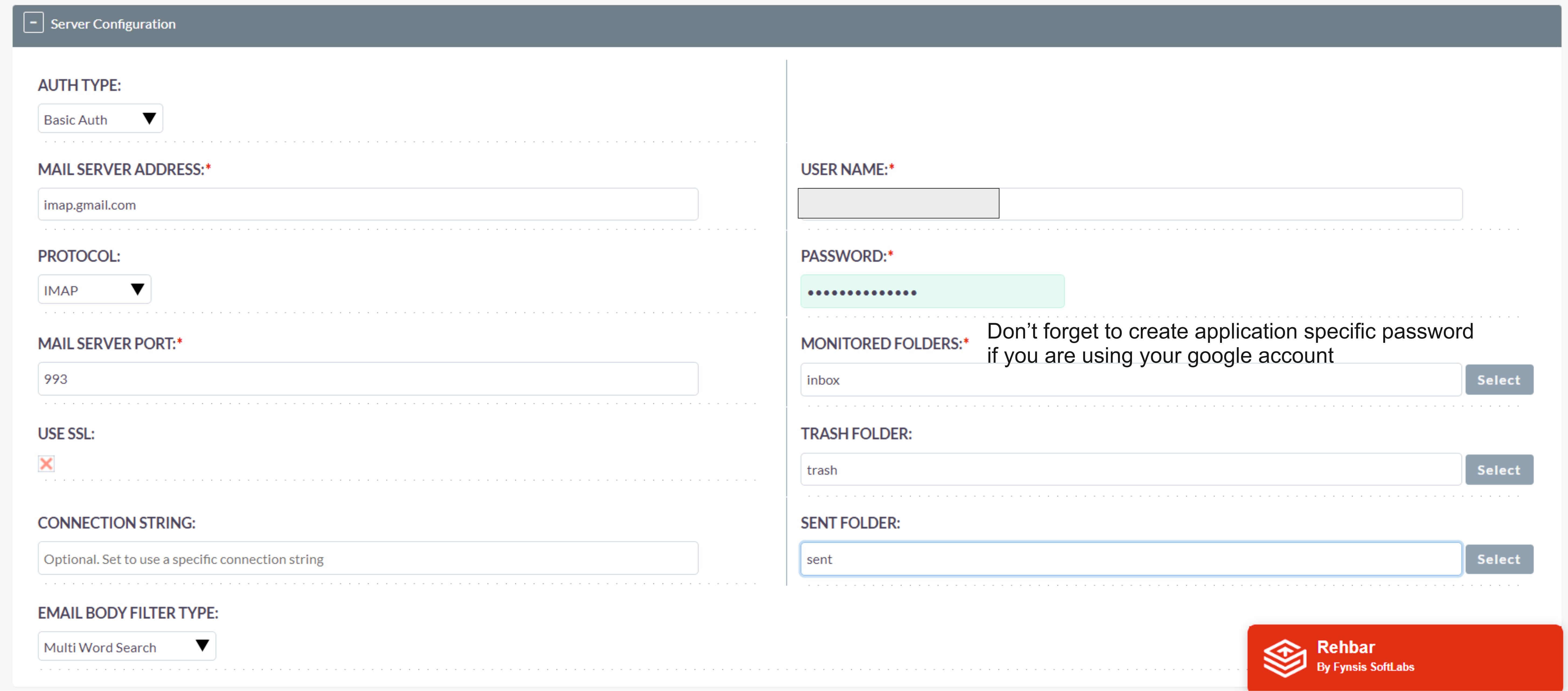
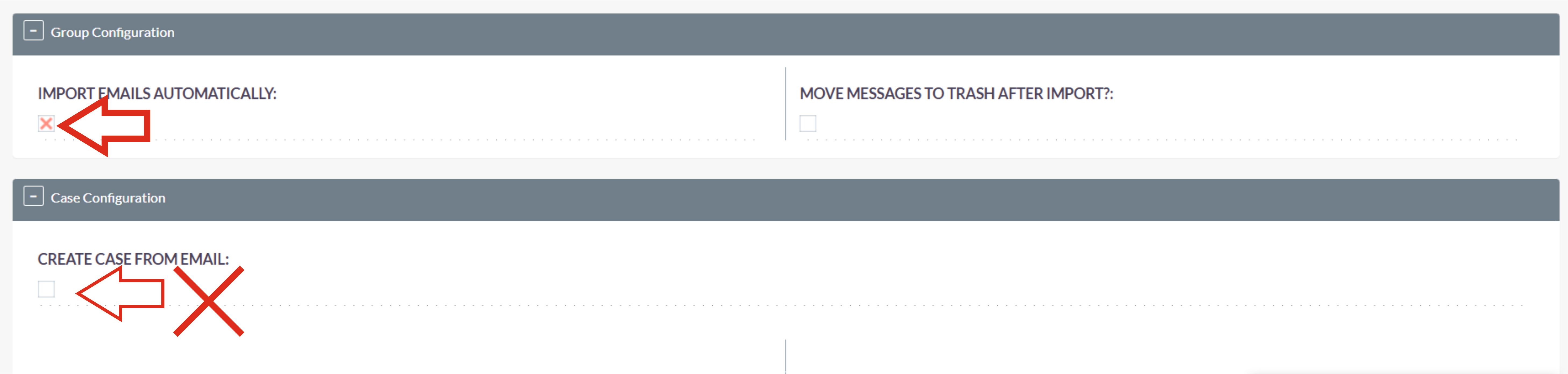
Important Note: Don’t forget to
- check(X) Import Email Automatically
- uncheck( ) Create Case From Email.
Step 2 : Module Installation
From the Admin section, Go to Module Loader and select the file
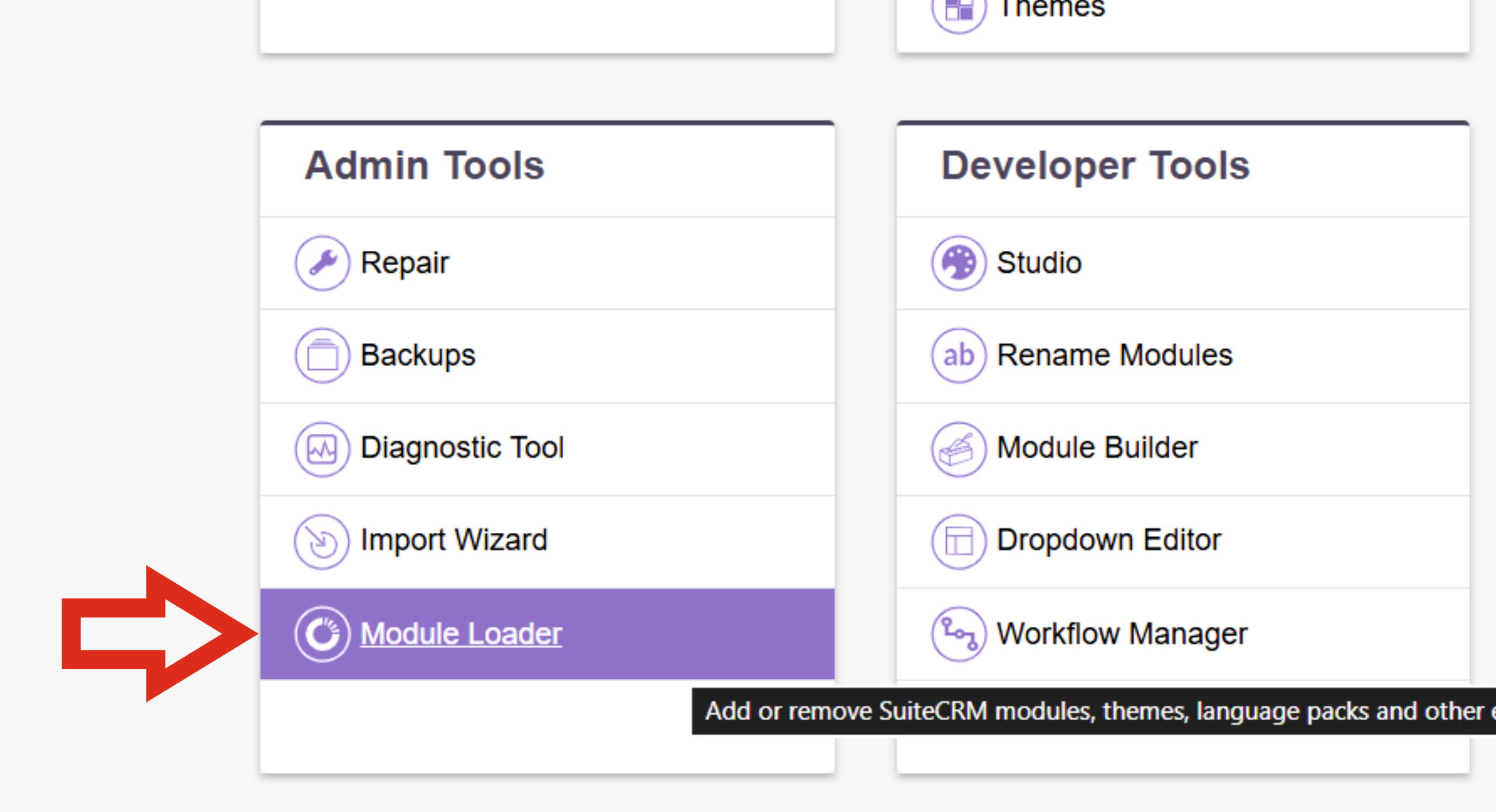
Select the file which was Downloaded in the beginning(From the Store)
](https://store.suitecrm.com/assets/img/addonassets/fyntriaging/Step%206.jpg "Step 6.jpg")](https://store.suitecrm.com/assets/img/addonassets/fyntriaging/Step%206.jpg "Step 6.jpg")
Once the file is uploaded,** click on Install** and let the process complete
](https://store.suitecrm.com/assets/img/addonassets/fyntriaging/Step%207.jpg "Step 7.jpg")
Note: Do a Quick Repair and Rebuild yet from the admin panel once its installed
Step: 3 : Schedule Process
Go to Admin panel and select Scheduler.
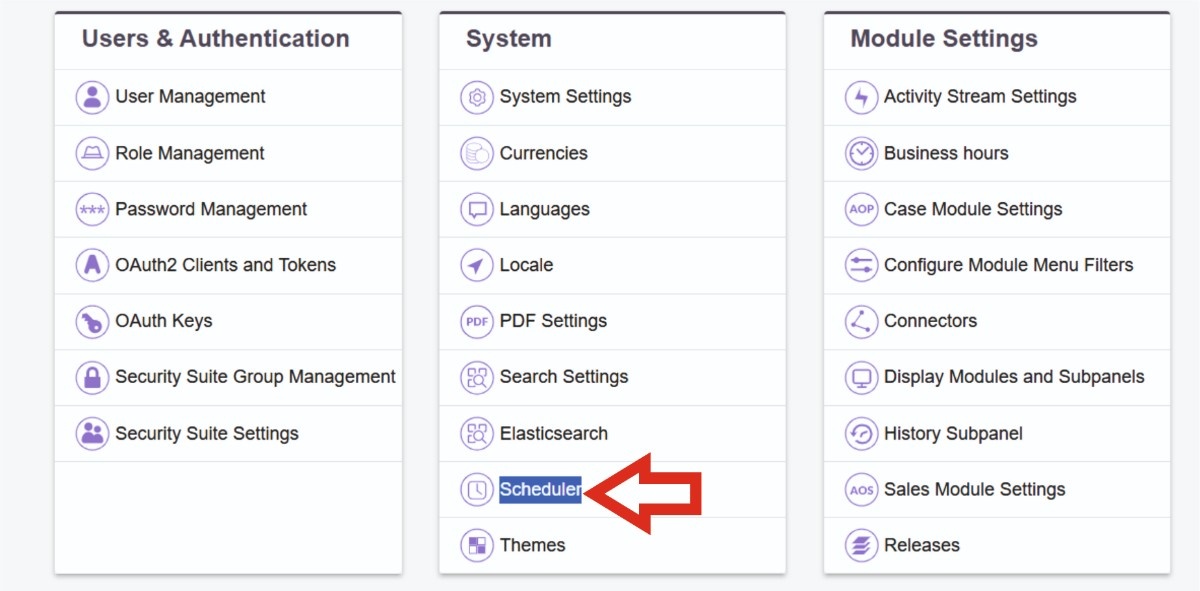
Setup the scheduler with general settings and don’t forget to do the below changes (If not there initially)
- Interval - every 1 minute
- Day - Everyday
- Job - Fyntriaging
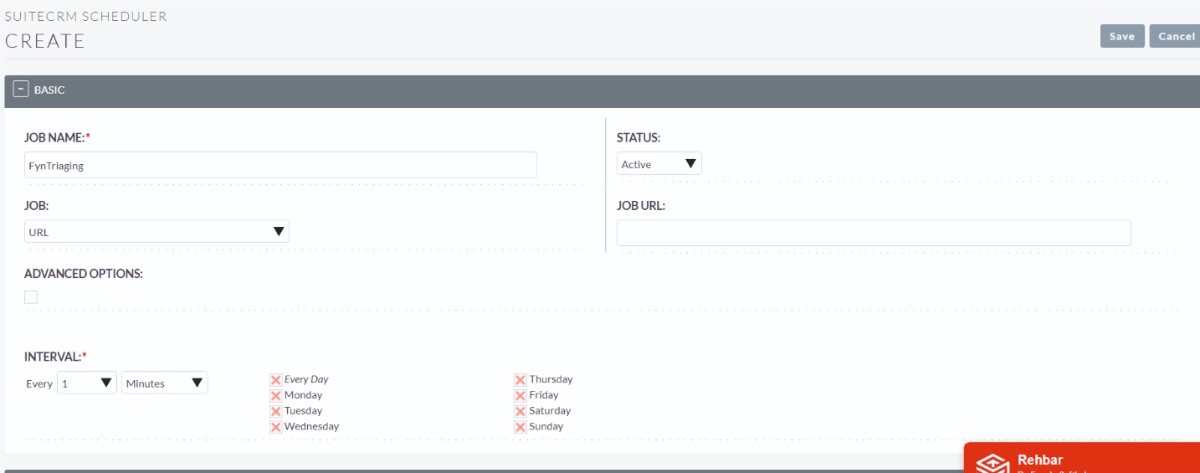
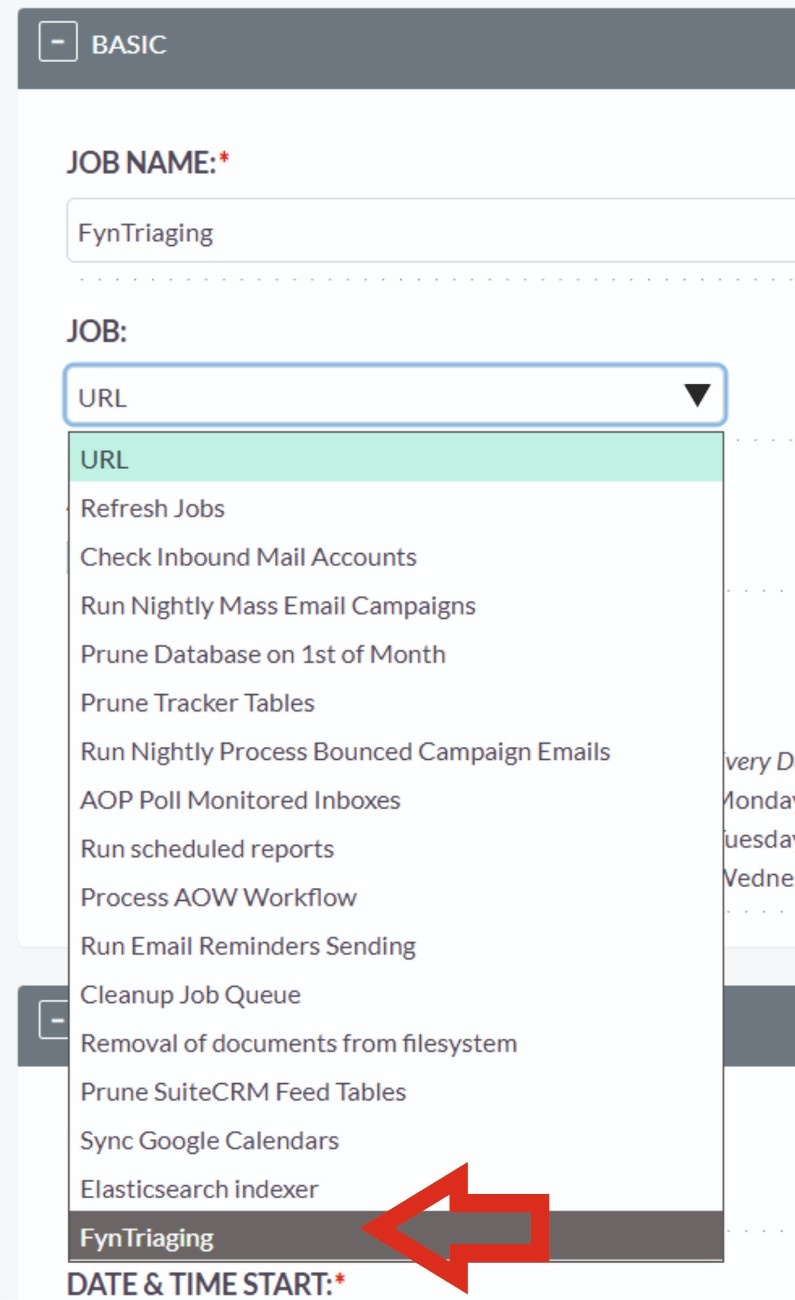
Note: Please make sure the CRON is setup properly for your CRM instance
Step 6 : Open AI integration
Once its setup > Go to Admin Panel > You will find a new section named Fyntriaging Configuration.
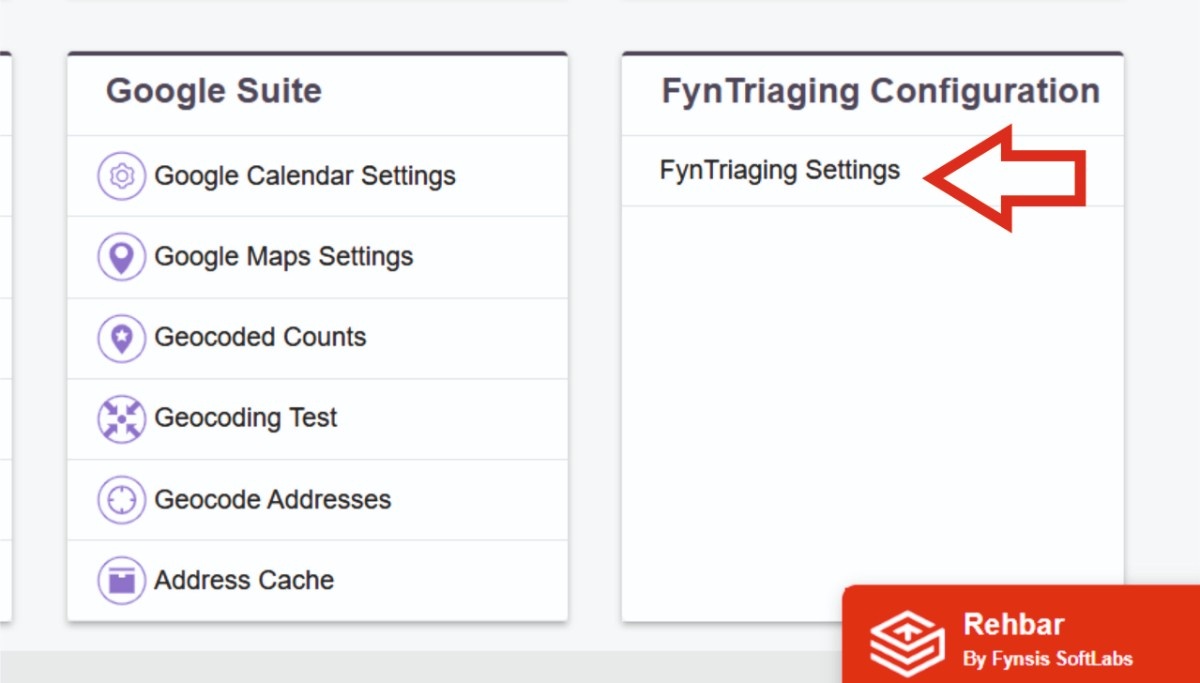
In the FynTriging Configuration click on** FynTriaging Settings**, you will see the** API Key** option where you have to enter your OpenAI Api key.
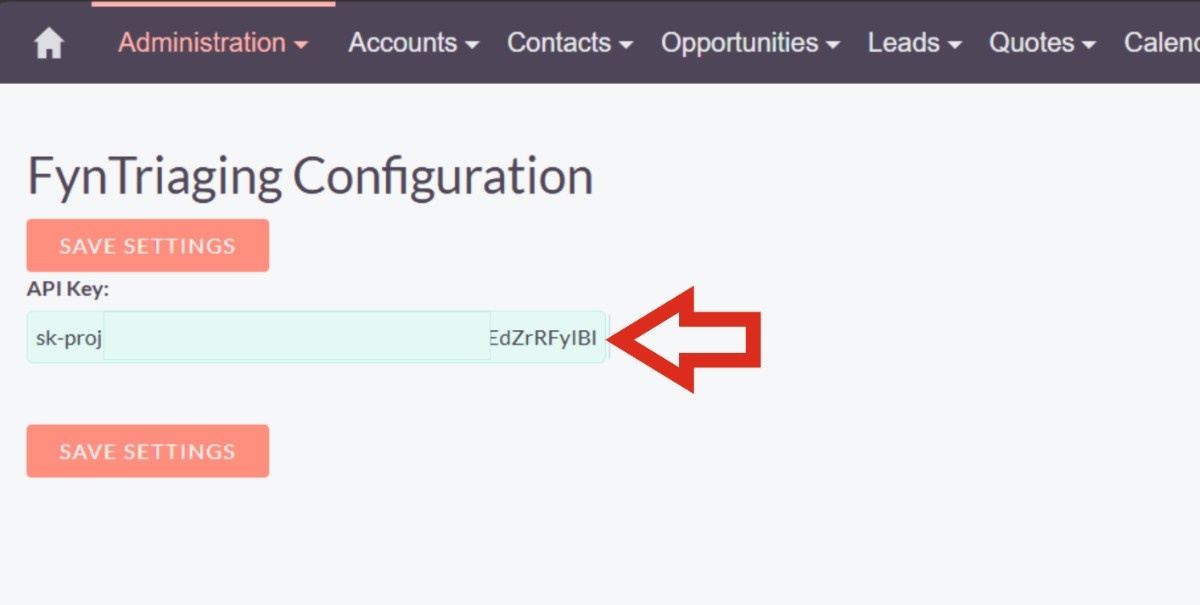
**Congratulations! ** The setup is done, now it is the time to see the result.
Step 7 : Testing
Do the below steps to test your FynTriaging - 1. Send one dummy email to the email you have configured in the Group Email Inbound 2. Tone of the email should be** similar to the Leads** (Which you generally get) or Case 3. Wait for at least 3 minute 4. Go to the Leads or Cases module from the top bar 5. Find the latest record created by the FynTriaging which you sent as a Dummy Email.

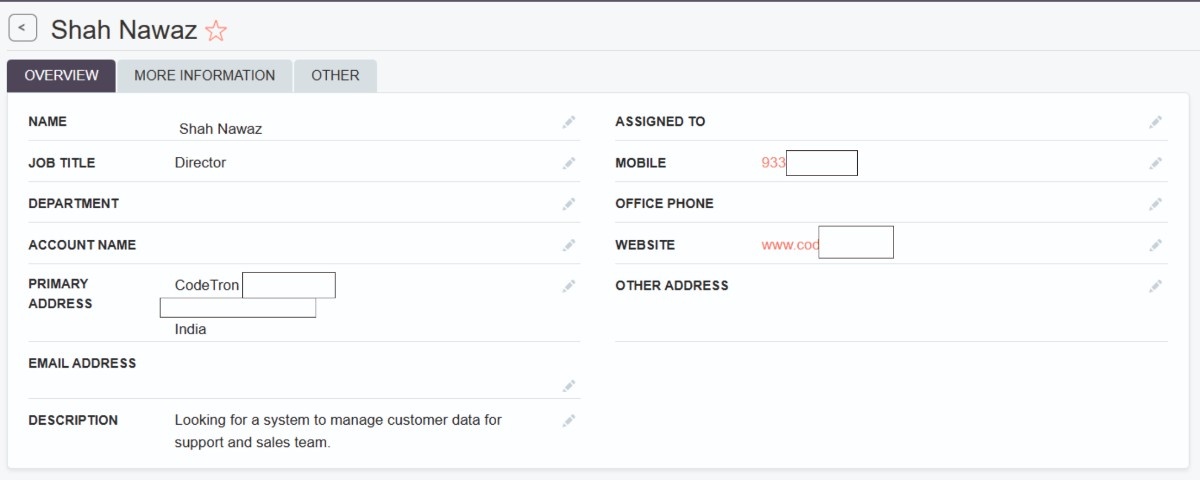
Click on the leads and you will see all the details related to it with fields automatically filled.
 Saving Comment...
