
Hide empty fields help user to focused on only those fields which is highly used or effective. Hide fields extensions increase usability of SuiteCRM application so user only focused on required fields of module.
User Guide SuiteCRM 8.x
Steps For Using Hide Empty Fields Features :
Step 1:
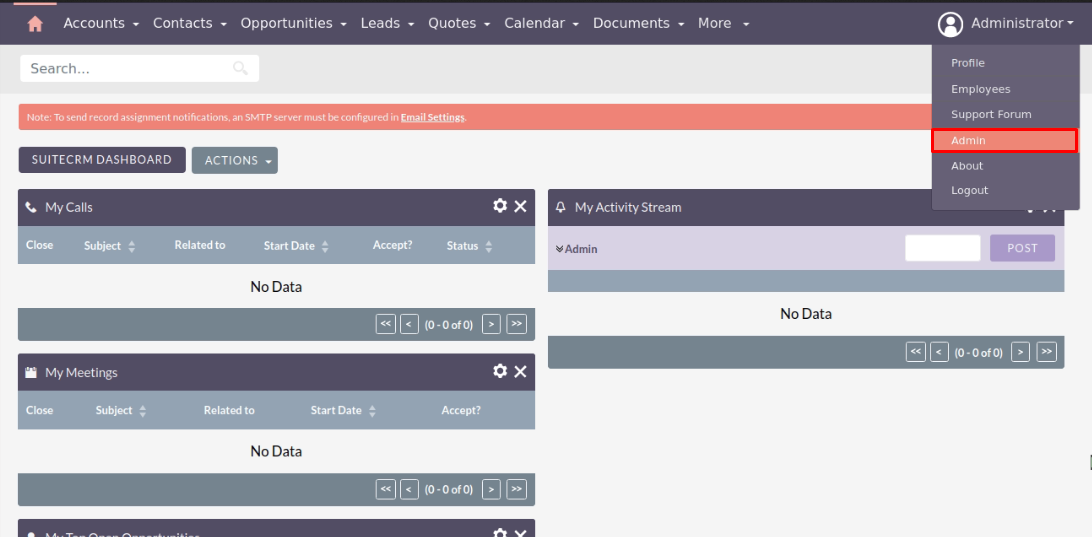
To open the Administration Page, Click on Admin tab, as shown in below screenshot.
Step 2:
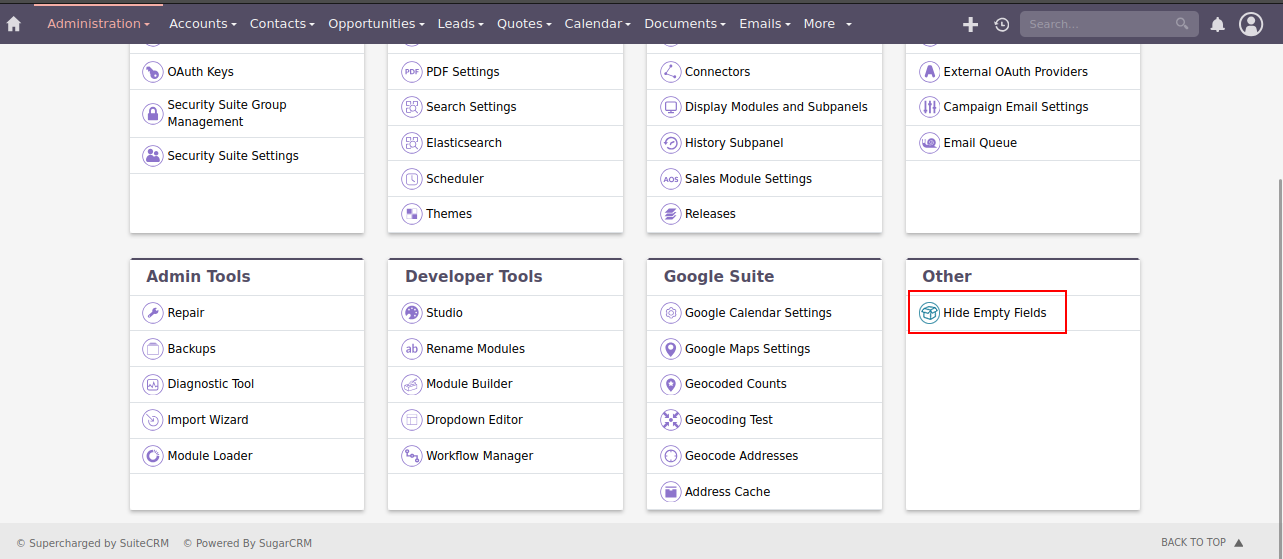
Open Administration page, Click on Hide Empty Fields from the Other section.
Step 3:
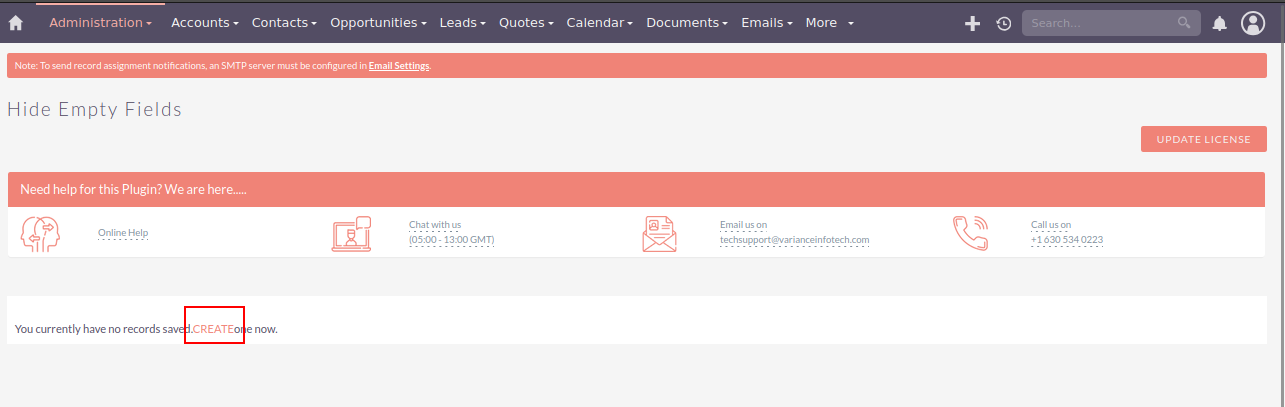
In Hide Empty Fields page, Click on CREATE link.
Step 4:
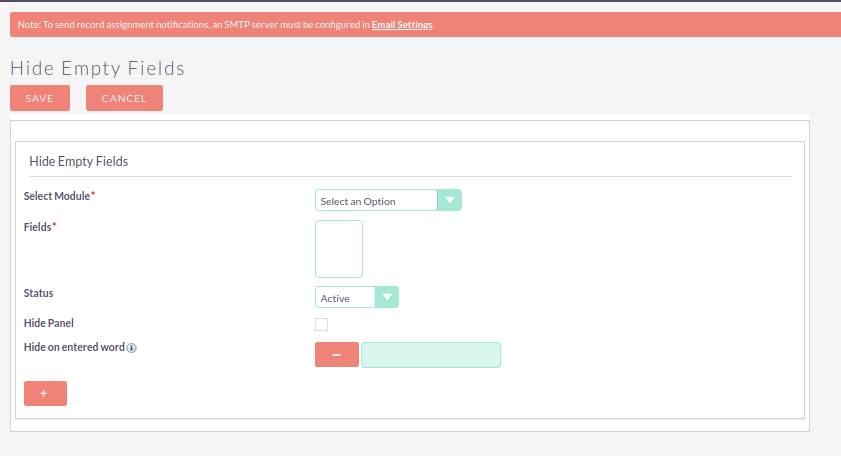
On click of CREATE link, Hide Empty Fields page will be open, as shown in the below screenshot.
Step 5:
Enter all the values and click on SAVE button to save record, as shown in the below screenshot.

Step 6:
To Update record, click on pencil icon as shown in the below screenshot.

Step 7:
Click on SAVE button, to update record as shown in the below screenshot.

Step 8:
To delete one or multiple Hide Empty Fields records, you can select records using the checkbox option on the left hand side of the view. Click on Delete from BULK ACTION to delete record(s).

Step 9:
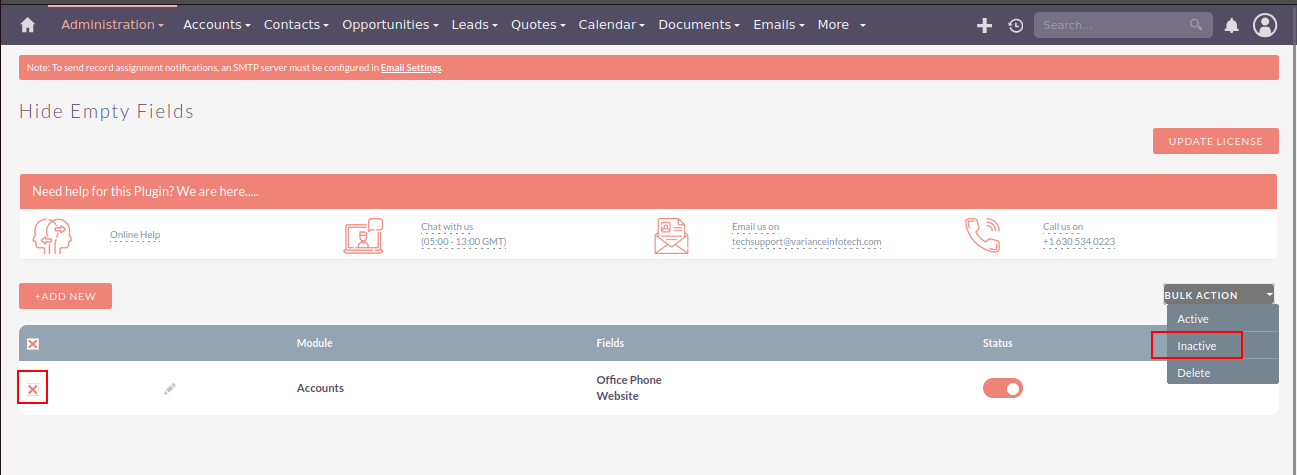
To deactivate one or multiple Hide Empty Fields records, you can select records using the checkbox option on the left hand side of the view. Click on Inactive from BULK ACTION to inactivate record(s).
Step 10:
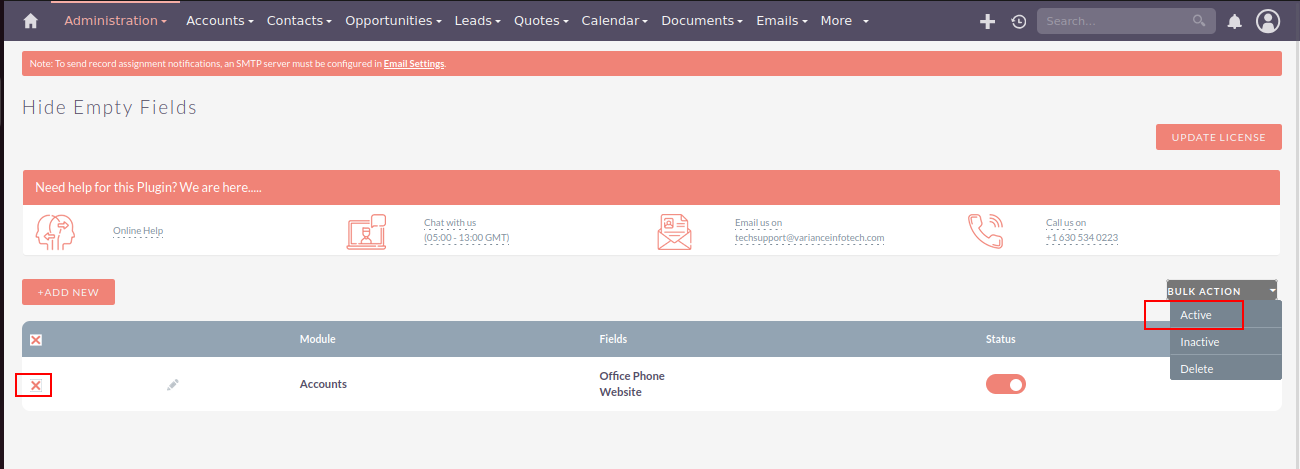
To active one or multiple Hide Empty Fields records, you can select records using the checkbox option on the left hand side of the view. Click on Active from BULK ACTION to activate record(s).
Step 11:
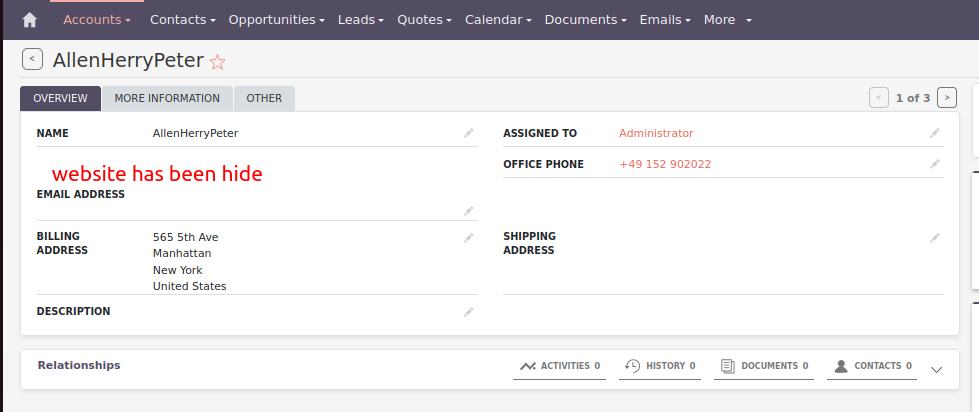
If symbol string from Hide Empty Fields settings matches with the values of the fields of particular record of the module, then those fields gets hide from the detail view as shown in the below screenshot.
 Saving Comment...