

Instantly upload files and emails to SuiteCRM by dragging from your desktop or Outlook — including the New Outlook app.
User Guide
User Guide
Getting Started
Once your administrator has installed the module and added you to the licensed users list, you can start using drag and drop immediately.
Installing the Browser Extension
Chrome Web Store (Recommended)
- Open Google Chrome or Microsoft Edge
- Go to the Chrome Web Store
- Search for "SuiteCRM Upload Helper" or use the direct link provided by your administrator
- Click Add to Chrome
- Confirm by clicking Add extension
Configuring the Browser Extension
After installing the extension, you must configure it to connect to your SuiteCRM instance.
- Click the extension icon in your browser toolbar
- The settings popup will appear
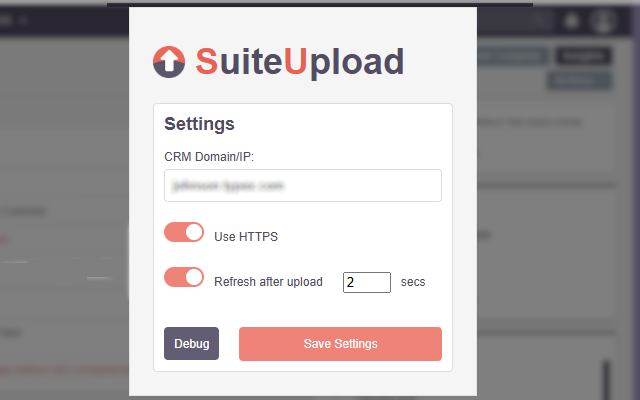
Extension Settings
| Setting | Description | Example |
|---|---|---|
| CRM Domain/IP | Your SuiteCRM server address (without http/https) | crm.yourcompany.com or 192.168.1.100 |
| Use HTTPS | Enable if your SuiteCRM uses HTTPS (recommended) | Toggle ON for secure connections |
| Refresh after upload | Automatically refresh the page after uploading | Toggle ON to see uploaded files immediately |
| Refresh delay | Seconds to wait before refreshing (1-10) | 2 seconds is usually sufficient |
Step-by-Step Configuration
Enter your CRM Domain
- Type your SuiteCRM address without
http://orhttps:// - Examples:
crm.example.com,suitecrm.yourcompany.co.uk,192.168.1.50
- Type your SuiteCRM address without
Enable HTTPS (if applicable)
- Toggle ON if your SuiteCRM URL starts with
https:// - Most production systems should use HTTPS
- Toggle ON if your SuiteCRM URL starts with
Configure Refresh Settings
- Toggle Refresh after upload ON if you want the page to reload after uploading
- Set Refresh delay to 2-3 seconds (allows time for upload to complete)
Save Settings
- Click Save Settings
- You should see "Settings saved successfully"
Test the Connection
- Navigate to any record in SuiteCRM
- Try dragging a file onto the page
- A drop zone should appear
Debug Mode
If you're having issues, use the Debug button:
- Navigate to a SuiteCRM record page
- Click the extension icon
- Click Debug
- A debug page opens showing:
- Current URL and detected parameters
- Upload endpoint URL
- Test upload functionality
Uploading Files
Navigate to a Record
- Open any record in SuiteCRM (Account, Contact, Opportunity, etc.)
Drag Your File
- Locate the file on your desktop or in File Explorer
- Click and drag the file towards your browser
Drop on the Record
- A blue drop zone will appear on the SuiteCRM page
- Drop the file onto the drop zone
- Wait for the upload to complete
Verify Upload
- The file will appear in the Documents subpanel
- A success message will confirm the upload
Uploading Emails from Classic Outlook
Open Outlook Desktop
- Use the classic Outlook application (not the new Outlook)
Select an Email
- Click on the email you want to upload
Drag to SuiteCRM
- Drag the email from Outlook to your browser
- Drop it on the SuiteCRM record
Email is Processed
- An Email record is created in SuiteCRM
- The email is linked to the record you dropped it on
- Related Accounts and Contacts are automatically linked
Uploading Emails from New Outlook
If your organisation uses the new Outlook (web or Windows app), the process is the same, but requires Graph API configuration by your administrator.
Drag from New Outlook
- Select an email and drag it to SuiteCRM
- The extension detects New Outlook automatically
Email is Fetched
- SuiteCRM fetches the email via Microsoft Graph API
- This may take a moment longer than Classic Outlook
Email is Processed
- The email is processed exactly like a Classic Outlook drag
Understanding Email Records
When you drop an email, the module creates an Email record with:
- Subject: Prefixed with (Sent) or (Received) based on sender
- From/To: Sender and recipient addresses
- Date: The original email date
- Body: Full email content (HTML preserved)
- Attachments: Saved as separate documents
The email is automatically linked to: - The record you dropped it on - Any Accounts matching email addresses - Any Contacts matching email addresses
Tips for Best Results
- Use specific records: Drop emails on the most relevant record (e.g., the Opportunity, not the Account)
- Check linked records: Review the automatic linking to ensure accuracy
- Multiple files: You can drag multiple files at once

 Saving Comment...
