

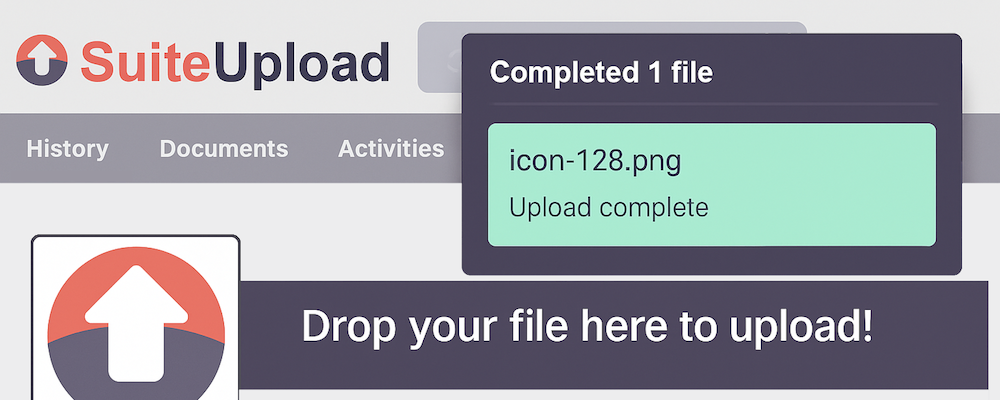
Instantly upload files and emails to SuiteCRM by dragging from your desktop or Outlook — including the New Outlook app.
Admin Guide
Admin Guide
Accessing the Admin Panel
- Log in as an administrator
- Go to Administration (Admin menu)
- Find and click Browser Upload
License Configuration
Entering Your License Key
- In the License section, enter your license key
- Click Validate License
- If valid, you'll see "License is valid" and your licensed user count
Selecting Licensed Users
After validating your license:
- The Licensed Users section shows all active users
- Check the box next to each user who should have access
- The counter shows how many users you've selected vs. your limit
- Click Save Configuration
Note: If you select more users than your license allows, the system will warn you but won't prevent saving. However, license validation may fail.
Microsoft Graph API Configuration
This section is required only if your users need to drag emails from the new Outlook app.
Why Graph API?
The new Outlook (web and Windows app) doesn't provide email file data when dragging. It only provides a reference ID. The Graph API allows SuiteCRM to fetch the actual email content.
Azure App Registration Setup
Go to Azure Portal
- Navigate to portal.azure.com
- Sign in with your Microsoft 365 admin account
Create App Registration
- Go to Azure Active Directory > App registrations
- Click New registration
- Name:
SuiteCRM Browser Upload(or your preference) - Supported account types: Accounts in this organizational directory only
- Click Register
Note Your IDs
- On the Overview page, copy:
- Application (client) ID
- Directory (tenant) ID
- On the Overview page, copy:
Add API Permissions
- Go to API permissions in the left menu
- Click Add a permission
- Select Microsoft Graph
- Select Application permissions
- Search for and add:
Mail.Read - Click Add permissions
- Click Grant admin consent for [Your Organisation]
Create Client Secret
- Go to Certificates & secrets
- Click New client secret
- Description:
SuiteCRM Browser Upload - Expiry: Choose appropriate duration (recommend 24 months)
- Click Add
- Immediately copy the Value (it won't be shown again)
Enter Credentials in SuiteCRM
- Go to Administration > Browser Upload
- Enter:
- Azure Tenant ID: Directory (tenant) ID from step 3
- Application (Client) ID: Application ID from step 3
- Client Secret: The value from step 5
- Click Test Connection to verify
- Click Save Configuration
Debug Logging
Enable debug logging to troubleshoot issues:
- Check Enable Debug Logging
- Click Save Configuration
- Logs are written to the PHP error log
- Look for entries prefixed with
[Graph API Debug]
Remember to disable debug logging in production to avoid filling your logs.
Token Caching
For better performance, enable token caching:
- Check Cache Access Tokens
- Set Token Cache Duration (default: 3600 seconds = 1 hour)
- This reduces API calls to Microsoft
Troubleshooting
"License validation failed"
- Verify your license key is correct
- Check your subscription is active on the SuiteCRM Store
- Click Validate License to refresh
"You do not have a license for Browser Upload"
- The user is not in the licensed users list
- Go to admin panel and add the user
"Azure Graph API credentials not configured"
- Complete the Graph API configuration section
- All three fields (Tenant ID, Client ID, Secret) are required
"Failed to fetch email from Graph API"
- Check the user's mailbox is in the same Azure tenant
- Verify Mail.Read permission has admin consent
- Enable debug logging for detailed error messages
Drop zone not appearing
- Verify the browser extension is installed
- Check the extension is enabled for your SuiteCRM URL
- Try refreshing the page
Emails not linking to Accounts/Contacts
- Verify email addresses match exactly in SuiteCRM records
- Check the Accounts/Contacts exist and aren't deleted
Support
For support enquiries, please use the support tab in the SuiteCRM store.
When contacting support, please include: - SuiteCRM version - PHP version - Browser and version - Screenshots of any error messages - Debug log entries (if available)
 Saving Comment...
