

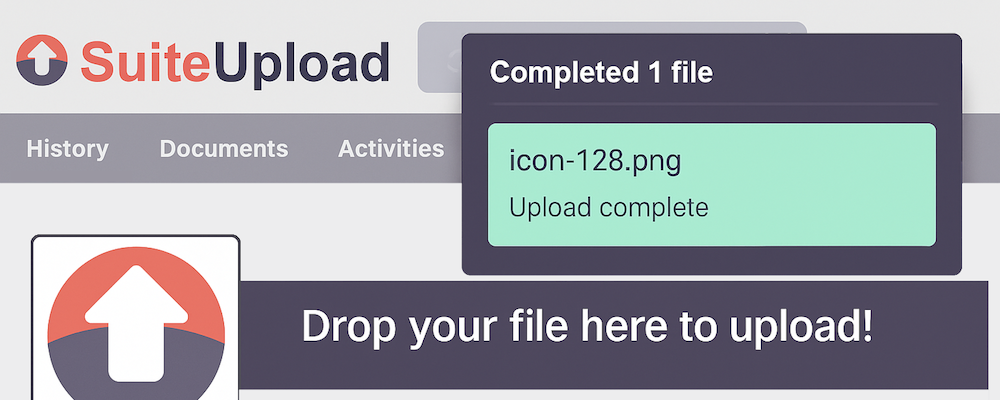
Instantly upload files and emails to SuiteCRM by dragging from your desktop or Outlook — including the New Outlook app.
Installation Guide
Install / Upgrade Guide
Server Requirements
PHP Version
- Minimum: PHP 7.4
- Recommended: PHP 8.x
Required PHP Extensions
| Extension | Purpose | How to Install |
|---|---|---|
| cURL | Microsoft Graph API calls | sudo apt install php-curl |
| JSON | Data encoding/decoding | Usually included by default |
| mbstring | UTF-8 character encoding | sudo apt install php-mbstring |
| fileinfo | File MIME type detection | sudo apt install php-fileinfo |
Required Composer Packages
| Package | Purpose | Install Command |
|---|---|---|
| zbateson/mail-mime-parser | Parse .eml email files | composer require zbateson/mail-mime-parser |
| hfig/mapi | Parse .msg files (Classic Outlook) | composer require hfig/mapi |
Run these commands in your SuiteCRM root directory:
composer require zbateson/mail-mime-parser
composer require hfig/mapi
PHP Configuration (php.ini)
Recommended settings for handling email attachments:
upload_max_filesize = 25M
post_max_size = 30M
memory_limit = 256M
max_execution_time = 60
Network Requirements
- Outbound HTTPS (port 443) to:
login.microsoftonline.com(Azure authentication)graph.microsoft.com(Microsoft Graph API)store.suitecrm.com(License validation)
Other Requirements
- SuiteCRM 7.x or 8.x
- Admin access to SuiteCRM
- Write access to SuiteCRM upload directory
- Google Chrome or Microsoft Edge browser
Installation Steps
Download the Module
- Download the ZIP file from the SuiteCRM Store
Upload to SuiteCRM
- Log in to SuiteCRM as an administrator
- Go to Administration > Module Loader
- Click Choose File and select the downloaded ZIP
- Click Upload
Install the Module
- Find the module in the list and click Install
- Review and accept the license terms
- Wait for installation to complete
Configure the Module
- Go to Administration > Browser Upload
- Enter your license key and click Validate License
- Select which users should have access
- Click Save Configuration
Install Browser Extension
- Install the companion extension from the Chrome Web Store
- Or load it manually in developer mode
Upgrading
Backup First
- Export your current configuration settings
- Note your licensed users selection
Upload New Version
- Go to Administration > Module Loader
- Upload the new version ZIP file
- Click Upgrade
Verify Settings
- Go to Administration > Browser Upload
- Verify your settings are preserved
- Re-validate your license if prompted
Uninstalling
- Go to Administration > Module Loader
- Find the module in the installed list
- Click Uninstall
- Your configuration settings will be preserved in case you reinstall
 Saving Comment...
