


Accelerate your sales and marketing efforts while browsing the web by directly connecting your SuiteCRM contacts from WhatsApp Web using the WhatsApp Chrome Add-on for SuiteCRM.
User Guide SuiteCRM 8.x
Steps For Using WhatsApp Chrome Addons Settings in SuiteCRM 8
Step 1:
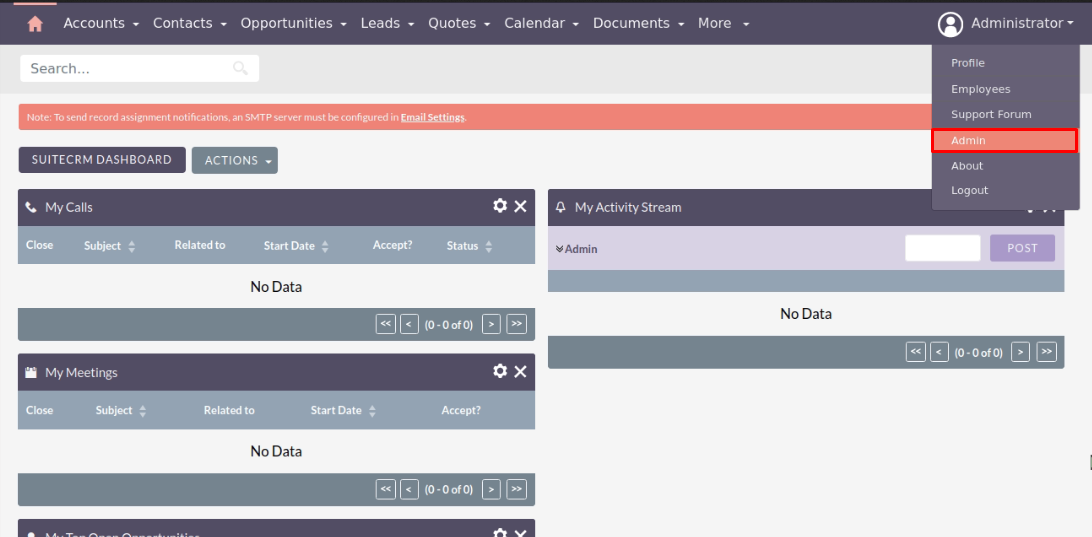
To open the Administration Page, Click on the Admin tab, as shown in the below screenshot.
Step 2:
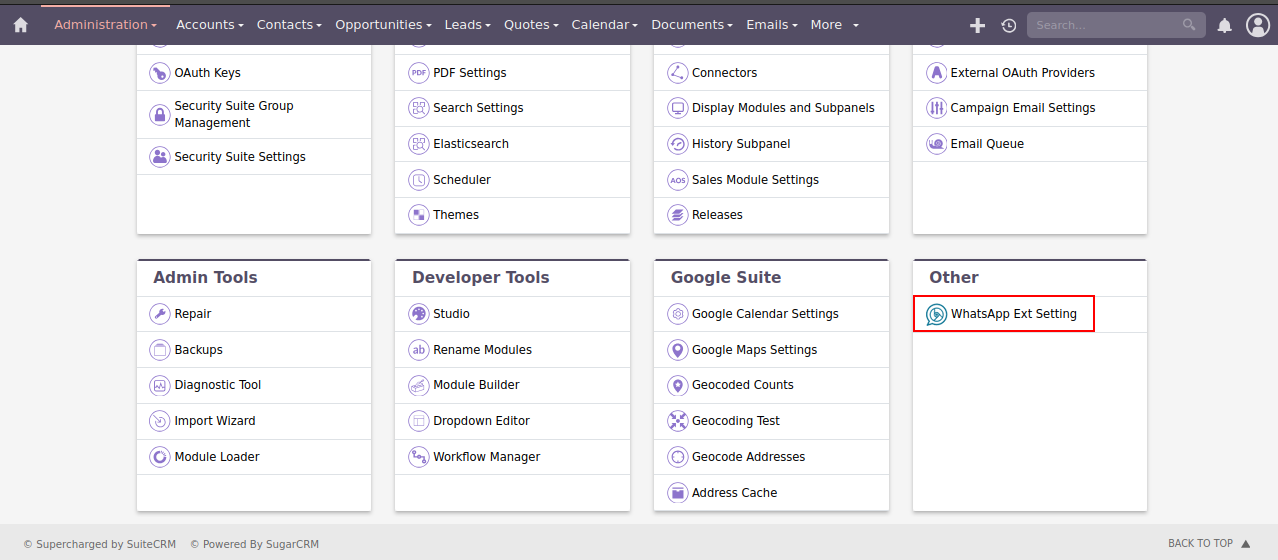
To Open Administration page, Click on “WhatsApp Ext Setting” from the “OTHER” section.
Step 3:
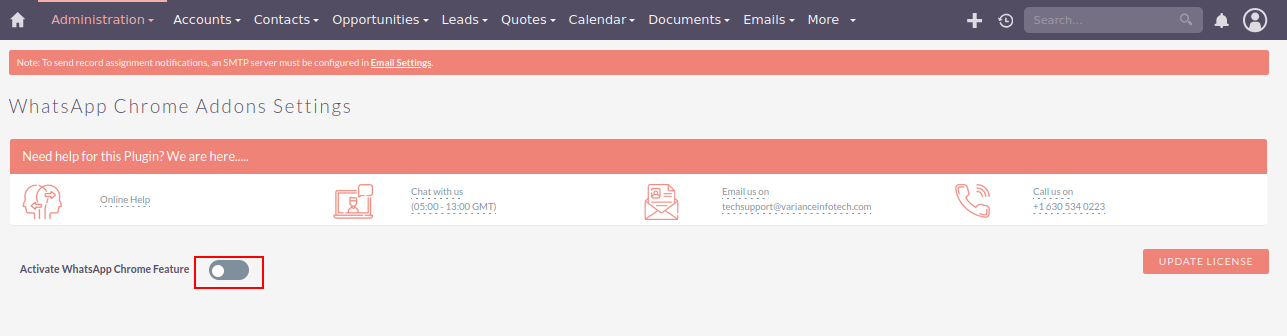
Click on Activate WhatsApp Chrome Feature as shown in the below screenshot.
Step 4:
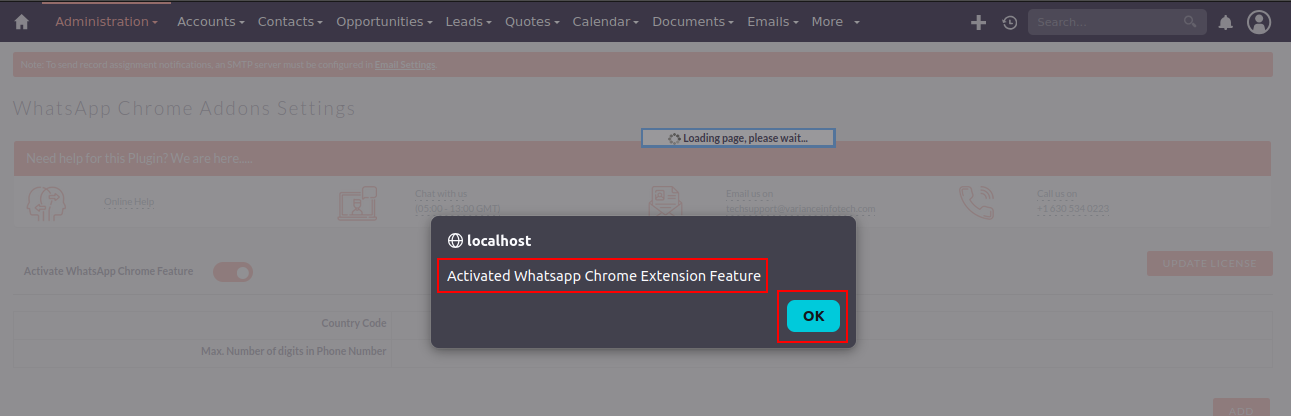
Click on OK button when alert message appears as shown in the below screenshot.
Step 5:
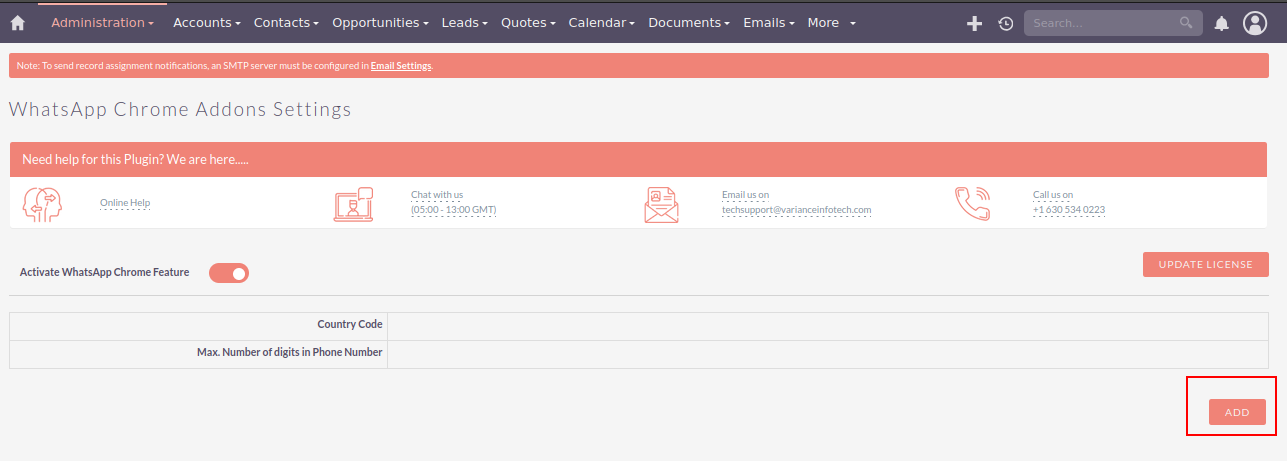
To do WhatsApp Chrome Addons Settings, click on the "ADD" button as shown in the below screenshot.
Step 6:
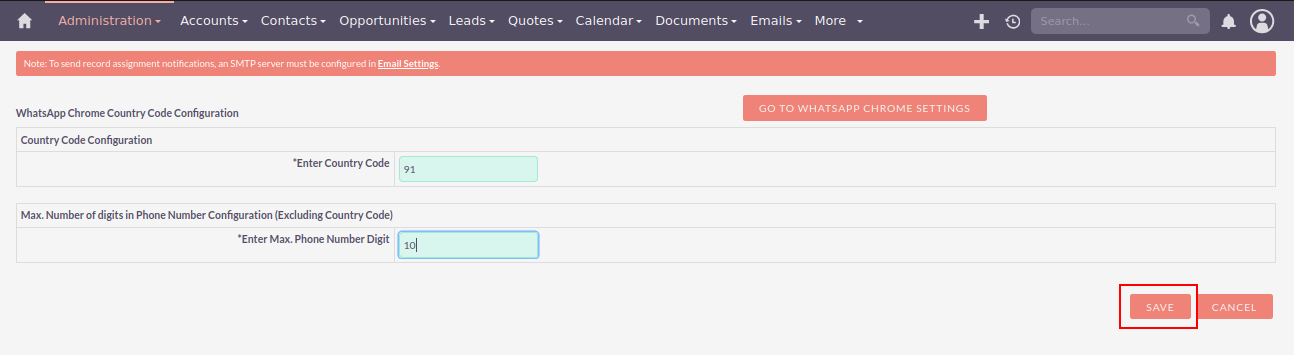
Enter Country Code and Max. Phone Number Digit and then click on "SAVE" button as shown in the below screenshot.
Step 7:
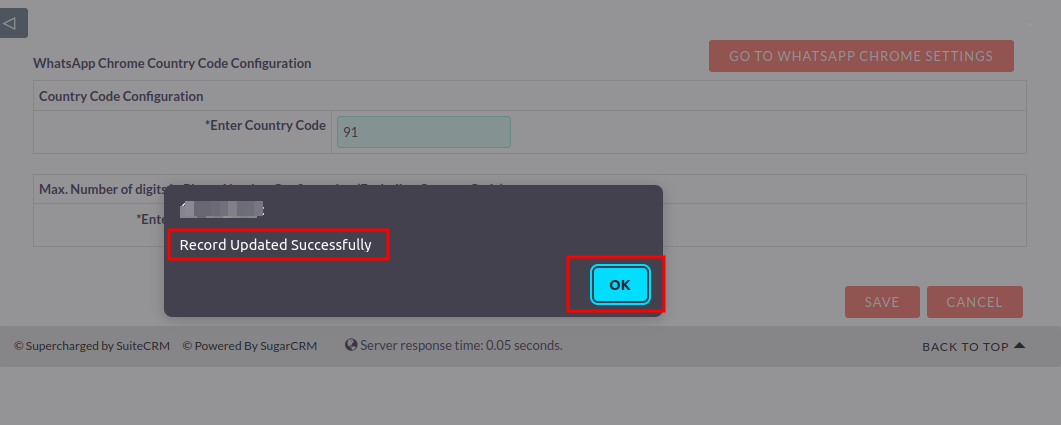
You will get the alert message 'Record Updated Successfully' click on "OK" button, as shown in the below screenshot.
Step 8:
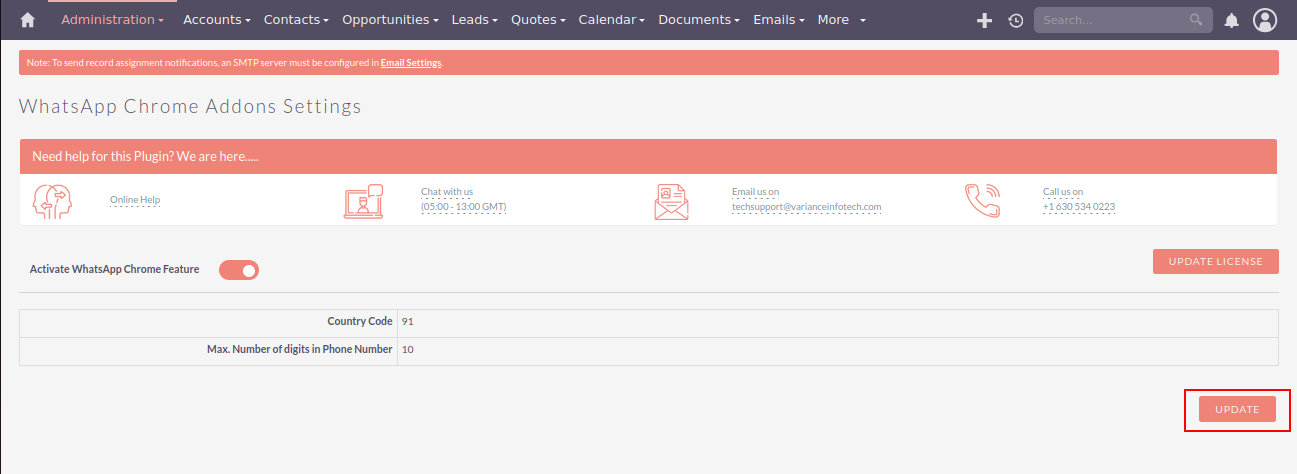
To Update record, click on the "UPDATE" button, as shown in the below screenshot.
Step 9:
Change Country Code and Max. Phone Number Digit and then click on "SAVE" button as shown in the below screenshot.
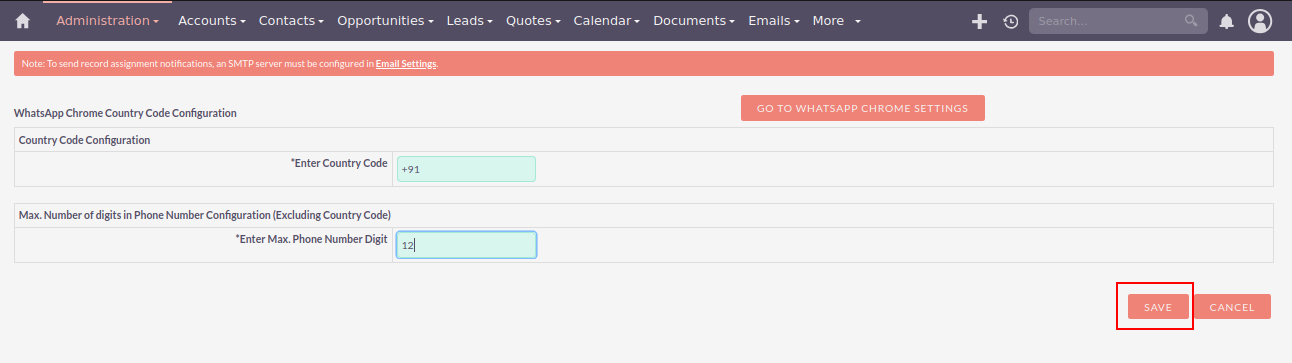
Step 10:
You will get the alert message 'Record Updated Successfully' click on "OK" button, as shown in the below screenshot.
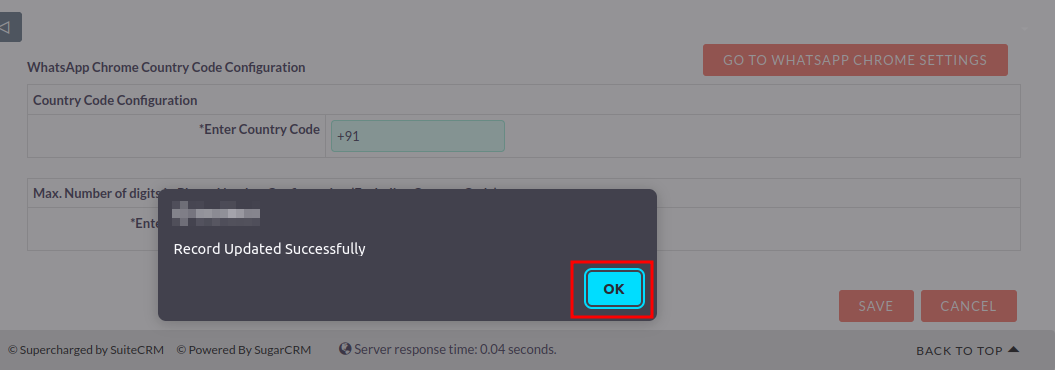
 Saving Comment...
