

Turn SuiteCRM into a real-time AI revenue command center — no reports, no spreadsheets, no setup. Revenue Engine AI gives your entire sales team — managers, VPs, reps, and admins — live pipeline intelligence, AI-generated coaching insights, and automatic deal risk detection, all inside SuiteCRM in under 5 minutes.
Admin Guide
Getting started
Admin Guide
This guide is intended for administrators responsible for configuring, managing, and maintaining Revenue Engine AI within SuiteCRM.
Accessing the Module
After installation, you can access Revenue Engine AI from:
- Administrator → Revenue Engine AI
- Profile Menu (top-right user menu)
- Home Dashlet (if enabled)
Note: Revenue Engine AI does not appear in the main top navigation bar. This is by design — SuiteCRM 8.x uses an Angular-based navigation shell that is incompatible with custom React entry points. Use the Profile Menu or Admin Panel links instead.
Data Security & Role-Based Visibility
Revenue Engine AI enforces strict server-side data access controls:
- Administrators: Full visibility across all users and data
- Managers (Security Group Admins): Access limited to users within their assigned Security Groups
- Sales Representatives: Access restricted to their own data only
All filtering is applied at the backend level in PHP before any data is returned to the browser. Users cannot bypass these restrictions by modifying the URL or API parameters.
Onboarding Wizard
An assisted onboarding wizard guides initial setup and configuration.
- The wizard launches automatically on first use
- Can be re-triggered at any time from Settings → Getting Started → Re-run Setup Wizard
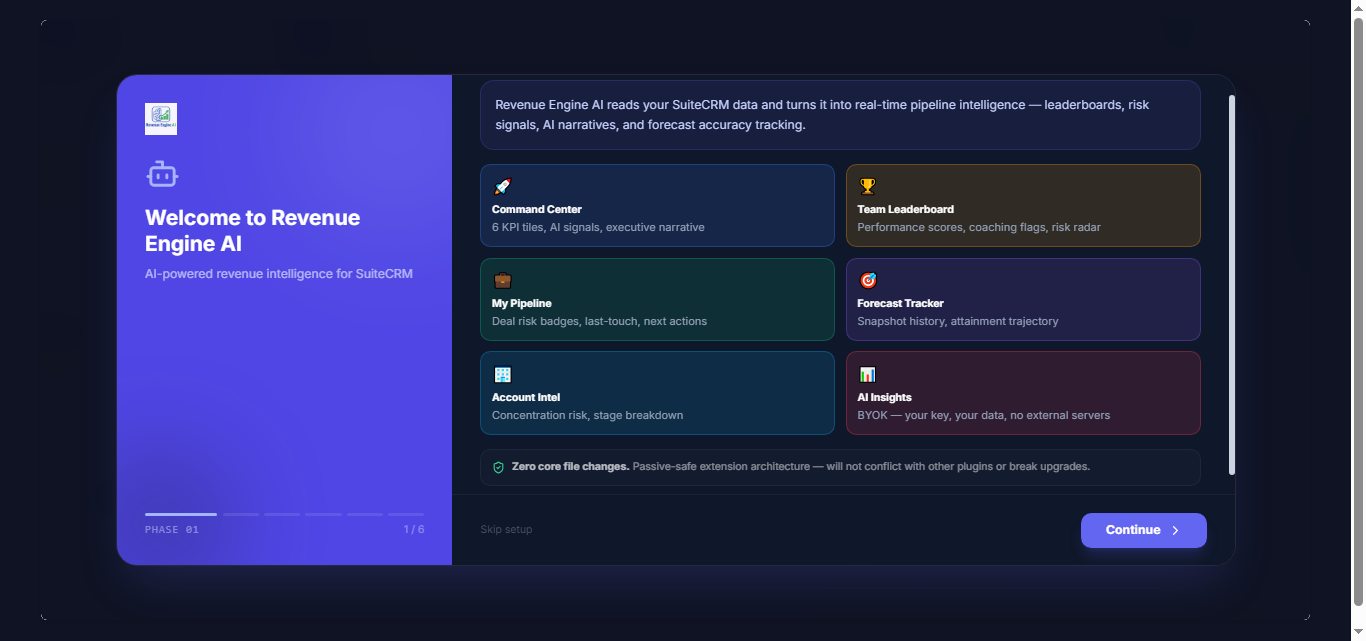
Step 1: Welcome
Overview of the product and setup process
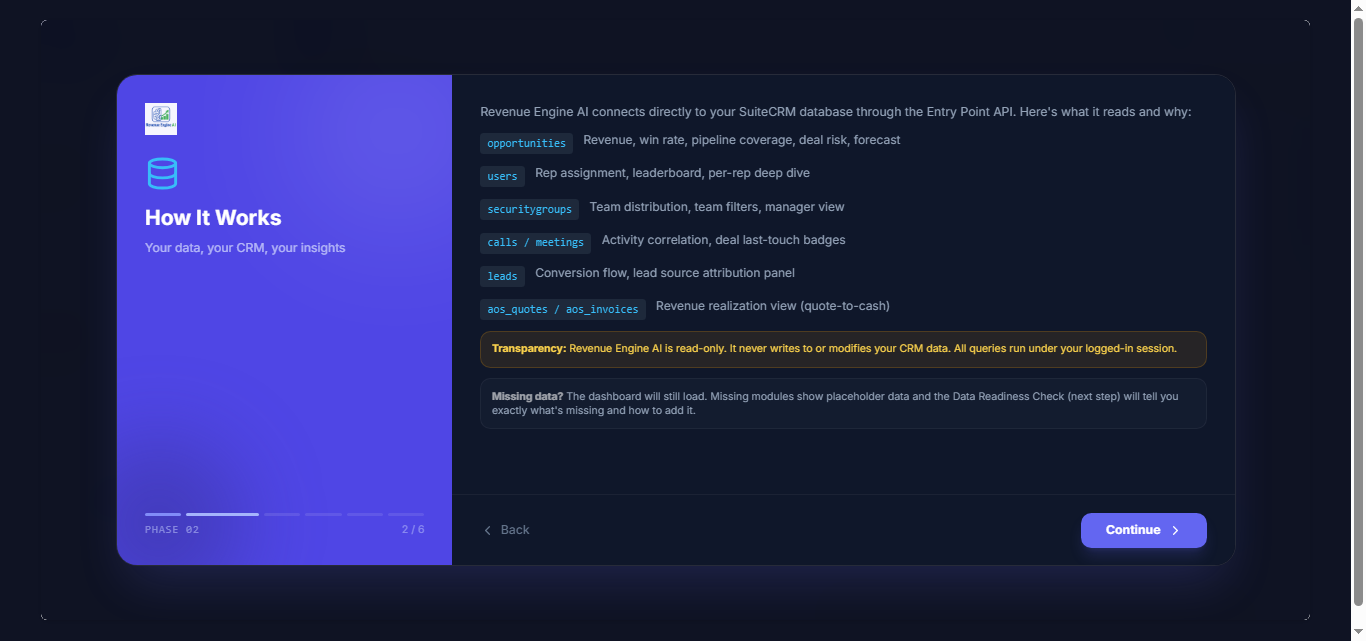
Step 2: How It Works
Explanation of how data flows and insights are generated
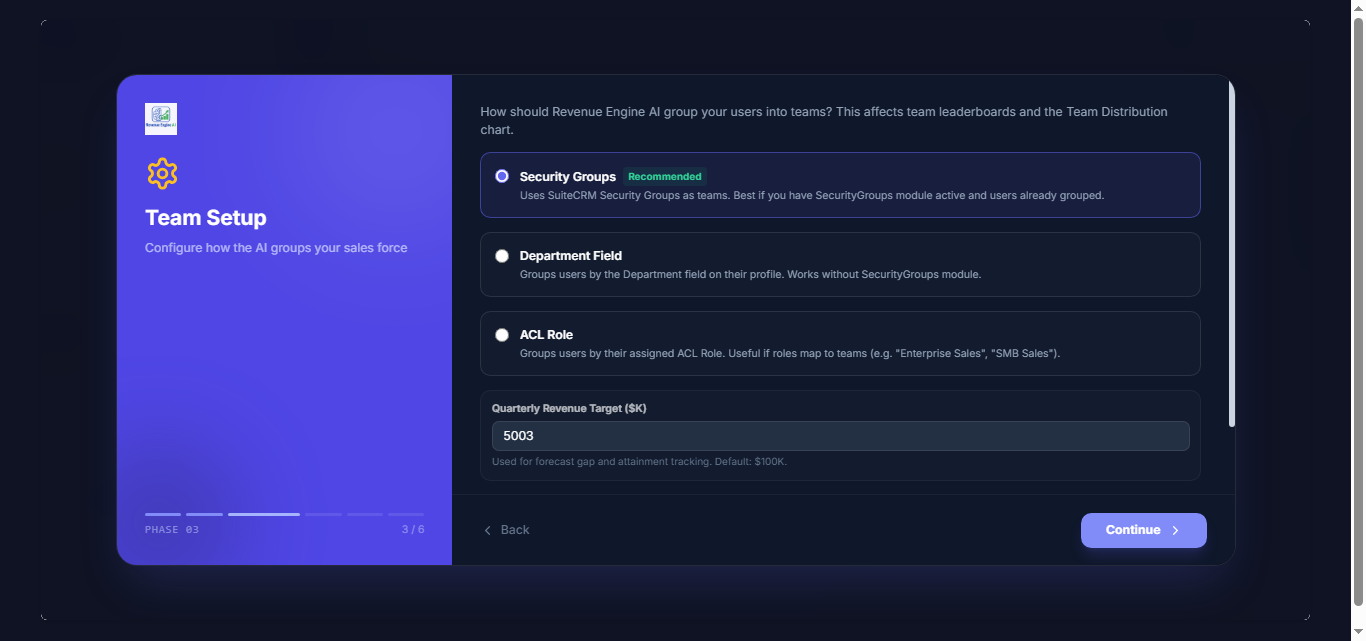
Step 3: Team Setup
Configure how users are grouped and optionally set your quarterly revenue target
- Team grouping options:
- Security Groups (recommended)
- Departments
- ACL Roles
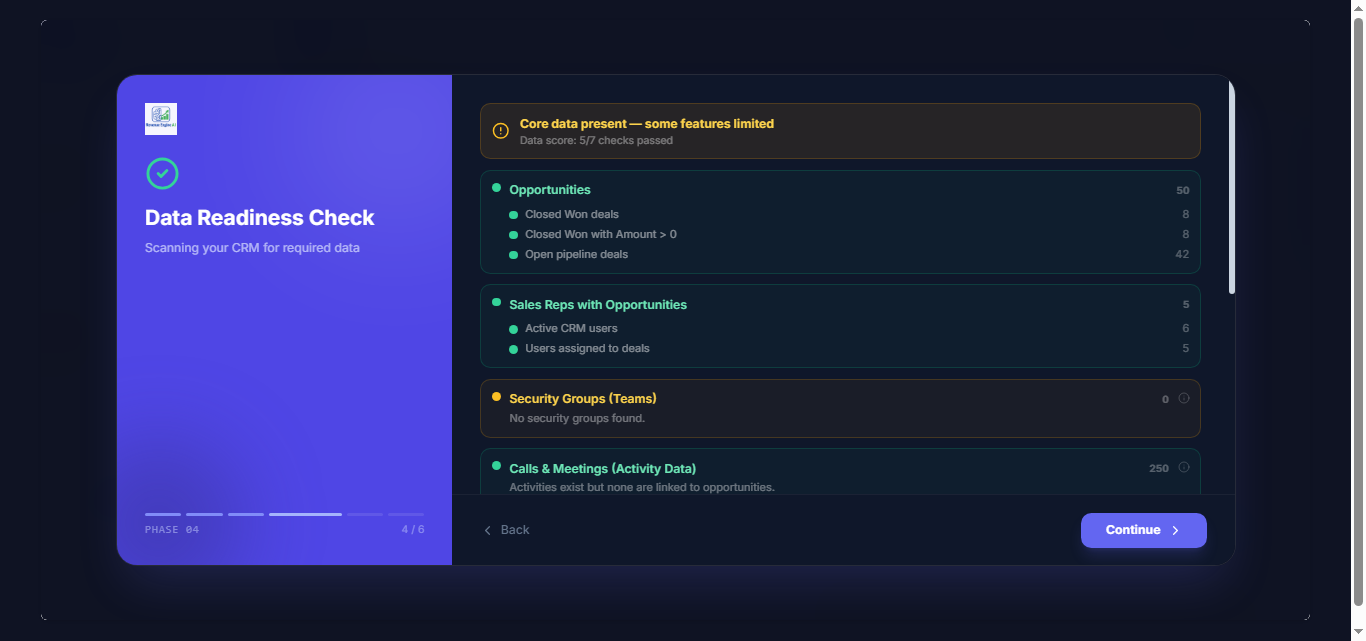
Step 4: Data Readiness Check
Automated scan verifies CRM data quality and availability
- Opportunities
- Activities (Calls & Meetings)
- Leads
- Quotes & Invoices (Revenue Realization)
- License status
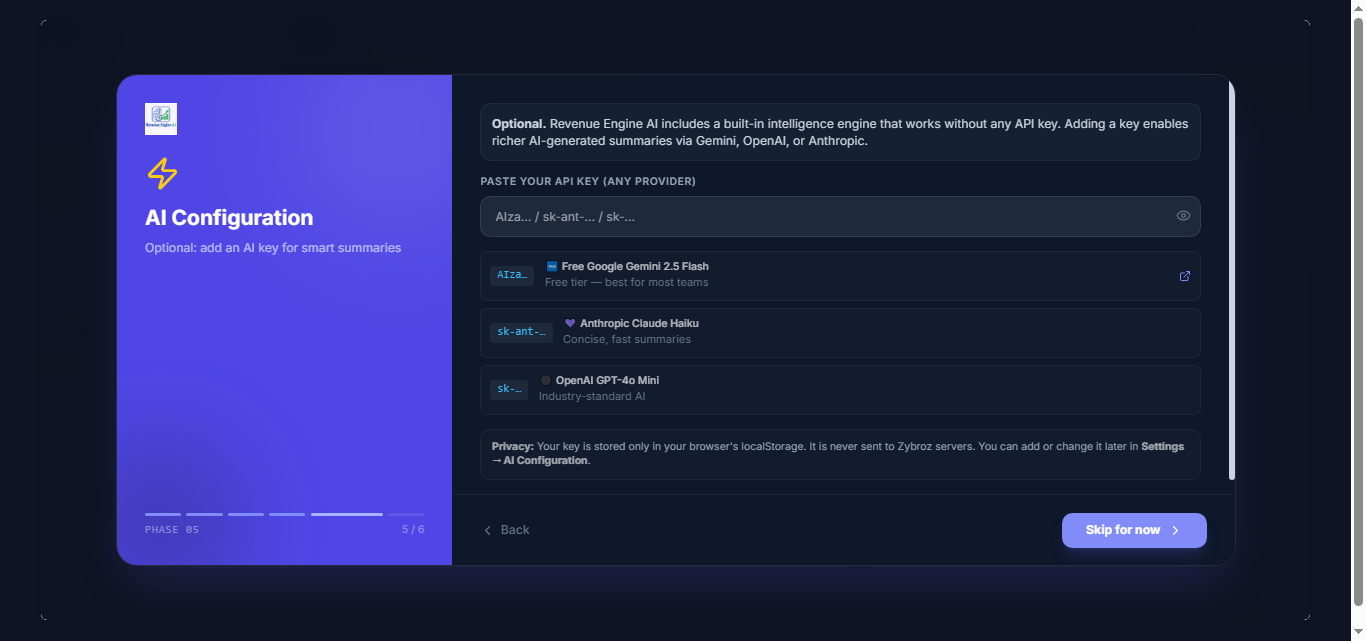
Step 5: AI Configuration
Optional setup for AI-powered insights using your own API key
Step 6: Launch
Confirmation that setup is complete. The dashboard loads immediately with live CRM data.
Settings & Configuration
Access the settings panel using the gear icon in the top-right corner of the dashboard.
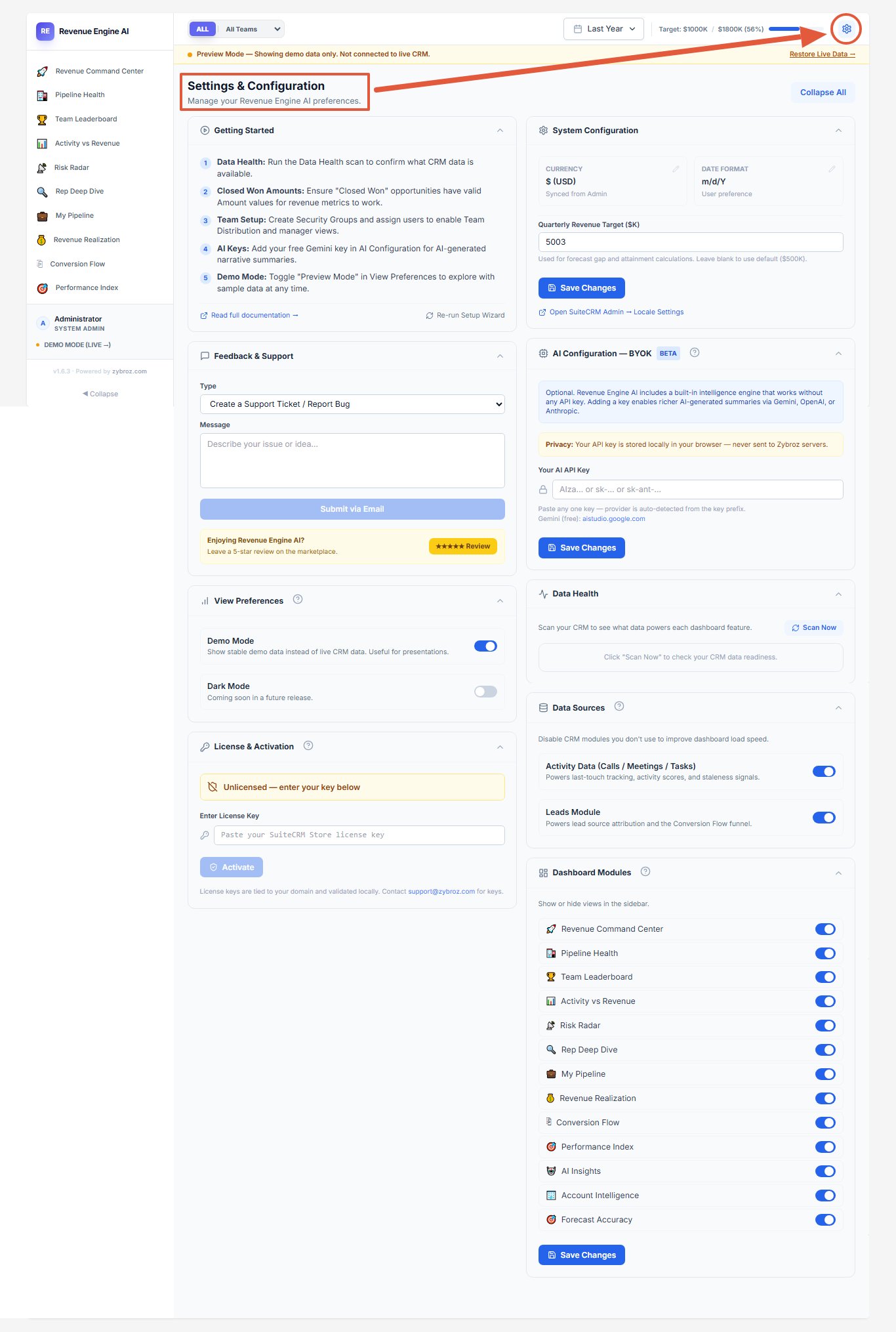
System Configuration
Currency and Date Format
Displays the currency symbol and date format currently configured in SuiteCRM Admin. These are read-only — to change them, use Admin → Locale Settings in SuiteCRM.
Quarterly Revenue Target
- Enter your organization's quarterly revenue target
- Value is entered in thousands (e.g., enter
500for a $500K target) - Used to calculate:
- Forecast gap percentage
- Pipeline coverage ratio
- Attainment progress indicators
- Leave blank to use the default value of $500K
Team Mapping
Define how users are grouped for reporting:
- Security Groups (recommended) — uses SuiteCRM's built-in SecurityGroups module
- Departments — groups by the Department field on user records
- ACL Roles — groups by assigned ACL roles
This setting controls how manager-level visibility is applied and how the Team Distribution view is organized.
Data Sources
Enable or disable CRM modules used for analysis:
- Opportunities — required; disabling this disables all revenue metrics
- Activities (Calls & Meetings) — optional; disabling removes activity-based scores and charts
- Leads — optional; disabling removes Conversion Flow and Lead Source Attribution
Disabling unused modules improves load performance.
Data Health
Scan your CRM to verify that the required data is present and correctly structured.
Access from: Settings → Data Health → Scan Now
The scan checks:
- Opportunities (total count, Closed Won count, amounts)
- Sales reps assigned to opportunities
- Security Groups configuration
- Calls and Meetings logged
- Leads module availability
- Quotes and Invoices (for Revenue Realization)
- License status
Each check shows a pass, warning, or fail status with a plain-language explanation of what to fix. Re-run the scan after making changes to verify.
Dashboard Modules
Control which views appear in the sidebar for all users.
Access from: Settings → Dashboard Modules
Individual views can be toggled on or off. Changes apply immediately. Use this to hide views that are not relevant to your team's workflow.
AI Configuration (BYOK)
Revenue Engine AI supports:
- Google Gemini (free tier available via aistudio.google.com)
- OpenAI
- Anthropic Claude
Setup Steps
- Navigate to Settings → AI Configuration
- Paste your API key
- Save
The system automatically detects the provider from the key prefix:
AIza…→ Google Gemini 2.5 Flashsk-ant-…→ Anthropic Claude Haikusk-…→ OpenAI GPT-4o Mini
Data Flow Notes
- API keys are stored in browser localStorage only
- No keys are stored on the SuiteCRM server
- API keys are never transmitted to Zybroz servers
- When AI insights are generated, your pipeline summary is sent directly from your browser to your chosen AI provider (Gemini, OpenAI, or Anthropic)
- A built-in local intelligence engine runs without any API key; the BYOK key enables richer narrative summaries on top of it
License & Activation
To activate the product:
- Go to Settings → License & Activation
- Enter your license key in the format
REAI-XXXXXXXX-XXXXXXXXXXXXXXXX - Click Save
- License keys are domain-bound and validated against the SuiteCRM Store
- Validation requires an active internet connection from the browser
- Admin access is required to update or change the license
- Without a valid license, the dashboard operates in demo mode only
Demo Mode
Demo Mode allows safe exploration without exposing real CRM data.
Enable Demo Mode
- Go to Settings → View Preferences
- Toggle Demo Mode ON
What It Does
- Loads a pre-configured dataset simulating a realistic 18-rep SaaS organization
- Does not read from or write to any live CRM data
- An amber banner is displayed at the top of the dashboard whenever Demo Mode is active
This is useful for:
- Product demonstrations
- Internal training
- Testing and evaluation before going live
Performance & Best Practices
- Use Security Groups for accurate team-level reporting and manager visibility
- Ensure all Closed Won opportunities have valid Amount values — revenue metrics depend on this
- Link Calls and Meetings to Opportunities for activity-based scoring to work correctly
- Disable unused modules (Leads / Activities) in Data Sources if they are not in use
- Run the Data Health scan after initial setup to identify any data gaps before your team starts using the dashboard
Security Architecture
Revenue Engine AI follows a passive-safe design:
- No database schema changes
- No modification of core SuiteCRM modules or existing data
- Role-based access enforced server-side — cannot be bypassed client-side
- No external data storage or sync by the application itself
- Clean uninstall support via Module Loader
Maintenance
No regular maintenance is required.
For updates:
- Upload the latest package via Admin → Module Loader
- Existing settings, license key, and preferences remain unchanged after upgrade
You're Ready
Once configured, Revenue Engine AI provides a complete view of your pipeline, performance, and revenue operations — entirely within SuiteCRM, with no external dependencies beyond an optional AI provider key.
 Saving Comment...
