

Unleash the power of customization and elevate your SuiteCRM experience with MTS SuiteCRM 8 Theme Editor. Unlimited colors, responsive design, no code needed, load theme by security group, enable sidebar menu, and other awesome features.
Admin Guide
MTS Sidebar Nav — User Guide
Give your SuiteCRM a personalized look. With this add-on you can:
- Turn the top menu into a tidy left sidebar (or keep the normal top bar).
- Pick your own colors for the menu, buttons, panels, lists, and more.
- Show different themes for different teams — e.g. Sales in blue, Support in green.
- Set one default theme for everyone (and for the login screen).
- Switch on a dark mode button.
No coding needed — everything is done from the admin screens.
Getting started in 3 steps
- Install the add-on (Admin → Module Loader).
- Activate your license (enter your key).
- Create a theme and (optionally) assign it to a team.
That’s it. The rest of this guide explains each step and the extra options.
1. Install the add-on
- Sign in as an Administrator.
- Open Admin → Module Loader.
- Click Choose File, select the add-on package (
MTS_Theme_with_Sidebar_Menu_….zip), and click Upload. - In the list, find MTS Theme with Sidebar Menu and click Install.
- Wait for it to finish.
When it’s done, you’ll see a new section in the Admin page: MTS Sidebar Navigation.
2. Activate your license
You need to enter your license key once before themes will show.
- Go to Admin → MTS Sidebar Navigation → Sidebar Nav License.
- Paste your license key (from your purchase) into the field.
- Click Validate.
- When it says success, click Continue — you’ll land on the Sidebar Nav Themes page.
Until the license is activated, your CRM simply shows its normal default look. Nothing breaks — you just won’t see custom themes yet.
3. Create your first theme
- Go to Admin → MTS Sidebar Navigation → Sidebar Nav Themes.
- Click Create.
- Give it a Name (e.g. “Company Blue”) and leave Status as Active.
- In the Theme Configuration area, change the colors you want. The sections are grouped
(Sidebar & Navbar, Buttons, Panels, List View, Tabs, Inputs, Layout, Dark Mode).
- Click a color box or type a hex code (like
#1a73e8). - The Live Preview at the top updates as you go, so you can see the result instantly.
- Click a color box or type a hex code (like
- Click Save.
To see it on your CRM, refresh the page (F5).
4. Make a theme the default (Global)
The Global theme is what everyone sees when they don’t have a team theme — and it’s also the theme used on the login screen.
- Open a theme.
- Tick Global.
- Save.
Only one theme can be Global. If another theme was Global before, it’s automatically turned off (set to Inactive) — you’ll get a quick confirmation prompt when you tick the box.
Want everyone on the same look? Just create one theme, tick Global, and don’t assign it to any team.
5. Give a team its own theme
You can assign a theme to one or more Security Groups (teams).
- Open the theme.
- In the Security Groups panel at the bottom, click Select and choose the team(s).
- Make sure Status is Active.
Now members of that team see this theme; everyone else sees the Global (default) theme.
How it’s decided for each person: - If their team has a theme → they get the team theme. - Otherwise → they get the Global theme. - If there’s no Global theme either → they get the normal SuiteCRM look.
A person in two teams gets the theme of their primary team.
6. Sidebar or top menu? (per theme)
In Theme Configuration → Layout there’s an Enable Sidebar menu switch:
- On → the menu becomes a left sidebar.
- Off → keeps SuiteCRM’s normal top menu, but still applies your chosen colors.
So you can mix and match — some teams on the sidebar, others on the classic top bar.
7. Duplicate a theme (Clone)
Want a new theme similar to an existing one? Don’t edit the original — clone it:
- Open a theme and click Clone.
- A copy named “… (Copy)” opens, ready to edit.
- Change what you like and save.
This is the safe way to make variations — the original (and your Global theme) stay untouched.
8. Dark mode
In Theme Configuration → Dark Mode:
- Enable dark mode toggle — adds a sun/moon button to the top bar so users can switch.
- Default to dark mode — new users start in dark mode.
9. Good to know
- Changes show after a page refresh. After you save a theme (or after logging in), press F5 to see it. Just clicking around inside the app may not update the look until you refresh.
- Logging out and back in as another user automatically switches to that user’s theme.
- The login screen remembers the last theme used on that computer; on a brand-new browser it shows the Global theme.
- Your themes are safe. They’re stored in your CRM database — clearing caches or repairs never deletes them, and you never have to re-enter colors.
- If a theme can’t load for any reason, the CRM safely falls back to the default look instead of breaking.
10. Troubleshooting
| What you see | What to check |
|---|---|
| No custom theme at all | Is the license activated? Is there an Active Global theme, or a theme on your team? Did you refresh (F5)? |
| Wrong theme for someone | Check their primary team and that an Active theme is assigned to it. |
| Login screen looks plain | Create an Active Global theme — the login screen uses the Global theme. |
| Colors changed but layout didn’t | The theme’s Enable Sidebar menu switch is Off (top menu kept on purpose). |
| My change isn’t showing | Refresh the page (F5). |
If something still looks wrong after a refresh, contact your administrator.
11. Example — a company with several branches
Acme Group shares one CRM across Head Office and three branches. Each branch wants its own brand color; Head Office and the login screen use the corporate look.
| Team | Color | Menu |
|---|---|---|
| Head Office (default) | Navy | Sidebar |
| Hanoi Branch | Red | Sidebar |
| Da Nang Branch | Green | Sidebar |
| Saigon Branch | Orange | Top menu |
How to set it up 1. Create the teams (Security Groups): Hanoi, Da Nang, Saigon. Add each branch’s users to their team. 2. Create a theme Acme Corporate (Navy), tick Global, save. → default + login screen. 3. Clone it → Acme Hanoi (Red) → assign team Hanoi. 4. Clone again → Acme Da Nang (Green) → assign Da Nang. 5. Clone again → Acme Saigon (Orange), turn Sidebar menu Off → assign Saigon.
Result (after each person refreshes): - Hanoi staff → Red sidebar · Da Nang → Green sidebar · Saigon → Orange top menu. - Head Office (no team theme) → Navy (Global). - Login screen → Navy (Global).
Everyday tips - Rebrand one branch → just edit that branch’s theme; others are unaffected. - Put a branch back on the corporate look → set its theme to Inactive (or remove the team from it). - Change the look for Head Office + login → edit the Acme Corporate (Global) theme.
Quick reference
- Themes live in: Admin → MTS Sidebar Navigation → Sidebar Nav Themes
- License: Admin → MTS Sidebar Navigation → Sidebar Nav License
- Active = a theme can be used · Global = the default for everyone + login screen
- Refresh (F5) to see changes.
For MTS SuiteCRM 8 Theme Editor
Configuration
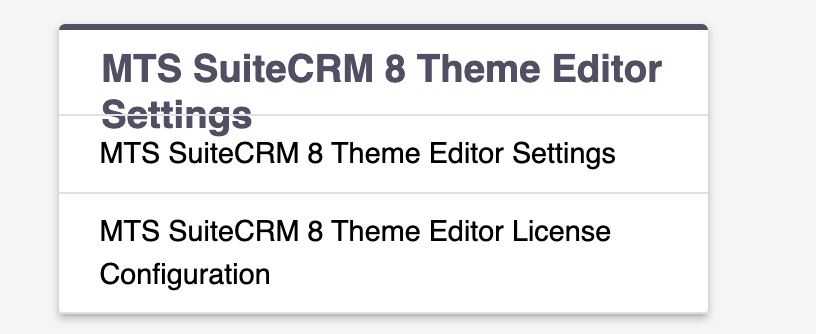
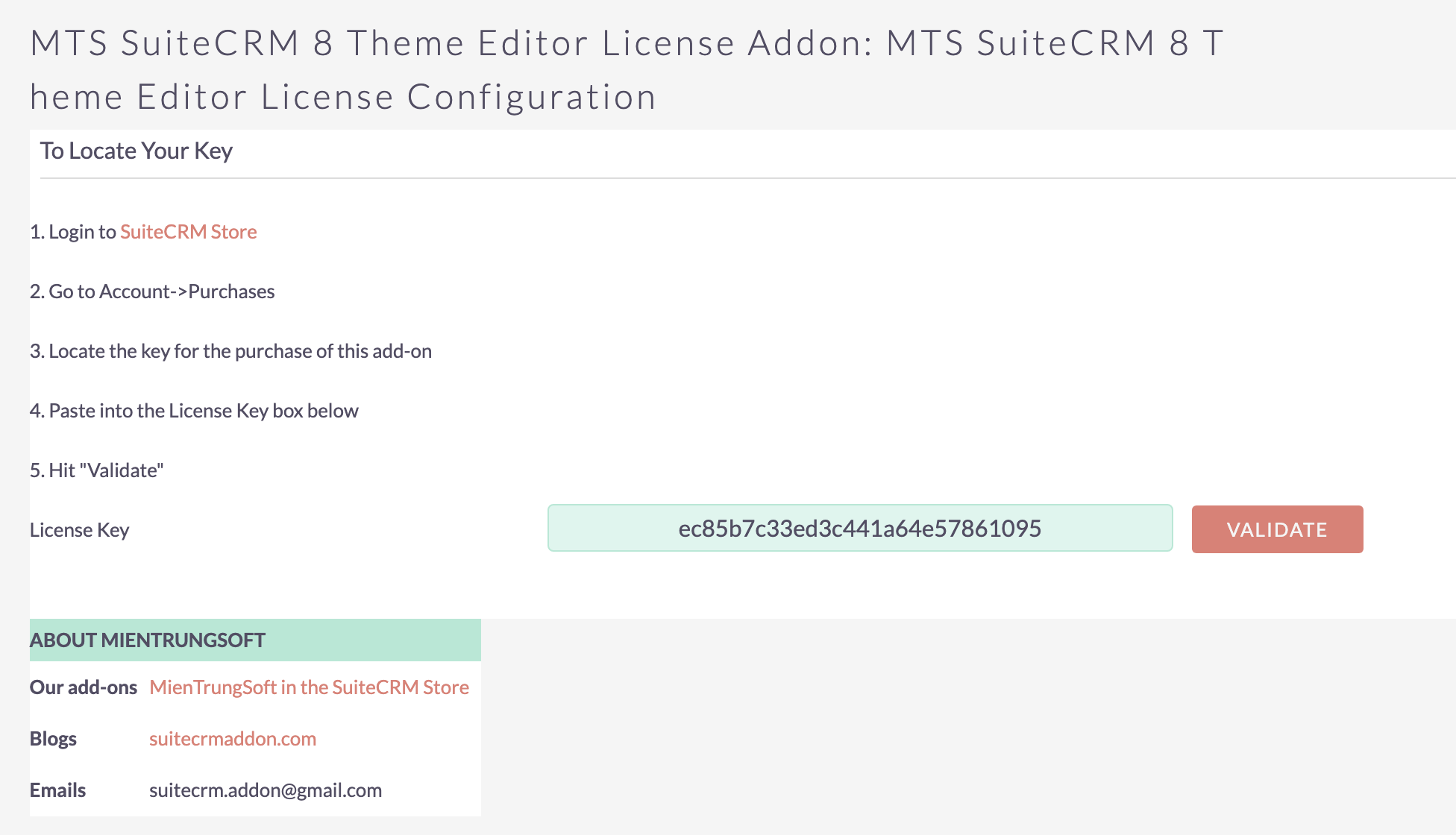
Once the add-on is installed successfully go to Admin > Find to MTS SuiteCRM 8 Theme Editor License Configuration
Configure license
Click on MTS SuiteCRM 8 Theme Editor License Configuration to enter your license > Hit 'Save'
Create your theme
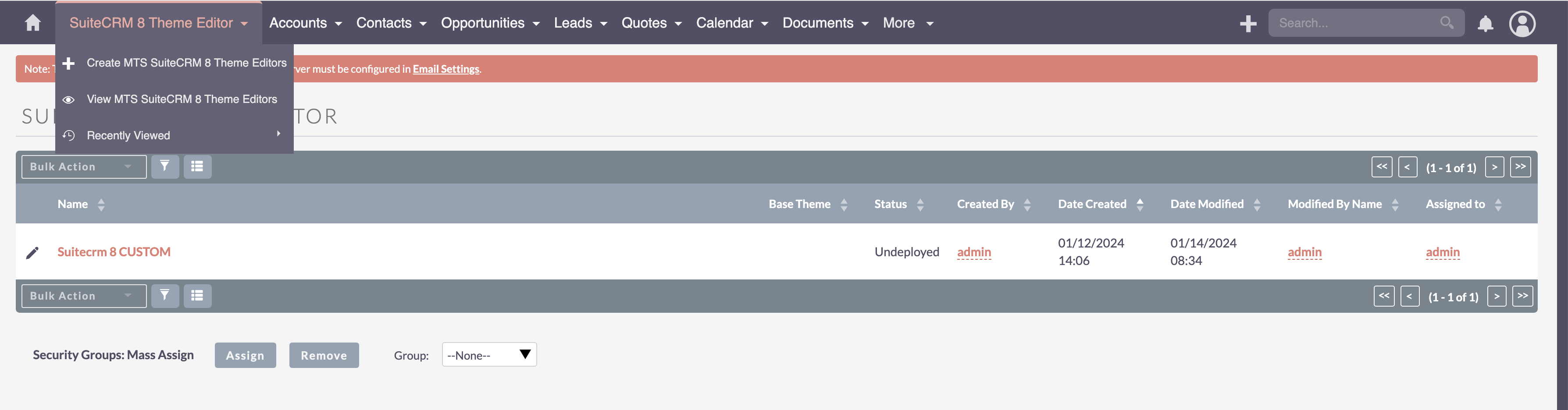
Go to Admin > MTS SuiteCRM 8 Theme Editor Settings
On Sidebar > Click on "Create MTS SuiteCRM 8 Theme Editor"
Change the color as your expected
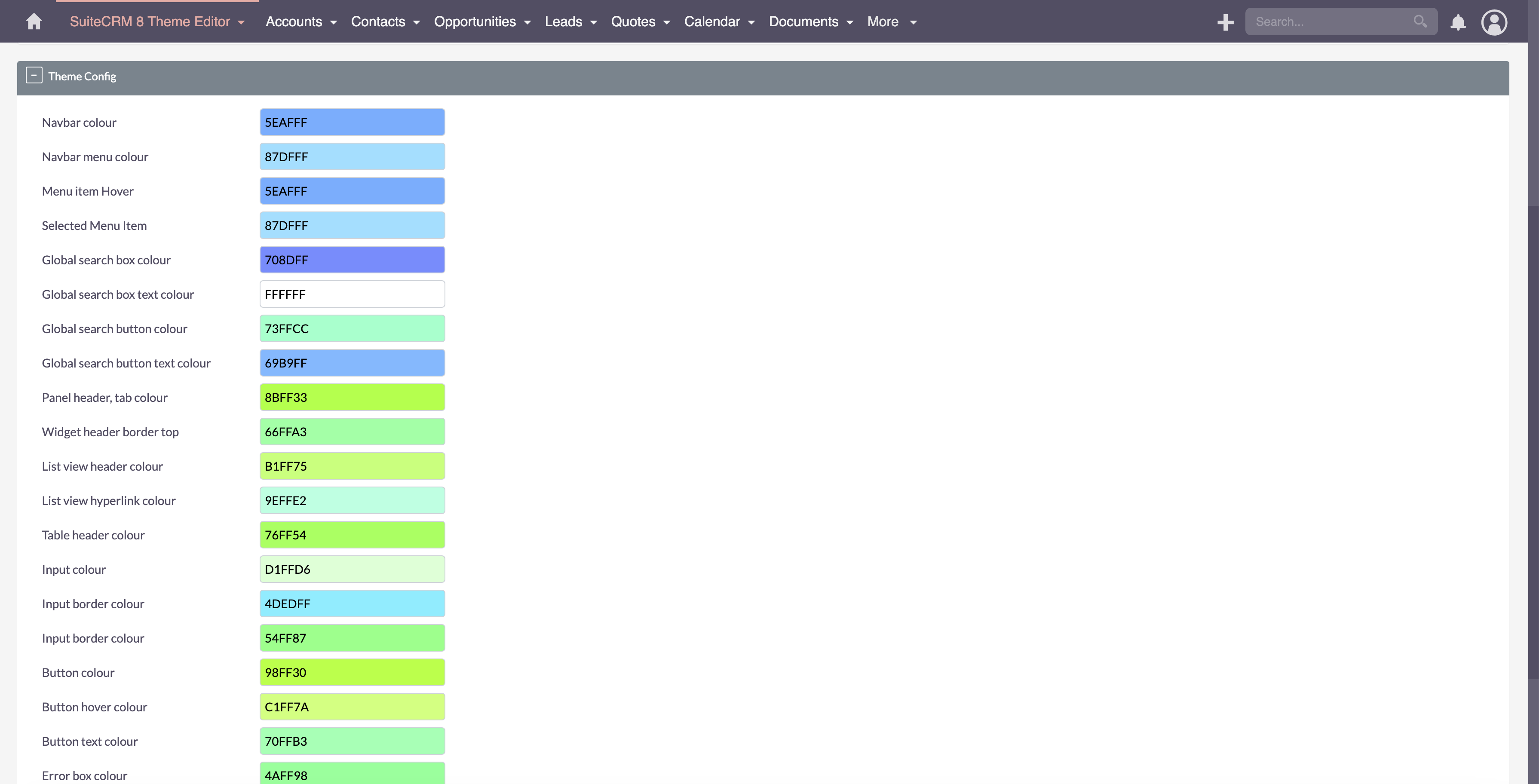
Hit 'Save'
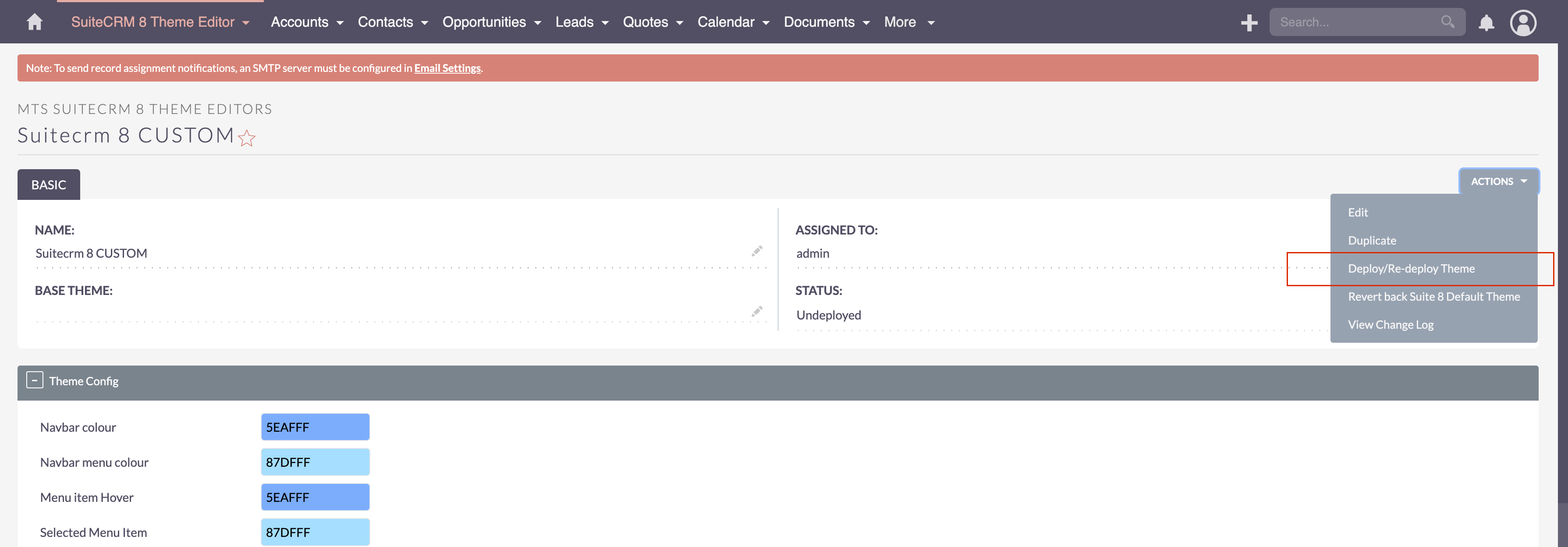
Deploy your theme
On theme detail view > Click on 'Actions' > Click 'Deploy/Re-deploy Theme' and waiting for the system process
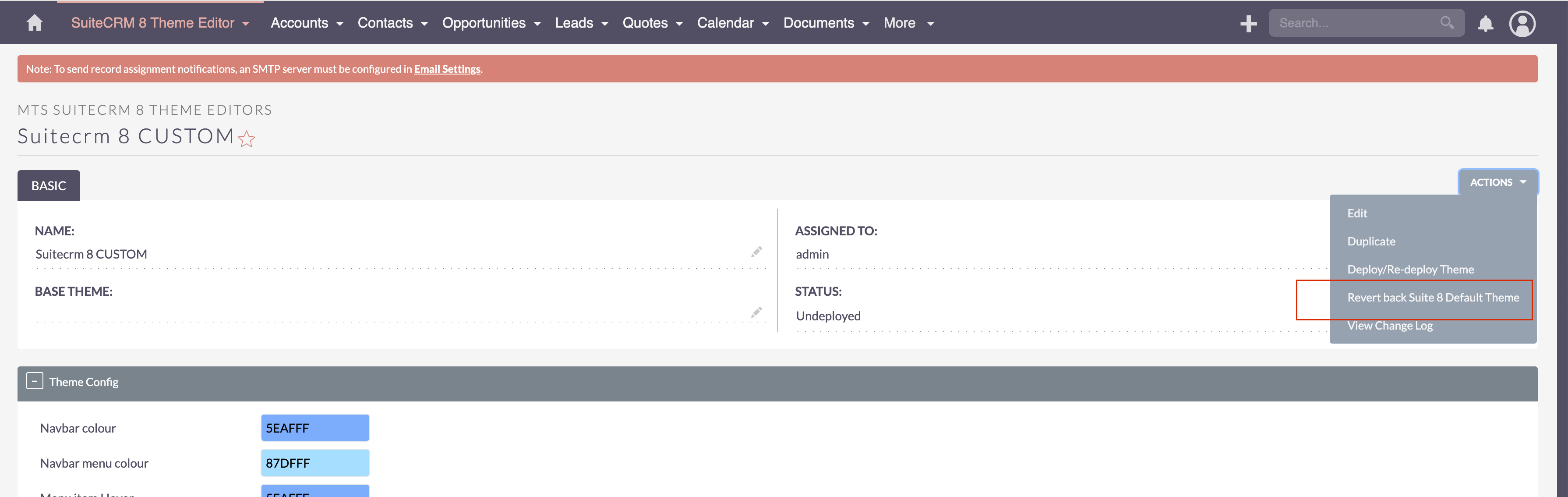
Revert back to SuiteCRM 8 theme
As above screen > Click on 'Actions' > Click 'Revert back to SuiteCRM 8 Theme'
Go to User Guide to start config and use your theme

9 months ago
The MTS SuiteCRM 8 Theme Editor seems like a game-changer for customizing SuiteCRM. The feature of unlimited colors and responsive design is fantastic. https://store.suitecrm.com/docs/magento-bridge/golf hitinstallation-guide
8 months ago
The MTS SuiteCRM 8 Theme Editor appears to be a powerful tool for personalizing SuiteCRM. Its support for unlimited color options and a fully responsive design makes customization both flexible and impressive.
8 months ago
The MTS SuiteCRM 8 Theme Editor appears to be a powerful tool for personalizing SuiteCRM. Its support for unlimited color options and a fully responsive design makes customization both flexible and impressive. https://store.suitecrm.com/docs/magento-bridge/installation-guidestickman hook
5 days ago
I recently started using pinpointanswertoday.io for quick answer lookups and it saves me a lot of time when troubleshooting admin setups like this — handy alongside a clear guide such as this one. Thanks for documenting the theme workflow so thoroughly.