

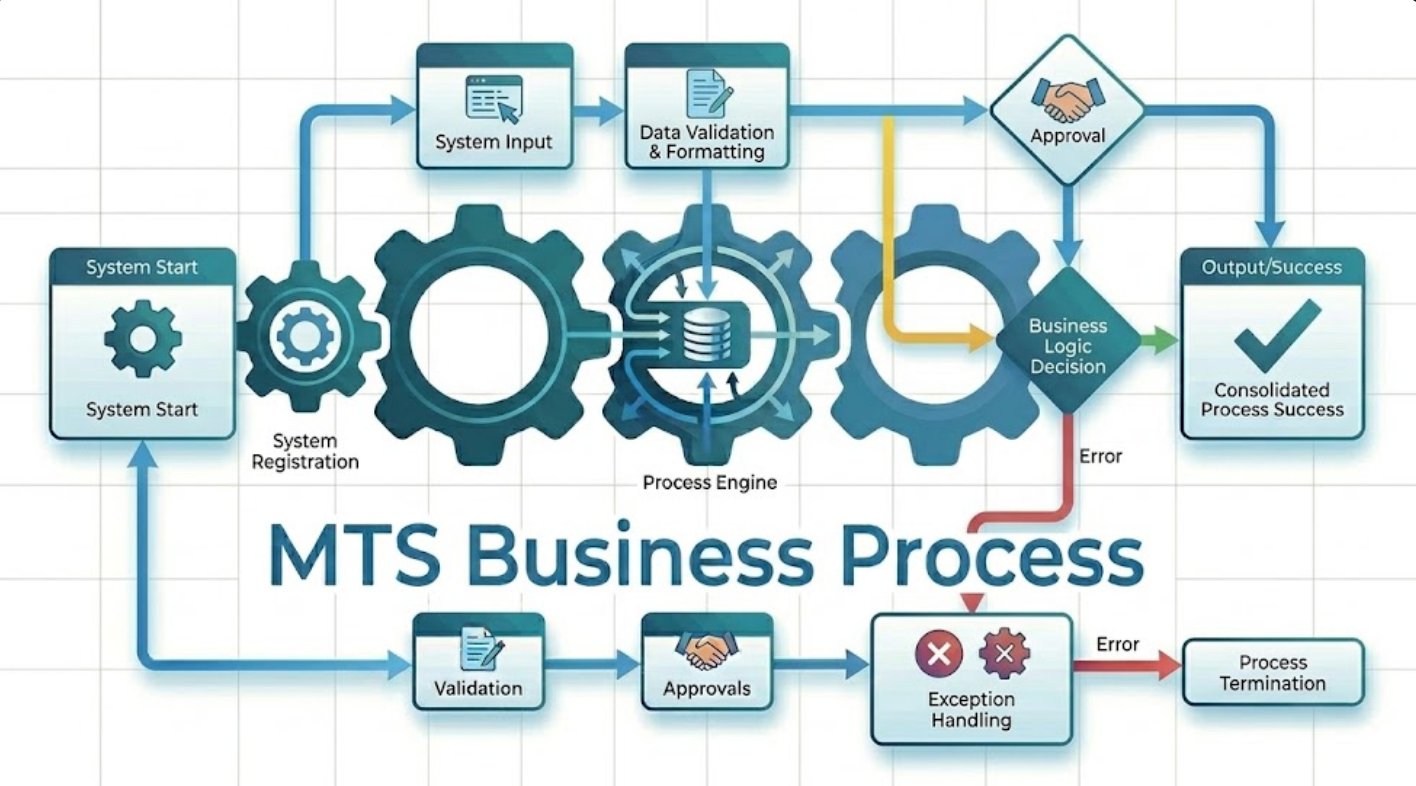
MTS Business Process is a SuiteCRM 8 plugin that lets you design and automate multi-step business processes directly inside your CRM — no coding required. When a record is saved, the process starts automatically: it checks conditions, runs actions, waits for the right moment, and logs every step. It is the only SuiteCRM plugin that combines a visual process designer, time-based delays, condition listeners, and a full activity log in one integrated package.
User Guide
MTS Business Process — User Guide for SuiteCRM 8
Introduction for Users
MTS Business Process runs automated multi-step workflows on your SuiteCRM records. When you save a record — a Lead, a Case, an Opportunity, or any other type — the system checks whether a process applies to it and runs the process automatically in the background. You do not need to start anything manually.
How the Plugin Works
- Your administrator creates a process and draws its steps in the visual designer.
- The administrator activates the process.
- You save a record in SuiteCRM (create it, edit it, or import it).
- The process starts automatically — you do not see it happen while saving.
- The process moves through its steps: checking conditions, running actions, or waiting for a set time.
- When the process finishes (or if it pauses to wait), you can see its status on the record.
Viewing Process Runs on a Record
In SuiteCRM 8
- Open any record — for example, a Lead or a Case.
- Look for the View Process Runs button in the action bar at the top of the record.
- Click it to open the process runs overlay.
- The overlay shows every process that has run or is currently running for this specific record.
- For each run, you can see the current status, the step it reached, when it started and finished, and any issues.
In SuiteCRM 7
- Go to the Process Runs module from the navigation menu.
- Use the search at the top to filter by the record name or module.
- Click any row to see the full detail of that run.
Reading the Process Runs List
Each row in the process runs list shows one execution of a process on your record.
| Column | What it means |
|---|---|
| Process | The name of the process that ran |
| Status | Running, Waiting, Completed, Failed, or Cancelled |
| Current Step | The step the process is currently on or last reached |
| Started | When the process began |
| Finished | When the process ended (blank if still running or waiting) |
| Issue | A brief description of any error, if the process failed |
A Waiting status means the process is paused at a Delay step or watching for a condition to become true. It will continue automatically when the wait period ends or the condition is met.
Usage Scenarios
Scenario 1 — New lead is created
You do: Fill in a new Lead record and click Save.
You will see: The Lead appears in the list as normal. In the background, the process starts, checks whether the lead source matches the configured criteria, and if so, sends an automated welcome email and creates a follow-up task for the assigned sales rep.
You do: Open the Lead. Click View Process Runs to confirm the process ran and the email was sent.
Scenario 2 — Case has been open for 48 hours without a response
You do: Nothing — the process is watching automatically.
You will see: After 48 hours, the process checks whether the case still has no response. If not, it reassigns the case to a senior agent and sends an internal notification.
You do: Open the Case. The assigned agent will have changed. Click View Process Runs to see the timeline of what happened and when.
Scenario 3 — Opportunity is marked as Won
You do: Edit an Opportunity and change the Sales Stage field to "Closed Won". Click Save.
You will see: The record saves normally. The process detects the stage change, creates a linked Onboarding Case, and sends a welcome email to the contact.
You do: Open the Opportunity. Click View Process Runs to confirm the case was created and the email was sent. Open the Cases module to find the newly created case.
Best Practices
- ✓ Check the View Process Runs button on important records to confirm the expected process ran.
- ✓ If a process failed, share the error message from the process runs overlay with your administrator.
- ✓ If you need a process to restart on a record (for example, after fixing an error), ask your administrator — only admins can cancel or re-trigger a process.
- ✓ When editing a record, be aware that saving may trigger processes. This is normal and expected.
- ✗ Do not try to speed up a process by saving the record multiple times rapidly — this can create duplicate runs, depending on the process configuration.
- ✗ Do not delete records that have active running processes — ask your administrator to cancel the process first.
FAQs for Users
Does saving a record slow things down?
No. Processes run in the background after the record is saved. You see the record immediately — the process has no effect on how fast the save completes.
Why does my record show "Waiting" in the process runs list?
The process has paused at a Delay step or is watching for a specific condition to become true. It will continue automatically — there is nothing you need to do.
Why did the process not run on my record?
A few common reasons: the process is set to run only on newly created records (not updates), or the record does not meet the conditions configured in the first Criteria Check step. Ask your administrator to check the process settings.
Can I stop a process that is running on my record?
Only administrators can cancel a process run. If you believe a process is running incorrectly on your record, contact your administrator and share the record name and module.
Where can I see what actions a process took?
Open the record, click View Process Runs, and click View details on any step in the activity log. This shows you the specific action that was taken, the result, and the exact time it happened.
- Website: mientrungsoft.com
- Email: anhnhatuit@gmail.com
- WhatsApp: +84973131884
 Saving Comment...
