

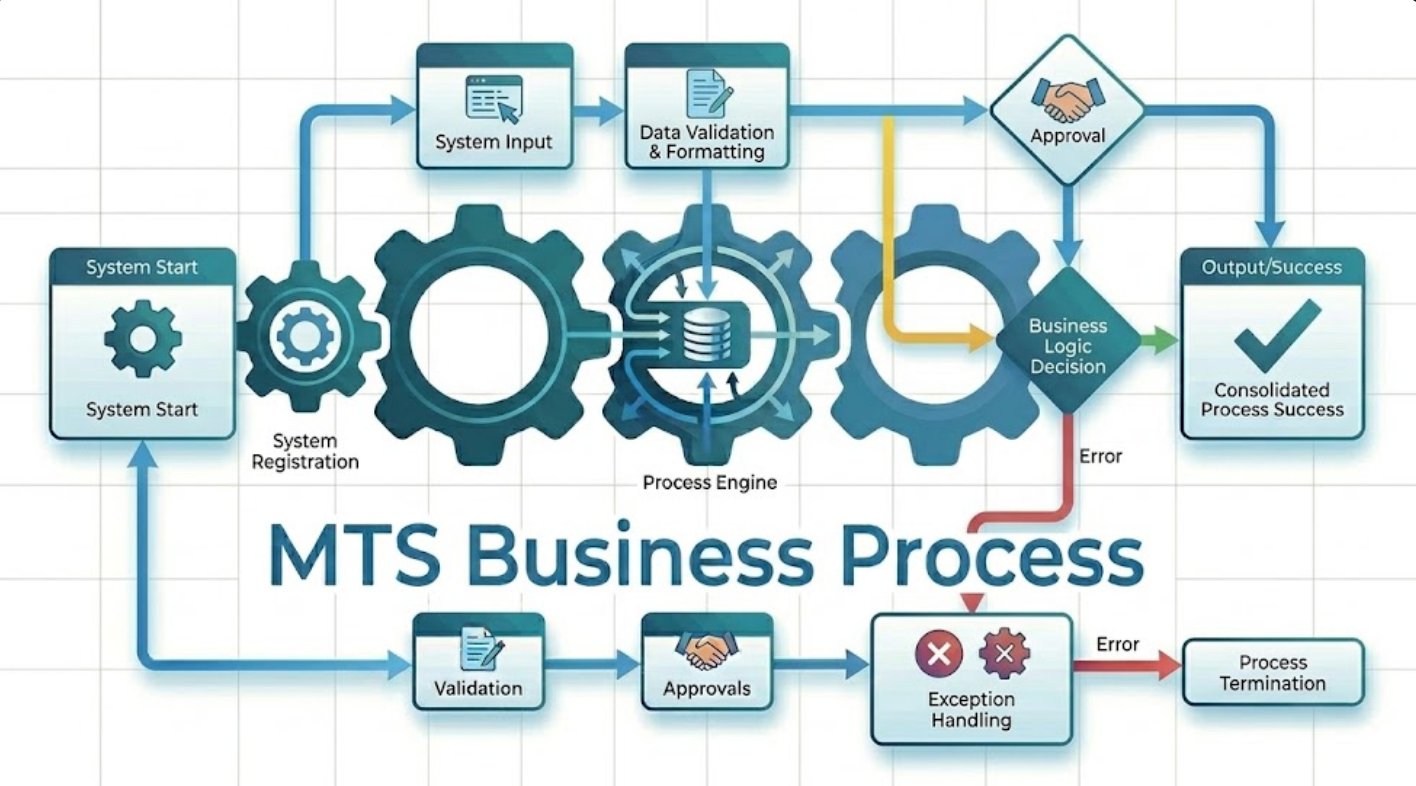
MTS Business Process is a SuiteCRM 8 plugin that lets you design and automate multi-step business processes directly inside your CRM — no coding required. When a record is saved, the process starts automatically: it checks conditions, runs actions, waits for the right moment, and logs every step. It is the only SuiteCRM plugin that combines a visual process designer, time-based delays, condition listeners, and a full activity log in one integrated package.
Admin Guide
MTS Business Process — Admin Guide for SuiteCRM 8
Administration Overview
| Area | Function |
|---|---|
| Process Designs module | Create, edit, and activate business processes |
| Process Designer | Draw and configure the steps of a process |
| Process Settings | Control when and how often a process runs |
| Process Activity monitor | View all running, completed, and failed process runs |
| Admin → MTS Business Process | Manage the plugin licence |
| Admin → Schedulers | Keep the wait queue running |
Managing Process Designs
A Process Design is the blueprint for an automated workflow. One design targets one SuiteCRM module and runs whenever a record in that module is saved.
Create a Process Design
- Go to Process Designs in the navigation menu.
- Click Create Process.
- Fill in the following fields:
| Field | Required | Description |
|---|---|---|
| Name | Yes | A clear business name visible to all admins — for example, "Lead Welcome Sequence" |
| Target Module | Yes | The SuiteCRM module this process watches — for example, Leads, Opportunities, Cases |
| Description | No | Internal notes for your team about why this process exists |
- Click Save.
- The process is created with a status of Draft. It will not run until you activate it.
Open the Process Designer
From the detail view of any Process Design, click Open Designer. The visual editor opens in a full-screen overlay.
Using the Process Designer
Canvas and palette
The canvas is the main working area. The left panel contains the step types you can add to your process. Drag a step from the left panel onto the canvas to add it.
Step types
| Step | Label in Designer | Purpose |
|---|---|---|
| Start | Start | The entry point — every process begins here. Only one Start step is allowed. |
| Criteria Check | Criteria Check | Evaluates conditions and sends the process down a TRUE or FALSE path |
| Action Step | Step | Runs a SuiteCRM workflow action (modify record, send email, create record, etc.) |
| Delay | Delay | Pauses the process for a set time before continuing |
| End | End | Marks the process as successfully completed |
Connecting steps
Click the edge of one step and drag to the edge of another to draw a connection. Criteria Check steps have two outgoing connections: one for the TRUE path and one for the FALSE path. Label them accordingly.
Configuring a Criteria Check step
Click on the step to open its settings panel on the right.
Fields tab:
| Setting | Description |
|---|---|
| Target Record | Which record to evaluate — the one that triggered the process (Triggering Record), or a record created by a previous step |
| Field | The field on the record to check |
| Comparison | Equal To, Not Equal To, Greater Than, Less Than, Contains, Starts With, Ends With, Is Empty, One Of, Not One Of |
| Value | The value to compare against. Can be a fixed value, another field on the same record, or "has changed since last save" |
| AND / OR | Combine multiple conditions on the same Criteria Check step |
Listener tab (optional — turns the step into a condition listener):
| Setting | Description |
|---|---|
| Wait for Condition | When turned on, the process pauses at this step and re-checks at intervals instead of branching immediately |
| Check Every | How often to re-check the condition (e.g. every 30 minutes, every 1 day) |
| Timeout Mode | None (wait indefinitely), Duration (stop after a set time), or Until Date (stop on a specific date) |
| Timeout Value | The duration or date after which the process continues on the FALSE path |
Configuring an Action Step
Click on an Action Step to open its settings panel.
| Setting | Description |
|---|---|
| Action Type | Choose from the list of available SuiteCRM workflow actions |
| Parameters | The fields and values for that action — these vary by action type |
| Save result as | Optional: give this step a name (e.g. "new_case") so later steps can target the record this step creates |
Configuring a Delay step
| Setting | Description |
|---|---|
| Delay Mode | Duration (wait for a set amount of time) or Until Date (wait until a specific date and time) |
| Amount | Number of minutes, hours, days, or weeks to wait (Duration mode only) |
| Unit | Minutes, Hours, Days, or Weeks (Duration mode only) |
| Date/Time | The exact date and time to resume (Until Date mode only) |
Saving and activating a process
- Save as Draft — saves the current design without activating it. The process will not run.
- Validate Flow — checks the design for errors (missing connections, multiple Start steps, etc.) and shows a list of issues.
- Save & Activate — validates, saves, and publishes a new version. The process becomes active immediately.
Each time you click Save & Activate, a new version is created. Running processes continue on the version that was active when they started.
Process Settings
Process Settings control when a process runs and how it handles records that have been through the process before. Access them from the settings panel in the designer, or from the detail view of a Process Design.
| Setting | Options | Description |
|---|---|---|
| Start When | Any Save / Record Is Created / Record Is Updated | Controls which save events start the process |
| Re-enter Process | Only the first time / Any time (if not in process) / Any time (even if previously run) | Controls whether the same record can enter this process more than once |
| Include Imported Records | On / Off | When on, records imported via the SuiteCRM import tool also trigger the process |
Process Activity Monitor
The Process Activity monitor shows all runs across all processes in real time.
- From any Process Design detail view, click Activity.
- The monitor shows three tabs:
- Process Runs — one row per execution. Columns: process name, target record, status (running, waiting, completed, failed, cancelled), current step, started time, finished time, and any error.
- Waiting Steps — jobs that are paused waiting for a Delay or Condition Listener to resolve.
- Activity Log — a full event-by-event log for all runs, including step transitions, condition results, and action outcomes.
- Click Visualize on any run to see a highlighted map of the process showing which step the run is currently on and the path it took.
Licence Management
- Go to Admin → MTS Business Process.
- The current licence status is shown at the top.
- To update the key, paste a new key into the Licence Key field and click Validate Licence.
- The licence is re-validated automatically every 7 days. No manual action is required between validation cycles.
Backup and Restore
Before upgrading
- Export your Process Design list from Process Designs → Export (standard SuiteCRM list export).
- Note the names and active version numbers of all active processes.
- Take a full database backup using your normal backup procedure.
After reinstalling
- Run Admin → Quick Repair and Rebuild immediately after reinstallation.
- Go to Admin → Schedulers and confirm the MTS Process Runtime: Process Wait Queue scheduler is still Active.
- Check Process Designs — all definitions and their version history should be preserved if you chose to keep tables during uninstall.
- Re-enter your licence key in Admin → MTS Business Process.
Maintenance
- Run Admin → Quick Repair and Rebuild after any SuiteCRM upgrade.
- Check the Process Activity monitor weekly for any runs with a "failed" status and review the activity log to identify recurring errors.
- Archive old Process Designs that are no longer active by setting their status to Draft, to keep the active list clean.
- Monitor the Waiting Steps tab — a large backlog of waiting jobs may indicate the scheduler is not running.
Common Troubleshooting for Admins
A process is Active but never starts
Confirm the Target Module matches the module where records are being saved. Check that the Start When setting includes the type of save you are testing (create vs update). Verify the record is not excluded — MTS internal modules and AOW workflow modules are excluded by design.
A process is stuck on a Waiting Step for longer than expected
Go to Admin → Schedulers and check that MTS Process Runtime: Process Wait Queue has a recent Last Successful Run timestamp. If the timestamp is not updating, the cron job is not running — contact your server administrator.
A run shows "failed" status
Click Visualize on the failed run to see which step failed. Click View details in the Activity Log tab on that row to read the error message. The most common cause is an action configured with a field that no longer exists, or a Create Record action targeting a module with required fields that were not set.
Designer opens but changes are not saving
Confirm you are logged in as an administrator. Check the browser console for errors and clear your browser cache. In SuiteCRM 8, run Admin → Quick Repair and Rebuild to regenerate assets.
A process is running multiple times on the same record
Review the Re-enter Process setting. If it is set to "Any time (even if previously run)", the process starts a new run on every save. Change to "Only the first time" or "Any time (if not in process)" as appropriate for your use case.
- Website: mientrungsoft.com
- Email: anhnhatuit@gmail.com
- WhatsApp: +84973131884
 Saving Comment...
