

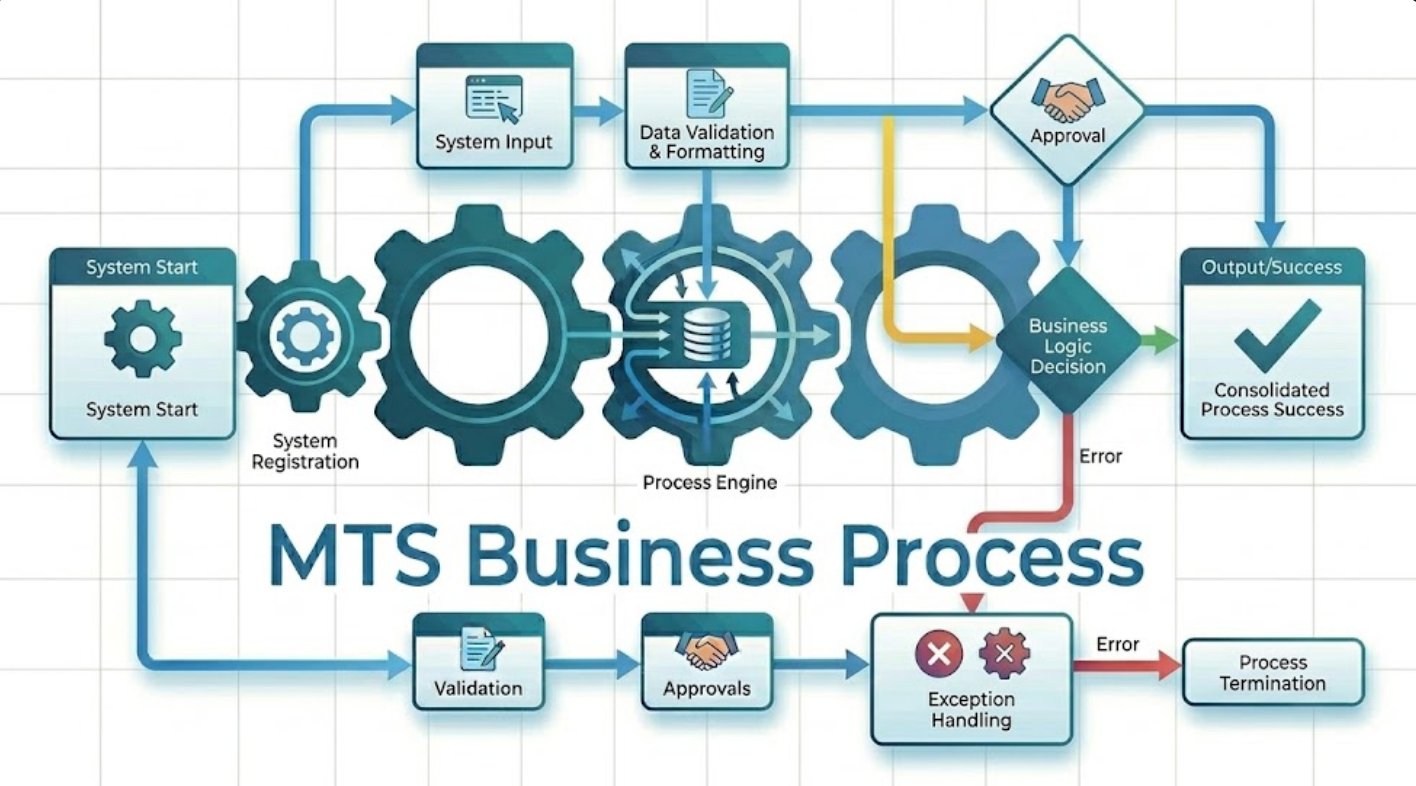
MTS Business Process is a SuiteCRM 8 plugin that lets you design and automate multi-step business processes directly inside your CRM — no coding required. When a record is saved, the process starts automatically: it checks conditions, runs actions, waits for the right moment, and logs every step. It is the only SuiteCRM plugin that combines a visual process designer, time-based delays, condition listeners, and a full activity log in one integrated package.
Release Notes
MTS Business Process — Release Notes for SuiteCRM 8
Version 1.0.0 (2026-06-02)
Initial Release
New Features
Visual Process Designer - Draw business processes as a node-based diagram directly inside SuiteCRM — no coding required. - Drag steps (Start, Criteria Check, Action, Delay, End) onto the canvas and connect them with arrows. - Configure each step by clicking on it — settings appear in a panel on the right. - Validate the process design before activating to catch missing connections or duplicate start steps. - Use a Starter Process template to begin with a pre-built structure and customise from there.
Process Version Control - Every time you activate a process, a new immutable version is saved. - Running processes continue on the version that was active when they started. - Change the active version at any time without affecting in-progress runs.
Criteria Check Step - Evaluate any field on a record against a fixed value, another field, or "has changed" detection. - Combine multiple conditions with AND or OR logic. - Branch the process down a TRUE or FALSE path based on the result. - Choose which record to evaluate: the record that triggered the process, or a record created by a previous step.
Criteria Check with Condition Listener - Turn any Criteria Check step into a listener that waits and re-checks at a configurable interval (minutes, hours, days, or weeks) instead of branching immediately. - Set a timeout by duration or by a specific date — when the deadline passes, the process continues on the FALSE path.
Action Steps - Run any SuiteCRM workflow action — modify a record, send an email, create a related record, calculate fields, and more. - When a Create Record action runs, the new record becomes the focus for all following steps in the same process. - Name the output of a Create Record action so that later Criteria Check steps can evaluate that specific record.
Delay Step - Pause a process for a set duration (minutes, hours, days, or weeks). - Or pause until a specific date and time. - Delayed processes are resumed automatically by the background scheduler.
Process Run Control - Choose when a process starts: on any save, only when a record is created, or only when a record is updated. - Control re-entry: run once per record ever, run again after the previous run completes, or start a new run on every save. - Optionally include records created via the SuiteCRM import tool.
Process Activity Monitor - View all process runs across all processes from one screen. - Three tabs: Process Runs (one row per execution), Waiting Steps (paused jobs), and Activity Log (step-by-step event history). - Visualize any run on a highlighted map of the process diagram showing the path taken and the current step.
View Process Runs on Records (SuiteCRM 8) - On any SuiteCRM 8 record that has process runs, a View Process Runs button appears in the record action bar. - Click it to open an overlay showing every run for that specific record, without leaving the record view.
Background Scheduler
- A dedicated scheduler job (MTS Process Runtime: Process Wait Queue) processes all pending Delay and Condition Listener jobs every minute.
- Retries failed jobs automatically up to 3 times before marking them as permanently failed.
Structured Activity Log - Every state transition is recorded: process started, condition checked, action run, delay scheduled, process completed or failed. - Each log entry includes a severity level, an event name, a human-readable message, timing, and a full detail snapshot. - Log entries are numbered in sequence per run for easy reading.
Licence Management - Enter and validate your SuiteCRM Store licence key from Admin → MTS Business Process. - Licence is re-validated automatically every 7 days — no manual renewal actions required between billing periods.
Known Limitations
- Parallel branches (two steps running at the same time from one step) are not supported in this release. All processes follow a single path.
- Each process design can target one module at a time. Cross-module triggers require separate process definitions.
- The condition listener re-check interval is the same for all checks in a run — per-node intervals are not available yet.
- The visual designer is optimised for modern browsers. Internet Explorer is not supported.
Upcoming Features (Roadmap)
Version 1.1 (Planned)
- [ ] Choose which specific field change starts a process, instead of any save
- [ ] Duplicate an existing process design with one click
- [ ] Set a process to run on a recurring schedule (e.g. every Monday at 9am) rather than only on record save
- [ ] Export and import process designs between SuiteCRM instances
Version 1.2 (Planned)
- [ ] Parallel step paths — run two branches at the same time and merge them back
- [ ] Assign a task to a specific user from within a process step
- [ ] Notify a user inside SuiteCRM (not just by email) when a process reaches a specific step
- [ ] Filter the Process Activity monitor by module, status, or date range
Upgrade Notes
Activating your licence after purchase
- Log in to SuiteCRM as an administrator.
- Go to Admin → MTS Business Process.
- Paste your licence key from the SuiteCRM Store into the Licence Key field.
- Click Validate Licence.
- A green confirmation message confirms activation.
Reinstalling after a SuiteCRM upgrade
- Go to Admin → Module Loader → Installed Packages.
- Uninstall MTS Business Process, choosing Keep to preserve your data.
- Upload and install the latest version of the plugin.
- Go to Admin → Quick Repair and Rebuild and run a full repair.
- Go to Admin → Schedulers and confirm the MTS Process Runtime: Process Wait Queue scheduler is Active.
- Re-enter your licence key in Admin → MTS Business Process if it is not already shown as valid.
Version History
| Version | Date | Notes |
|---|---|---|
| 1.0.0 | 2026-06-02 | Initial release |
- Website: mientrungsoft.com
- Email: anhnhatuit@gmail.com
- WhatsApp: +84973131884
 Saving Comment...
