

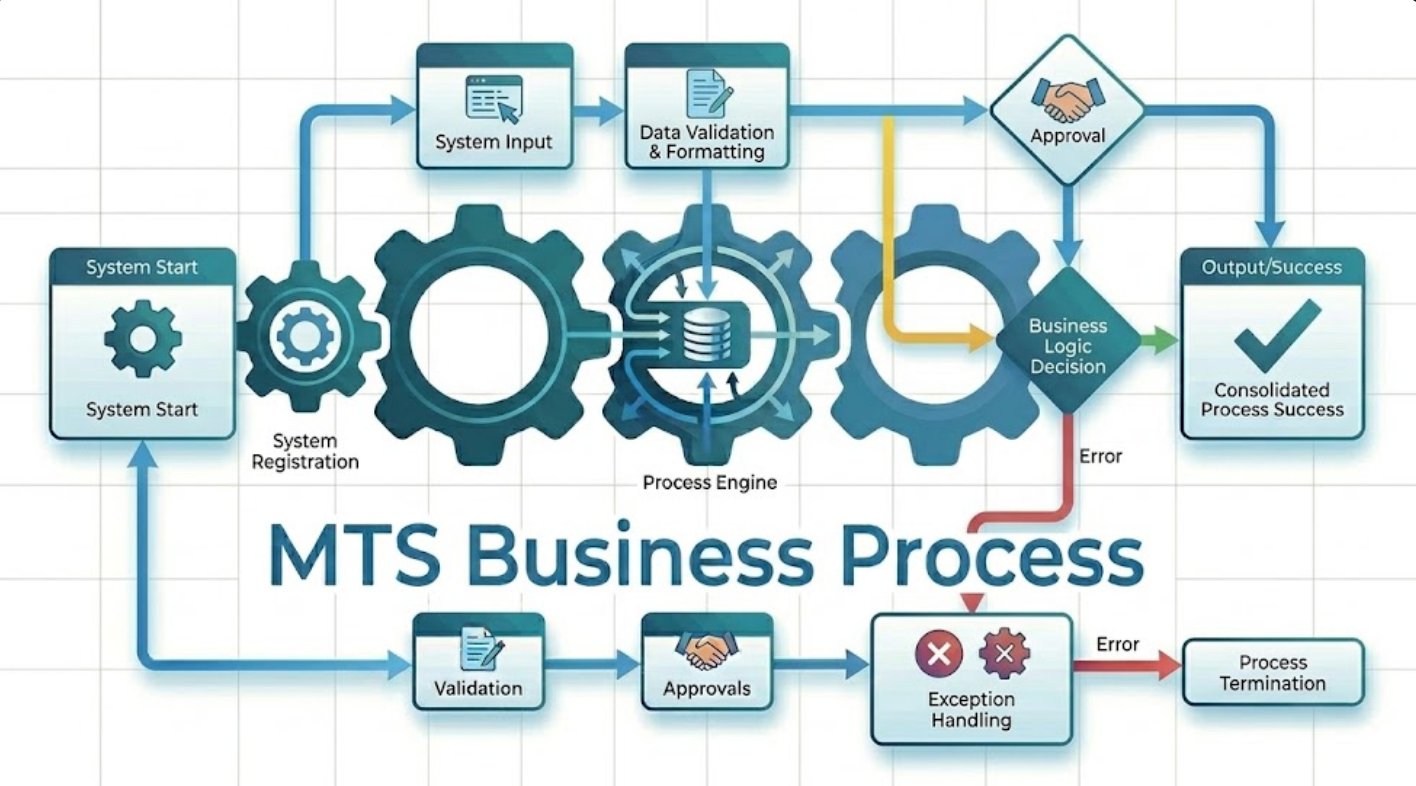
MTS Business Process is a SuiteCRM 8 plugin that lets you design and automate multi-step business processes directly inside your CRM — no coding required. When a record is saved, the process starts automatically: it checks conditions, runs actions, waits for the right moment, and logs every step. It is the only SuiteCRM plugin that combines a visual process designer, time-based delays, condition listeners, and a full activity log in one integrated package.
Installation Guide
MTS Business Process — Installation Guide for SuiteCRM 8
System Requirements
| Requirement | Minimum |
|---|---|
| SuiteCRM | 7.12 or SuiteCRM 8.x |
| PHP | 7.4 or higher |
| Database | MySQL 5.7+ or MariaDB 10.3+ |
| Internet access | Required for license validation |
| SuiteCRM Scheduler | Must be enabled and running |
Installation
Step 1 — Upload the plugin
- Log in to SuiteCRM as an administrator.
- Go to Admin in the top navigation.
- Click Module Loader under the Developer Tools section.
- Click Choose File, select the MTS Business Process ZIP file you downloaded from the SuiteCRM Store, and click Upload.
- When the package appears in the list, click Install.
- Read the licence agreement and click Commit to confirm.
Step 2 — Wait for setup to complete
The installation creates all required database tables and rebuilds the SuiteCRM extensions automatically. This takes 30–60 seconds. Do not navigate away during this time.
When the screen shows "Installation Complete", click Back to Module Loader.
Step 3 — Verify the installation
- Go to Admin → MTS Business Process to open the licence panel.
- Enter your licence key from the SuiteCRM Store and click Validate.
- You should see a green confirmation message.
- Go to the top navigation and confirm that Process Designs appears in the modules menu.
Initial Configuration
Activate the Scheduler
MTS Business Process uses a background scheduler to resume processes that are waiting. Without it, Delay steps and Criteria Check listeners will never continue.
- Go to Admin → Schedulers.
- Find MTS Process Runtime: Process Wait Queue in the list.
- Click Edit on that row.
- Set the status to Active and the interval to Every Minute (*/1 * * * *).
- Click Save.
To confirm the scheduler is working, check back after 2 minutes — the Last Successful Run date should be recent.
Enter Your Licence Key
- Go to Admin → MTS Business Process.
- Paste the licence key you received from the SuiteCRM Store into the Licence Key field.
- Click Validate Licence.
- A green confirmation message confirms activation.
The licence is validated automatically once a week in the background. You do not need to re-enter the key after the initial activation.
Verify Operation
- Go to Process Designs in the navigation menu.
- Click Create Process.
- Fill in a name, choose any module as the Target Module, and save.
- Click Open Designer — the visual process designer should open without errors.
- Return to the Process Designs list to confirm the record appears.
If all three steps succeed, the plugin is installed and working correctly.
Uninstall
- Go to Admin → Module Loader.
- Click the Installed Packages tab.
- Find MTS Business Process and click Uninstall.
- When asked whether to remove database tables, choose your preference:
- Select Remove to delete all process definitions, runs, and logs.
- Select Keep to preserve the data for reference.
- Click Commit to complete the uninstall.
After uninstalling, run Admin → Quick Repair and Rebuild to clear any cached references.
Troubleshooting
The Process Designs menu item does not appear after installation
Go to Admin → Quick Repair and Rebuild and click Repair on the Extensions section. Then log out and back in.
The licence validation shows an error
Check that your SuiteCRM server has outbound internet access. The validation contacts the SuiteCRM Store. If you are behind a firewall, contact your server administrator to allow outbound connections to store.suitecrm.com.
The designer opens but shows a blank screen
Clear your browser cache and reload the page. In SuiteCRM 8, also run Admin → Quick Repair and Rebuild to regenerate front-end assets.
Processes are not continuing after a Delay step
The scheduler is not running. Go to Admin → Schedulers, confirm that MTS Process Runtime: Process Wait Queue is Active and has a recent Last Successful Run timestamp. If the timestamp is not updating, contact your server administrator to verify that the SuiteCRM cron job is configured.
The install shows an error about a duplicate entry
A previous partial installation left data behind. Go to Admin → Module Loader → Installed Packages, uninstall any previous version of MTS Business Process, then reinstall from the fresh ZIP.
- Website: mientrungsoft.com
- Email: anhnhatuit@gmail.com
- WhatsApp: +84973131884
 Saving Comment...
