

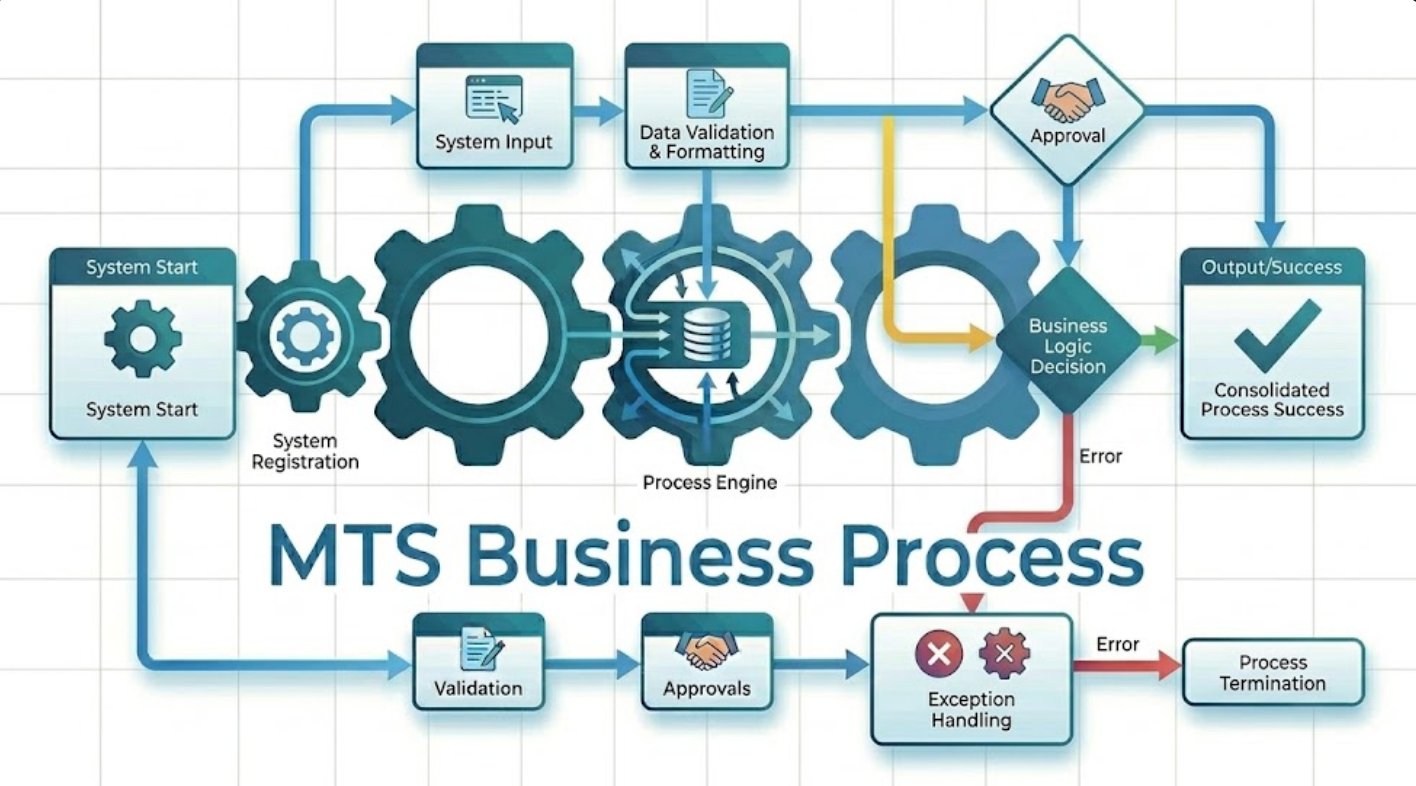
MTS Business Process is a SuiteCRM 8 plugin that lets you design and automate multi-step business processes directly inside your CRM — no coding required. When a record is saved, the process starts automatically: it checks conditions, runs actions, waits for the right moment, and logs every step. It is the only SuiteCRM plugin that combines a visual process designer, time-based delays, condition listeners, and a full activity log in one integrated package.
FAQ
MTS Business Process — Frequently Asked Questions for SuiteCRM 8
General Questions
What does MTS Business Process do?
MTS Business Process lets you automate multi-step workflows inside SuiteCRM — without any coding. You draw a process as a diagram, set conditions and actions, and activate it. The process runs automatically whenever a record is saved.
Who is this plugin for?
It is for SuiteCRM administrators and operations managers who need to automate business rules that currently rely on manual steps, reminders, or separate tools. No programming knowledge is required to create or manage processes.
Does saving a record become slower when a process is active?
No. The process starts immediately after saving, but it runs in the background. The user sees the record saved instantly — the process has no visible effect on save speed.
Can I have multiple processes on the same module?
Yes. You can create as many process designs as you need for the same module. All active processes targeting that module are evaluated every time a record is saved.
Installation Questions
Where do I get the plugin?
Download it from the SuiteCRM Store after purchase. Go to your account page, find MTS Business Process in your purchases, and download the ZIP file.
What do I do immediately after installing?
Two things: enter your licence key in Admin → MTS Business Process, and confirm that the MTS Process Runtime: Process Wait Queue scheduler is Active in Admin → Schedulers. Without the scheduler, processes with Delay steps or condition listeners will not continue.
Does installation affect existing SuiteCRM data?
No. Installation only adds new database tables and registers the plugin. Your existing records, modules, and workflows are not changed.
Configuration Questions
How do I create my first process?
Go to Process Designs, click Create Process, fill in the name and target module, save, then click Open Designer. Drag steps onto the canvas, connect them, configure each step, and click Save & Activate.
What modules can a process target?
Any module in your SuiteCRM installation — standard modules like Leads, Contacts, Opportunities, and Cases, as well as custom modules created in Studio or by other plugins.
Can a process create records in a different module?
Yes. Add an Action Step and choose the Create Record action. Select the module to create the record in and fill in the field values. If you give the new record a name (for example, "new_case"), later steps in the same process can target that record specifically.
How do I control whether the same record goes through a process more than once?
Open the process settings and look for Re-enter Process. Choose "Only the first time this record matches" to run once per record ever, "Any time it matches, if the record is not already in this process" to allow re-entry after completion, or "Any time it matches, even if a previous run exists" to always start a new run on every save.
Can a process wait for a field to change before continuing?
Yes. Add a Criteria Check step, configure the condition, then open the Listener tab and turn on Wait for Condition. Set how often to re-check and an optional deadline. The process pauses and re-checks the record at each interval until the condition is met or the deadline passes.
Usage Questions
Why did my process not start when I saved a record?
The most common reasons are: the process status is still Draft (not activated), the Start When setting is set to a different save type than the one you performed, or the record belongs to a module that is excluded from processing (internal MTS modules and SuiteCRM workflow modules are excluded). Ask your administrator to check the process settings and the activity log.
What does a "Waiting" status mean on a process run?
The process has paused at a Delay step or a Criteria Check step with the Wait for Condition option enabled. It will continue automatically when the delay period ends or the condition is met on the next check.
A process failed — what do I do?
Open the record, click View Process Runs, and look at the Issue column. Click View details in the activity log to read the full error. Share the error message with your administrator, who can identify whether it was a configuration issue (such as a missing required field) or a one-time technical problem.
Can I cancel a process that is stuck or running incorrectly?
Only administrators can cancel a process run. Contact your administrator, identify the process name and record, and they can cancel the run from the Process Activity monitor.
Does the process run when a record is imported?
Only if the Include Imported Records setting is turned on in the process settings. By default it is off, so imports do not trigger processes.
Security Questions
Who can create and edit process designs?
Only SuiteCRM administrators can create, edit, or activate process designs. Regular users cannot access the Process Designs module.
Can a process access records the logged-in user cannot see?
No. Processes respect SuiteCRM's standard security groups and role-based permissions. If an action creates a record, the record is created with admin-level context, but visibility follows your normal security group rules.
Is my licence key stored securely?
Yes. Your licence key is stored in the SuiteCRM Administration settings table, which is only accessible to SuiteCRM administrators. It is never exposed in the browser or in log files.
Troubleshooting Questions
The View Process Runs button does not appear on my record
The button only appears on modules that have at least one process run recorded. If no process has ever run on a record of that type, the button is not shown. Activate a process for that module and save a record to trigger the first run.
Processes are not continuing after a Delay step
The SuiteCRM Scheduler is not running. Go to Admin → Schedulers, find MTS Process Runtime: Process Wait Queue, and check the Last Successful Run timestamp. If it is not recent, contact your server administrator to fix the cron job.
The process designer opens but the canvas is blank after saving
Clear your browser cache and reload. In SuiteCRM 8, also run Admin → Quick Repair and Rebuild and reload. If the issue persists, check the browser console for network errors and contact support.
A module is not available in the Target Module dropdown
Only modules that are installed and registered in your SuiteCRM instance appear in the list. If a custom module is missing, run Admin → Quick Repair and Rebuild to refresh the module registry, then check again.
The licence validation always fails
Your server may be blocking outbound connections to the SuiteCRM Store. Ask your server administrator to confirm that outbound HTTPS connections to store.suitecrm.com are permitted.
Billing Questions
What is included in the yearly subscription?
The yearly subscription includes all updates released during the subscription period, access to new features, and email support. After the year expires, the plugin continues to work but you will not receive updates until you renew.
Can I use one licence on multiple SuiteCRM servers?
One licence key covers one SuiteCRM installation. If you run separate staging and production environments, you may need to contact us for additional licence terms.
What happens when my subscription expires?
The plugin continues to function. Licence validation will show a warning in the admin panel, but running processes are not interrupted. To receive future updates and remove the warning, renew your subscription from the SuiteCRM Store.
Is a one-time / lifetime licence available?
Yes. Contact us through the website for one-time and enterprise licensing options.
How It Works Questions
Does the process check run in real time or after saving?
The process starts immediately after the record is saved. Simple processes with no Delay steps complete within a second or two of the save. Processes with Delay or Condition Listener steps pause and are resumed by the background scheduler.
How many steps can a process have?
There is no practical limit on the number of steps you can design. The execution engine limits a single run to 500 step transitions to protect against infinite loops — a limit you are very unlikely to reach in a real business process.
If a Create Record action runs, does the new record also trigger processes?
Yes, if there is an active process targeting the newly created record's module. This is the intended behaviour — the new record goes through its own lifecycle independently. Actions inside a running process do not loop back into the same process.
Are custom fields on SuiteCRM modules supported in conditions?
Yes. Criteria Check steps show all fields available on the selected module, including custom fields added through SuiteCRM Studio.
- Website: mientrungsoft.com
- Email: anhnhatuit@gmail.com
- WhatsApp: +84973131884
 Saving Comment...
