


TeamPulse for SuiteCRM is an AI-powered behavioral intelligence extension that transforms CRM activity into actionable coaching signals, discipline scoring, and momentum insights. TeamPulse helps you detect sales execution gaps before they impact revenue. It turns everyday CRM activity into clear coaching signals, discipline scores, and early performance insights — so managers can act before pipeline problems appear.
Admin Guide
TeamPulse for SuiteCRM — Admin Guide
Audience: SuiteCRM administrators and extension managers Purpose: Complete reference for installation, configuration, and all Settings options
Installation
Requirements
- SuiteCRM 7.10+ or 8.x
- PHP 8.1 or higher
- MySQL 5.7+ or MariaDB 10.3+
- SuiteCRM cron job active (required for scheduled reports and AI cache refresh)
Install Steps
- Download the correct ZIP for your license plan from the SuiteCRM Store:
TeamPulse-v0.9.9-monthly.zip— Monthly subscriptionTeamPulse-v0.9.9-yearly.zip— Yearly subscriptionTeamPulse-v0.9.9-onetime.zip— One-time purchaseTeamPulse-v0.9.9-dev.zip— Development/testing (bypass mode)
- Log in to SuiteCRM as Administrator.
- Go to Admin → Module Loader.
- Upload the ZIP. Wait for the upload to complete.
- Click Install. The installer creates 4 custom tables, registers the scheduler, and writes navigation extension files.
- Required: Go to Admin → Repair → Quick Repair and Rebuild. This compiles the navigation extension files so the TeamPulse module tab appears in the top navigation bar ("ALL" and module dropdowns).
- Navigate to TeamPulse via the top navigation bar (ALL → TeamPulse), the Profile icon dropdown, or Admin → TeamPulse Dashboard.
If TeamPulse doesn't appear in the top navigation after QRR: Go to Admin → Display Modules and Subpanels, find TeamPulse in the Hidden column, drag it to Displayed, and save. Then hard-refresh your browser (Ctrl+Shift+R).
What the Installer Creates
| Resource | Detail |
|---|---|
teampulse_config |
Stores all settings (AI keys, scoring weights, demo mode flag, etc.) |
teampulse_cache |
Caches AI summaries and scoring results to reduce DB load |
teampulse_ai_queue |
Queue for async AI summary generation |
teampulse_journal |
Stores manager coaching journal entries |
teampulse_actions |
Stores coaching notes, kudos, and alerts sent to reps |
| Scheduler entry | "TeamPulse — AI Summary & Cache Refresh" running every 30 minutes |
| Entry Point | ?entryPoint=TeamPulseAPI for asset delivery |
| GlobalLinks | TeamPulse link in Profile icon dropdown |
| Admin navigation | TeamPulse section in Administration page |
Uninstall
Admin → Module Loader → Installed Packages → TeamPulse → Uninstall. This removes all custom tables. Re-run Quick Repair and Rebuild after uninstall to clean navigation entries.
Accessing Settings
Navigate to TeamPulse → click Settings in the left sidebar. Settings has six tabs: General, Scoring Rules, AI & Data, License, Debug, Support.
Settings → General
This tab controls the core operational mode of TeamPulse and shows the API connection status.
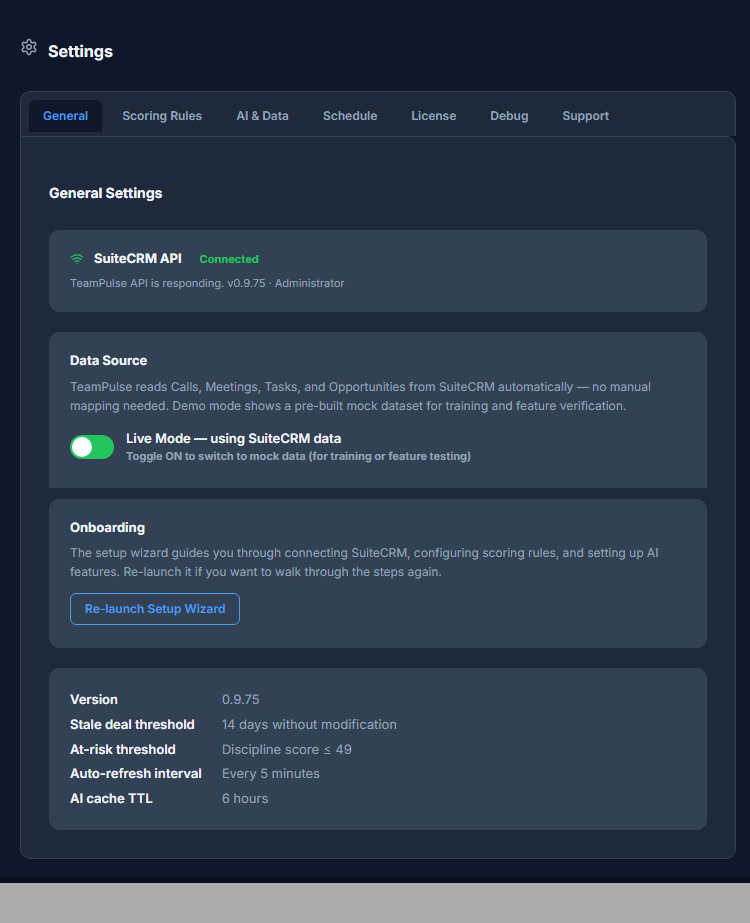
SuiteCRM API Status
A live connectivity check that runs automatically when the Settings page opens. It calls op=ping on the PHP backend and reports:
- Connected (green) — TeamPulse PHP API is responding. Shows the TeamPulse version and logged-in username.
- Unreachable (red) — PHP API is not responding. Shows the raw error message. Common causes: module not installed correctly, entry point not registered, SuiteCRM caches need rebuilding.
Fix for Unreachable: Run Admin → Repair → Quick Repair and Rebuild, then reload the page. If still failing, check the error detail shown below the status badge — it shows the exact HTTP or parse error.
Data Source Toggle
Controls whether TeamPulse uses your live SuiteCRM data or the built-in demo dataset.
- Live Mode — reads real CRM data: users, calls, meetings, tasks, opportunities. Requires a valid license key (or dev bypass on development installs).
- Demo Mode — loads a pre-built dataset of 10 fictional reps across 3 teams. Use for training, feature demonstrations, or when the CRM data is not yet set up.
Important: Switching from Demo to Live requires a valid license. If no license key is entered, the Live toggle is blocked with an inline error message directing you to Settings → License.
The demo/live preference is saved both to the database and to browser localStorage. This means it survives page reloads even if the database connection is temporarily unavailable.
Onboarding Wizard
The Setup Wizard walks through: API connection test, scoring weight review, and AI configuration. It appears automatically on first install.
Re-launch Setup Wizard button: Clears the onboarding_complete flag and shows the wizard on next page load. Use this when onboarding a new team member who manages TeamPulse.
System Information
A read-only block showing: TeamPulse version, stale deal threshold (14 days), at-risk score threshold (≤49), auto-refresh interval (5 minutes), AI cache TTL (6 hours).
Settings → Scoring Rules
Scoring Rules shows the five discipline factors and their contribution weights.
The Five Factors
| Factor | Default Weight | What it measures |
|---|---|---|
| Follow-up Consistency | 25% | Whether calls and tasks are logged promptly after meetings |
| Task Completion | 20% | Ratio of tasks completed on time vs overdue |
| CRM Update Frequency | 15% | How often the rep logs activities and updates deals |
| Deal Hygiene | 20% | Percentage of open deals touched within 14 days |
| Activity Continuity | 20% | No multi-day gaps in CRM activity |
Current Behaviour (v0.9.9)
Weights are currently displayed as read-only progress bars. Custom weight configuration — adjusting sliders and saving to the database — is planned for v1.0. The current defaults reflect field-validated benchmarks and are appropriate for most SaaS and SMB sales teams.
Interpreting the Weights
Weights determine which behaviours matter most in your team's score. A team that runs a high-volume outbound model (many calls per day) might benefit from a lower Follow-up weight and a higher CRM Update weight. A team focused on complex deals might weight Deal Hygiene and Activity Continuity more heavily. Contact support if you need custom weights configured as a one-time database update before v1.0 ships.
Score Calculation
The final discipline score is a weighted average of the five factor scores. Each factor score is calculated independently using raw activity counts from the SuiteCRM database, normalised against a configurable target (e.g. 10 calls per week = 100% on call factor). The ScoringEngine runs server-side in PHP on every op=scores request.
Settings → AI & Data
This tab configures the AI provider used for summaries, coaching briefs, and AI-drafted journal entries.
AI Provider
Choose from:
- InsightEngine (built-in) — rule-based analysis with no API key required. Generates verdicts, pattern cards, and coaching briefs from scoring data alone. Always available.
- OpenAI — GPT-4o, GPT-4o Mini (recommended), GPT-4 Turbo, GPT-3.5 Turbo
- Azure OpenAI — your own Azure-hosted GPT-4 deployment
- Google Gemini — Gemini 2.0 Flash (recommended), 1.5 Flash, 1.5 Pro
- Ollama (local) — Llama 3.2, Mistral, Phi-3, Qwen 2.5, and others for on-premises deployments
API Key (BYOK)
Paste your API key in the field. Keys are stored encrypted in teampulse_config (is_encrypted=1). They are never transmitted to anyone except the AI provider you choose.
For Azure OpenAI, additionally fill in:
- Endpoint URL — your Azure resource endpoint
- Deployment Name — the model deployment name in your Azure portal
For Ollama, fill in:
- Endpoint URL — your Ollama server URL (default:
http://localhost:11434)
AI Model
A dropdown filtered to models available for the selected provider. For most teams, GPT-4o Mini (OpenAI) or Gemini 2.0 Flash (Google) provides the best balance of quality and cost. The built-in InsightEngine generates comparable coaching briefs for free with no external API call.
Custom Prompt
An optional text field to append custom instructions to the AI summary prompt. Example: "Always include deal size context when mentioning pipeline hygiene. Refer to reps by first name only." Leave blank to use the default prompt.
AI Cache TTL
AI summaries are expensive to generate on every page load. The cache stores the last generated summary for 6 hours. You can clear the cache manually from the Debug tab.
Save
Click Save AI Settings to persist all AI configuration. A green "Saved successfully" confirmation appears. Settings take effect on the next summary generation (either triggered by user viewing AI Summary, or by the scheduler).
Settings → License
This tab manages your TeamPulse license key.
License Status
Shows the current license state:
- Licensed (green shield) — valid key, all features unlocked
- Unlicensed (red shield) — no key entered; demo mode enforced
- Active (dev environment) — localhost or
.localdomain; dev bypass active - Trial — trial key; shows days remaining
Entering a License Key
- Purchase a plan at the SuiteCRM Store (TeamPulse listing).
- Copy the license key from your Store account or the purchase confirmation email.
- Paste it into the License Key field.
- Click Activate. The key is validated against the SuiteCRM Store API.
- On success, the status changes to "Licensed" and Demo mode is automatically turned off.
Plan Keys
Each installable ZIP contains the validation key for its plan only:
- Monthly plan ZIP validates only Monthly keys
- Yearly plan ZIP validates only Yearly keys
- One-Time plan ZIP validates only One-Time keys
- Dev ZIP contains all plan keys plus dev bypass
This means a monthly key will not validate on a yearly-plan installation and vice versa. Ensure you upload the ZIP that matches your purchase.
Dev Bypass
On development environments (localhost, .test, .local domains), the license check automatically allows live mode without a key. This bypass is visible only on those domains and is disabled on production installs. The dev ZIP also forces dev_license=1 so the installer defaults to bypass mode.
Removing a License
Clear the license key field and click Save. The extension reverts to demo mode until a valid key is entered. The license state is stored in teampulse_config.
Settings → Debug
The Debug tab provides diagnostic tools for administrators and support.
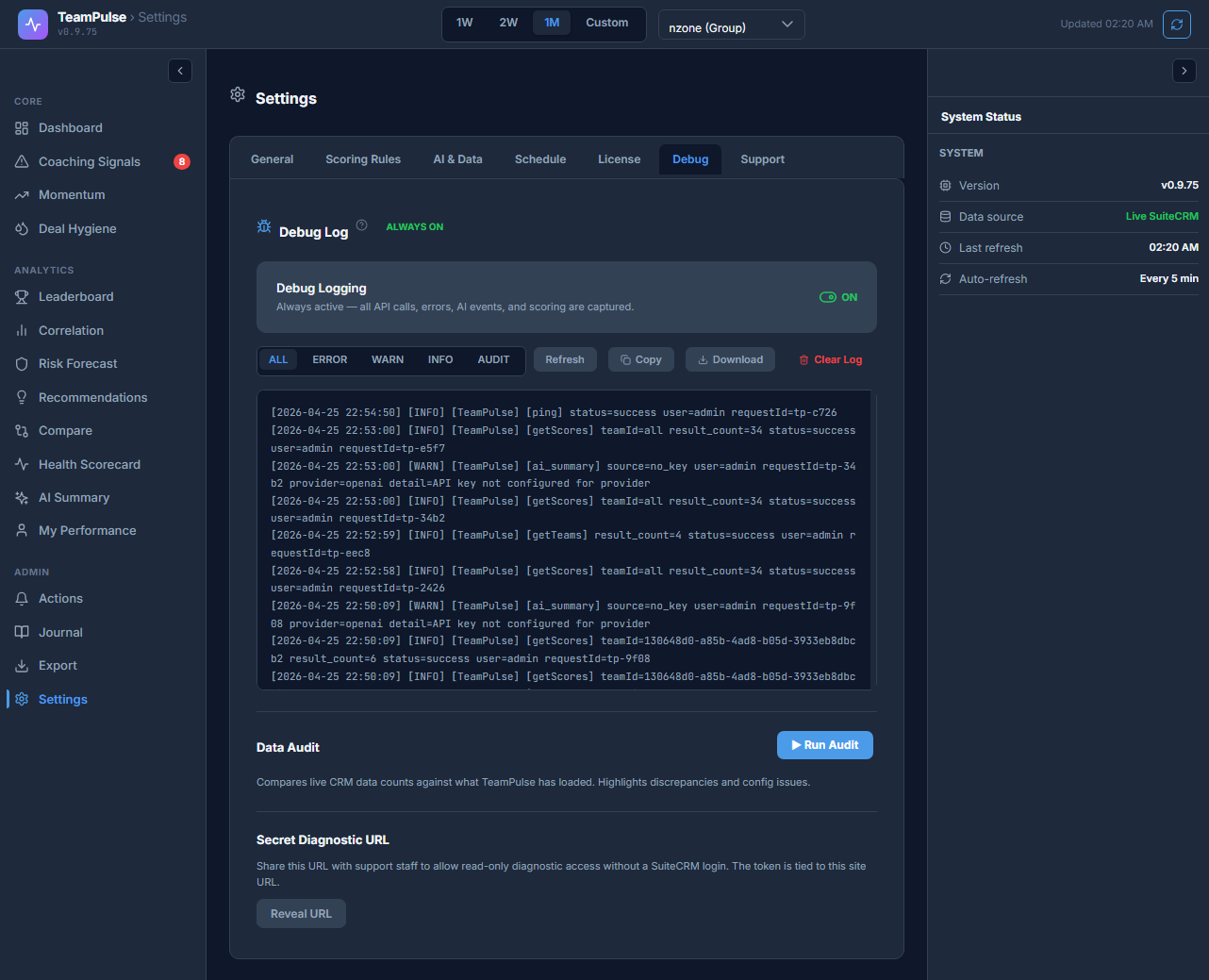
API Log
A scrollable view of recent TeamPulse API calls and their results. Each log entry shows:
- Timestamp
- Operation name (
op=scores,op=ping, etc.) - Duration in milliseconds
- Status (success / error)
- Any error message
Log level is always ON (v0.9.7+). Log entries are stored in the file system, not the database, so they persist across requests. The log file path is shown at the bottom of the tab.
Log level filter: ALL, INFO, WARN, ERROR, AUDIT. Use AUDIT to see only license-related and data-audit events.
Clear Log — empties the log file. A confirmation dialog appears before deletion.
Data Audit
Run Audit performs a reconciliation check between TeamPulse's loaded data and the raw SuiteCRM database:
- Active user count (DB vs loaded)
- TeamPulse table existence check
- PHP version, SuiteCRM version
- Service initialization status (UserDataProvider, ScoringEngine, etc.)
Result is PASS or WARN with a list of specific issues. A PASS confirms the infrastructure is operational.
Note on PASS meaning: PASS confirms tables exist, services initialized, and counts match. It does NOT verify that individual score calculations are mathematically correct for every rep. For data accuracy verification, cross-check one rep's score inputs (calls, meetings, tasks) against the SuiteCRM list views manually.
Audited at timestamp shows when the last audit ran. The audit result includes: TeamPulse version, PHP version, SuiteCRM version (from $sugar_config['sugar_version'] — correctly shows 7.x, not the SugarCRM CE base 6.5.25).
Secret Diagnostic URL
Admin-only. Generates an HMAC-signed URL that allows a support engineer to run a full system diagnostic (op=diag) without requiring admin credentials. The URL expires and is safe to share with the TeamPulse support team.
Share this URL in your support request; it returns a JSON report covering: table status, user counts, service status, PHP and SuiteCRM versions.
Diagnostic Endpoint
Direct URL shown for manual testing:
https://your-crm.com/index.php?module=TeamPulse&action=DetailView&op=ping
Visiting this in a browser as a logged-in admin should return {"success":true,"data":{"pong":true,...}}. If it returns HTML or a redirect, the module routing is not working — run Quick Repair and Rebuild.
Settings → Support
The Support tab lets you contact the TeamPulse team directly from within SuiteCRM, without leaving the CRM.
Review TeamPulse
A yellow card at the top links to the SuiteCRM Store review page. If TeamPulse has been useful, leaving a star rating helps the extension reach more teams and funds continued development.
Send a Support Request
Fill in:
- Your email — where the reply will go
- Category — Bug Report, Feature Request, General Question, Integration Help, Billing
- Description — detailed description of the issue or request
As you fill in the email and description fields, a Review Before Sending block appears showing exactly what will be sent: recipient (support@zybroz.com), reply-to (your email), category-derived subject line, and a summary of your message. If Attach Debug Log is checked (on by default), the last 100 lines of the debug log are appended to help diagnose issues.
Click Send to submit. A confirmation message appears. You will receive a response at your email address.
The Support tab is intentionally the last tab — it is not frequently needed, but it is visible and accessible when something goes wrong.
Scheduler Configuration
TeamPulse registers a SuiteCRM scheduler job during install:
- Name: TeamPulse — AI Summary & Cache Refresh
- Job function:
function::teamPulseCronRun - Interval: Every 30 minutes
This job runs the AI summary queue, expires stale cache entries, and generates any pending scheduled reports.
To verify the scheduler is active: Admin → Schedulers → find "TeamPulse" → status should be "Active."
If scheduled reports are not sending: Check Admin → Schedulers — the TeamPulse row should be Active. Also verify SuiteCRM's cron is configured on your server:
* * * * * cd /path/to/suitecrm; php -f cron.php > /dev/null 2>&1
Multi-Team Setup
TeamPulse reads teams and team membership from SuiteCRM's built-in Teams module.
Assigning Reps to Teams
- In SuiteCRM: Admin → Teams → create your sales teams.
- Assign users to teams via the Teams module or the user's profile.
- In TeamPulse, the Leaderboard and other views offer a Team filter dropdown that lists all teams with at least one active member.
Security Groups
TeamPulse respects SuiteCRM SecurityGroups if the module is installed. Managers see only the reps in their security group. Admins see all reps.
Backup and Recovery
All TeamPulse configuration lives in the teampulse_config table. Back up this table along with your regular SuiteCRM database backup.
The most important rows to preserve:
ai_provider,ai_api_key,ai_model— your BYOK AI configurationlicense_key— your activated license- All
scheduled_report_*keys — your scheduled report configuration
If you need to restore a TeamPulse installation: reinstall the ZIP (which re-creates tables if missing), then import your backup of teampulse_config.
Troubleshooting
| Symptom | Likely Cause | Fix |
|---|---|---|
| TeamPulse not in Profile dropdown | QRR not run after install | Admin → Repair → Quick Repair and Rebuild |
| Blank page after clicking TeamPulse link | Module not installed / file copy failed | Reinstall ZIP, run QRR |
| API Unreachable in General tab | Entry point not registered | Run QRR; check custom/application/Ext/EntryPointRegistry/ |
| All reps show score 0 | ScoringEngine can't read user data | Run Audit in Debug tab; check active user count |
| Demo data shows in Live mode | License check forced demo; localStorage stale | Clear browser localStorage for this domain; re-enter license key |
| Schedule report not sending | Scheduler not active or cron not configured | Admin → Schedulers → verify Active; check server cron |
| Audit shows SuiteCRM 6.5.25 | Old TeamPulseApi.php installed | Reinstall latest ZIP |
function_name error in logs |
Re-install over old version | Non-fatal; pre-clean runs on new installs automatically |
Version History Reference
| Version | Key Change |
|---|---|
| 0.9.7 | License enforcement, crmVersion fix, 4-plan ZIPs, race condition fix, scheduler pre-clean |
| 0.9.5 | Live data integration, SecurityGroups, structured logging |
| 0.9.0 | Live SuiteCRM data (scores from real DB) |
| 0.8.x | Dashboard dashlets, per-page AI insights, Actions & Journal |
| 0.7.x | License framework, BYOK AI (Gemini), Onboarding wizard |
| 0.2.0 | MVP: 10 views, scoring engines, mock data |
 Saving Comment...
